---
title: "How to Change the Map on a 7 Days to Die Server"
description: "Change the map on your Winheberg 7 Days to Die server from the panel, Navezgane, Pregen maps or a random RWG world with seed and size, without losing your current game."
category: jeux
subcategory: 7-days-to-die
icon: tabler:map
date: 2026-11-01
author: Winheberg
slug: "change-map-7-days-to-die-server"
order: 112
image: /statics/images/docs/en/gaming/7-days-to-die/change-map-7-days-to-die-server.webp
tags: [7 Days to Die, Map, Configuration, Game panel]
keywords: [change map 7 Days to Die, 7 Days to Die server map, Navezgane server, Pregen 7 Days to Die, RWG 7 Days to Die, WorldGenSeed, serverconfig.xml GameWorld]
link_fr: "/docs/7-days-to-die/changer-map-serveur-7-days-to-die"
---
## Context
7 Days to Die offers three ways to play the map on your server. Navezgane, the map hand-crafted by the developers. The Pregen maps, random worlds already generated and shipped with the game. And RWG, a random world generated by the server itself from a seed and a size.
Everything is set in `serverconfig.xml`, with four properties. This guide shows you how to change the map from the Winheberg game panel without losing the current game.
## Requirements
- An active [7 Days to Die server](https://winheberg.com/en/gaming/7-days-to-die) on the Winheberg game panel
- Access to the **Console**, **Files** and **Backups** tabs of the server on [panel.winheberg.com](https://panel.winheberg.com/)
- A few minutes ahead of you, an RWG world is generated on first start
## 1. Back up the current game
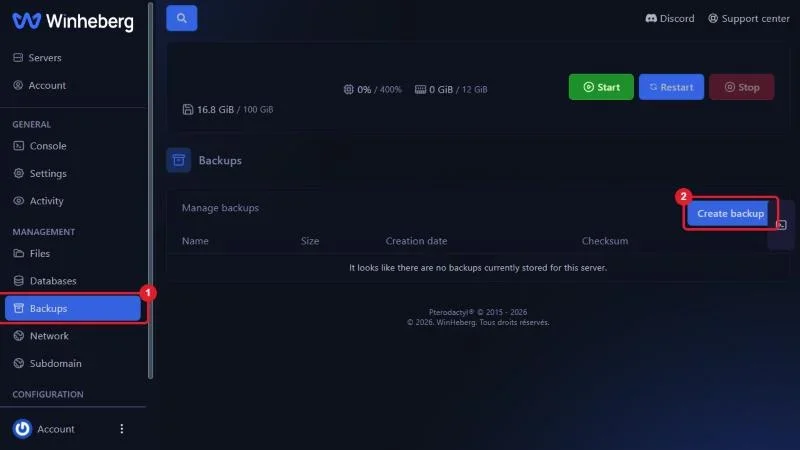
Changing the map starts the server on a new save. The old one stays on disk, but a full backup keeps you safe from any bad surprise.
Open the **Backups** tab and click **Create backup**.
 ## 2. Stop the server
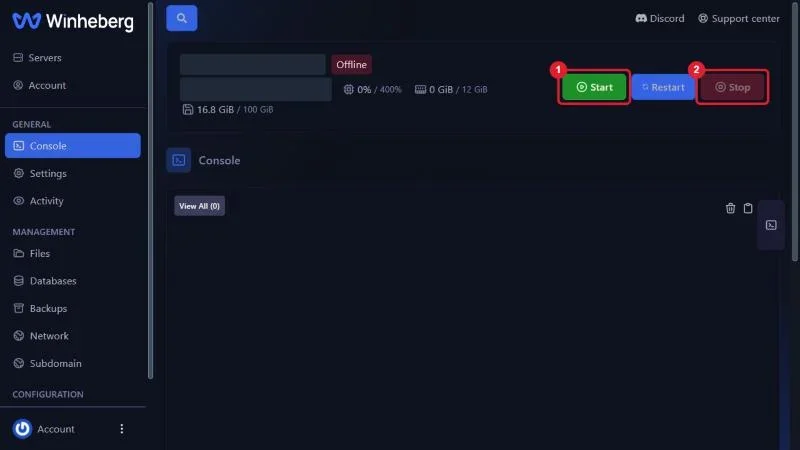
The configuration file is read at startup. Always edit it with the server stopped, otherwise your changes will be overwritten or ignored. In the **Console** tab, click **Stop** and wait for the **Offline** state.
 ## 3. Open serverconfig.xml
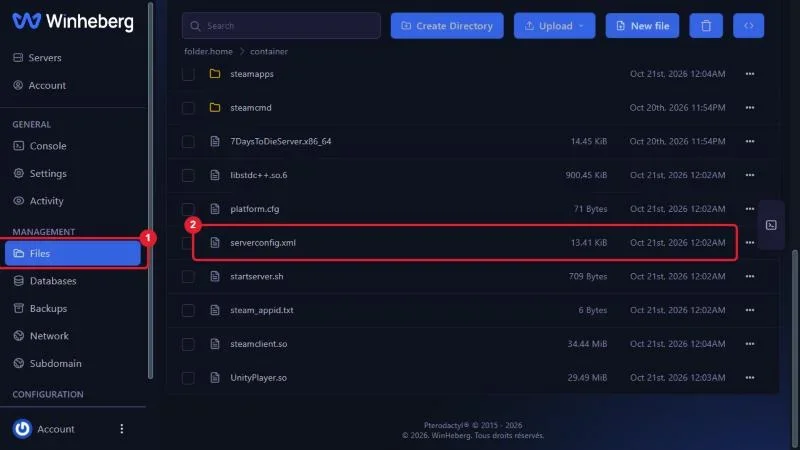
In the **Files** tab, click `serverconfig.xml` at the server root to open it in the editor.
 ## 4. Choose the map
Scroll down to the **World** section, around line 58. The `GameWorld`, `WorldGenSeed`, `WorldGenSize` and `GameName` properties follow each other on four lines.
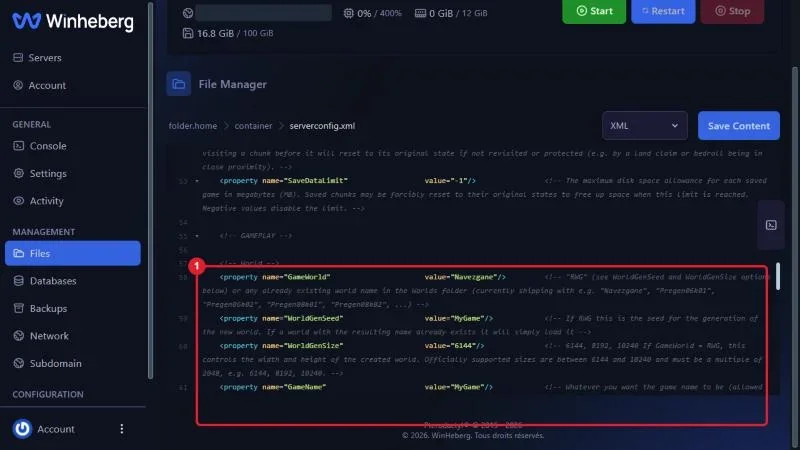 Change the value of `GameWorld` to the map you want.
::MdTable{caption="Possible values for GameWorld" variant="info" striped footer="The names are those of the Data/Worlds folder on the server, they are case sensitive."}
| Value | Resulting map | Generated at startup |
|---|---|---|
| `Navezgane` | Official hand-crafted map | No |
| `Pregen06k01` or `Pregen06k02` | Pre-generated random world, 6 km | No |
| `Pregen08k01` or `Pregen08k02` | Pre-generated random world, 8 km | No |
| `RWG` | Random world generated by your server | Yes |
::
```xml
```
Also change `GameName`. It is the name of the save folder, a different name guarantees a fresh game and leaves the old one untouched. Only letters, digits, spaces, dashes, dots and underscores are accepted.
```xml
```
## 5. Set up a random world
This step only applies to the `RWG` value. For Navezgane and the Pregen maps, skip to step 6, the two properties below are ignored.
- `WorldGenSeed` is the seed. The same text with the same size always produces the same world, handy to share a map between servers or to find it again later
- `WorldGenSize` is the width of the world in metres. The officially supported sizes are `6144`, `8192` and `10240`
```xml
```
> [!WARNING]
> The bigger the world, the longer the generation and the more memory the server uses at startup. Start with `6144` or `8192`, `10240` needs a comfortable plan.
## 6. Save and restart
Click **Save Content** at the top of the editor, go back to the **Console** tab and click **Start**.
With Navezgane or a Pregen map, the server is ready within one to two minutes. With `RWG`, the server first generates the world, then names it from the seed. The console then shows `createWorld` and `World.Load` with that name, followed by your `GameName`.
> [!TIP]
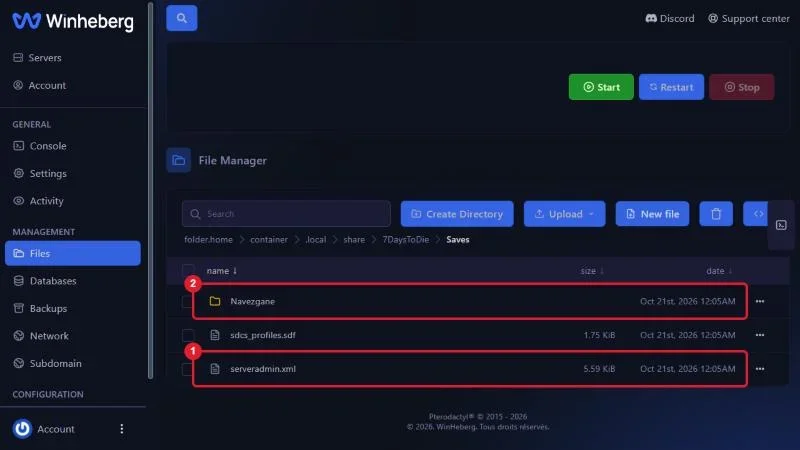
> An RWG world is generated only once. It is stored in `.local/share/7DaysToDie/GeneratedWorlds`, and the saves of each map in `.local/share/7DaysToDie/Saves`, one folder per world then one per `GameName`. Later restarts load the existing world straight away.
 ## Troubleshooting
### ❌ The server still loads the old game
- Check that `GameWorld` was really changed and that the file was saved with the server stopped
- If you went back to a map already played with the same `GameName`, the server logically resumes the old save, change `GameName`
### ❌ The server stops by itself after the change
- A misspelled map name blocks startup, values are case sensitive, `Pregen08k01` and not `pregen08k01`
- With `RWG`, a size that is not a multiple of 2048 is rejected
- Check that the XML file is still valid, one missing quote is enough to break everything
### ❌ RWG generation never ends
- Allow noticeably more time for `10240` than for `6144`, the console must keep printing lines
- If the console is frozen and memory is maxed out, reduce `WorldGenSize` or move to a bigger plan
## Best practices
- Write down the seed and size you used, that is all you need to regenerate exactly the same world
- Give each new game a meaningful `GameName`, for example `Season2-Pregen08k`, you will find the saves more easily
- Warn your players, a map change resets everyone, inventory and base included
- To roll back, restore the previous `GameWorld` and `GameName` values, the old save is still there
- To permanently delete an old game or regenerate a map, follow [How to Reset the World on a 7 Days to Die Server](https://winheberg.com/en/docs/reset-world-7-days-to-die)
## Need help
If the server refuses to start after the map change, open a ticket with our support from your [client area](https://billing.winheberg.com), **Technical** department, with the server involved in the **Related Product** field. Our team can review your `serverconfig.xml` and the startup logs with you. Every property of the file is detailed in [How to Configure Your 7 Days to Die Server](https://winheberg.com/en/docs/configure-7-days-to-die-server)
Your new map is in place, good luck out there 🧟