---
title: "How to Configure Your 7 Days to Die Server"
description: "Configure your Winheberg 7 Days to Die server, the settings still living in serverconfig.xml and the SandboxCode that replaced difficulty, loot, zombies and blood moons in V3.0."
category: jeux
subcategory: 7-days-to-die
icon: tabler:settings
date: 2026-09-08
author: Winheberg
slug: "configure-7-days-to-die-server"
order: 87
image: /statics/images/docs/en/gaming/7-days-to-die/configure-7-days-to-die-server.webp
tags: [7 Days to Die, Configuration, SandboxCode, Game panel]
keywords: [serverconfig.xml, 7 days to die sandboxcode, configure 7 days to die server, gamedifficulty removed, lootabundance, bloodmoonfrequency, v3.0]
link_fr: "/docs/7-days-to-die/configurer-serveur-7-days-to-die"
---
## Context
If you are trying to set the difficulty, loot abundance or blood moon frequency of your 7 Days to Die server, you have probably found guides telling you to edit properties such as `GameDifficulty`, `LootAbundance` or `BloodMoonFrequency` in `serverconfig.xml`.
Those properties are gone. Game version V3.0 pulled them out of the file and moved them into a new system, the Sandbox Options, which appears in `serverconfig.xml` as a single property named `SandboxCode`. The official release notes are explicit about it, "some of the legacy options previously set in serverconfig.xml have been moved to a new SandboxCode XML property".
The consequence is straightforward, a large part of the 7 Days to Die server configuration content available online is now out of date. This guide covers what remains in `serverconfig.xml` and how to produce a valid SandboxCode for your Winheberg server.
## Requirements
- An active [7 Days to Die server](https://winheberg.com/en/gaming/7-days-to-die) on the Winheberg game panel
- The game installed on your PC, which is required to generate a SandboxCode
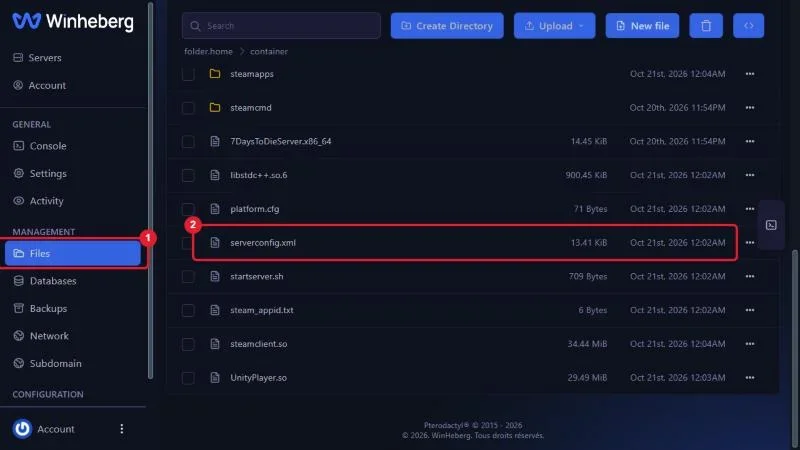
- Access to your server's **Files** tab on [panel.winheberg.com](https://panel.winheberg.com/)
## 1. What left serverconfig.xml in V3.0
Thirty properties were removed from the file and are now carried by the SandboxCode. If a tutorial mentions one of them, that tutorial predates June 2026.
::MdTable{caption="Properties removed from serverconfig.xml in V3.0" variant="info" striped footer="List taken from the official V3.0 Dead Hot Summer release notes."}
| Area | Properties |
|---|---|
| Difficulty and progression | `GameDifficulty`, `BiomeProgression`, `XPMultiplier`, `QuestProgressionDailyLimit` |
| Day cycle and weather | `DayNightLength`, `DayLightLength`, `StormFreq` |
| Zombies | `EnemySpawnMode`, `EnemyDifficulty`, `ZombieFeralSense`, `ZombieMove`, `ZombieMoveNight`, `ZombieFeralMove`, `ZombieBMMove`, `AISmellMode` |
| Blood moons | `BloodMoonFrequency`, `BloodMoonRange`, `BloodMoonWarning`, `BloodMoonEnemyCount` |
| Loot and airdrops | `LootAbundance`, `LootRespawnDays`, `AirDropFrequency`, `AirDropMarker` |
| Block damage | `BlockDamagePlayer`, `BlockDamageAI`, `BlockDamageAIBM` |
| Player death | `DeathPenalty`, `DropOnDeath`, `DropOnQuit`, `JarRefund` |
::
## 2. What stays in serverconfig.xml
The file still holds everything about server identity, networking and the world. These are the settings you will actually touch, edited from the panel's **Files** tab.
 ::MdTable{caption="Common settings still present in serverconfig.xml" variant="info" striped}
| Property | Purpose |
|---|---|
| `ServerName` | Name shown in the server browser |
| `ServerDescription` | Description shown next to the name |
| `ServerPassword` | Access password, leave empty for an open server |
| `ServerMaxPlayerCount` | Number of simultaneous players allowed |
| `ServerVisibility` | `0` unlisted, `1` friends only, `2` public |
| `ServerPort` | Game port, `26900` by default, the two following ports are used as well |
| `GameName` | Save folder name, not just a label |
| `GameWorld` | `Navezgane`, `Pregen06k01`, `Pregen06k02`, `Pregen08k01`, `Pregen08k02`, or `RWG` for a random world |
| `WorldGenSeed` | Generation seed, ignored unless `GameWorld` is `RWG` |
| `WorldGenSize` | Random world size in metres, multiple of 2048 |
| `PlayerKillingMode` | `0` no player killing, `1` allies only, `2` strangers only, `3` everyone |
| `ServerAllowCrossplay` | Lets console players join |
| `EACEnabled` | Anti cheat, set to `false` for compiled mods, see [How to Disable EAC on a 7 Days to Die Server](https://winheberg.com/en/docs/disable-eac-7-days-to-die) |
| `SandboxCode` | The code carrying every gameplay setting |
::
> [!CAUTION]
> `GameName` decides which save folder is used. Changing it on a running server boots a different save, usually an empty one. Your previous game is not lost, it is simply no longer loaded. To start over on purpose, follow [How to Reset the World on a 7 Days to Die Server](https://winheberg.com/en/docs/reset-world-7-days-to-die).
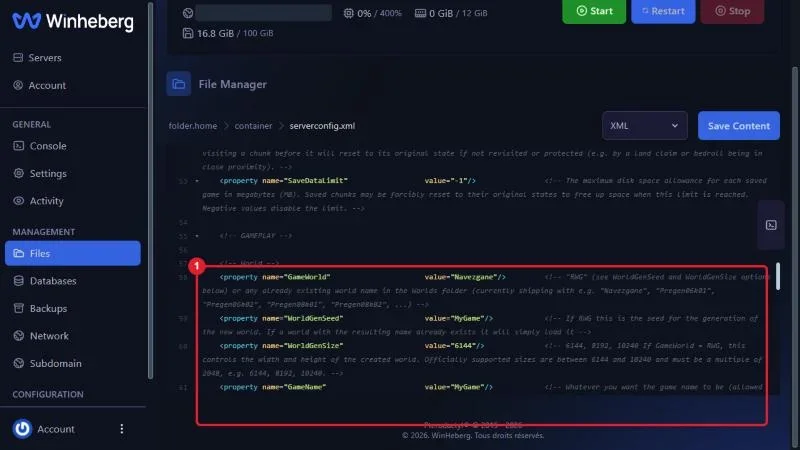
The World section properties, `GameWorld`, `WorldGenSeed`, `WorldGenSize` and `GameName`, follow each other around line 58 of the file.
 ## 3. Generate a SandboxCode
The SandboxCode is neither readable nor editable by hand. It is produced from the game, on your PC.
1. Launch 7 Days to Die and open **Play Game**
2. Go to the **New Game** tab, **Basic** section
3. Open **Sandbox Options** and set everything you want, difficulty, loot, zombies, blood moons, multipliers
4. Copy the Sandbox Code displayed
You end up with a string like the one below, to be kept exactly as is.
```text
AAAJABJACJADJARFBNC
```
> [!NOTE]
> In the official V3.0 release notes, this code is the equivalent of the legacy default Adventurer difficulty. It makes a good starting point if you want to build from a known baseline.
## 4. Apply the code to your server
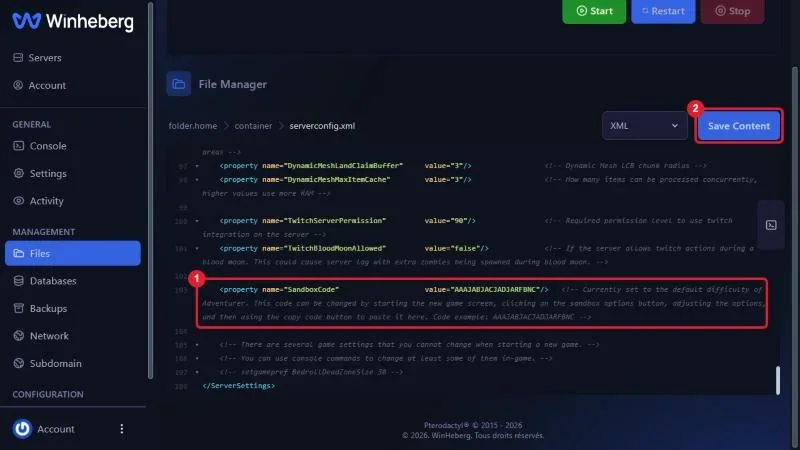
Stop the server from the **Console** tab with **Stop**, then open `serverconfig.xml` in the **Files** tab.
Find the `SandboxCode` line and replace its value with the code you just copied.
```xml
```
Save with **Save Content**, then start the server again with **Start**.
> [!IMPORTANT]
> A SandboxCode generated on an earlier game version can become invalid after an update. The official V3.1 release notes state that existing presets may require updating and that an invalid code makes some or all settings fall back to their defaults, without stopping the server. Regenerate your code from an up to date client after every major update.
 ## Troubleshooting
### ❌ The server rejects the GameDifficulty property
This is the most common symptom since V3.0.
- The property was removed from the file, along with the twenty nine others listed above
- Delete the line from your `serverconfig.xml` and use the SandboxCode instead
- Be wary of ready made configuration files found online, most of them predate V3.0
### ❌ My gameplay settings are not applied in game
- Check that the code was pasted in full, with no stray space or line break
- Confirm the client used to generate the code runs the same version as the server
- Regenerate the code after any major update, an outdated code silently falls back to defaults
### ❌ My game disappeared after a configuration change
- Check the `GameName` value, it is what points to the save folder
- Restore the previous value to get the game back, nothing was deleted
- Check `GameWorld` too, changing the world also changes the folder
## Best practices
- Keep a copy of your `serverconfig.xml` before editing, restoring then takes seconds
- Write down the SandboxCode you use along with the matching game version, it saves redoing every setting blind
- Change one thing at a time and restart, a server that no longer boots is far quicker to diagnose that way
- Check that `GameWorld` and `WorldGenSeed` agree, the seed is ignored on maps that are not randomly generated
- After a major game update, review your configuration before reopening the server, properties may have been removed
## Need help
If the server no longer starts after a `serverconfig.xml` change, or if a setting stubbornly refuses to apply, open a ticket with our support team from your [client area](https://billing.winheberg.com), **Technical** department, with the server in the **Related Product** field. Our team can review the file and the startup logs with you.
Your server now runs the way you want it. 🎮