---
title: "How to Password Protect or Hide Your 7 Days to Die Server"
description: "Password protect your Winheberg 7 Days to Die server, remove it from the server browser with ServerVisibility, and declare the right region and language in serverconfig.xml."
category: jeux
subcategory: 7-days-to-die
icon: tabler:lock
date: 2026-11-01
author: Winheberg
slug: "password-private-7-days-to-die-server"
order: 111
image: /statics/images/docs/en/gaming/7-days-to-die/password-private-7-days-to-die-server.webp
tags: [7 Days to Die, Password, Security, Game panel]
keywords: [7 Days to Die server password, private 7 Days to Die server, ServerVisibility, ServerPassword, hide 7 Days to Die server, serverconfig.xml, 7 Days to Die server region]
link_fr: "/docs/7-days-to-die/mot-de-passe-serveur-prive-7-days-to-die"
---
## Context
By default, a 7 Days to Die server is public, listed in the in-game server browser and open to anyone who finds it. For a server with friends, that is rarely what you want.
Two settings in `serverconfig.xml` are enough to take back control, the access password and the visibility in the list. Two more, region and language, decide where and by whom your server is found if you leave it public. This guide covers all four from the Winheberg game panel.
## Requirements
- An active [7 Days to Die server](https://winheberg.com/en/gaming/7-days-to-die) on the Winheberg game panel
- Access to the **Console** and **Files** tabs of the server on [panel.winheberg.com](https://panel.winheberg.com/)
> [!NOTE]
> The password protects the entrance, not the players' identity. To accept only a precise list of people, the [whitelist](https://winheberg.com/en/docs/enable-whitelist-7-days-to-die) is the right tool, and both combine very well.
## 1. Stop the server
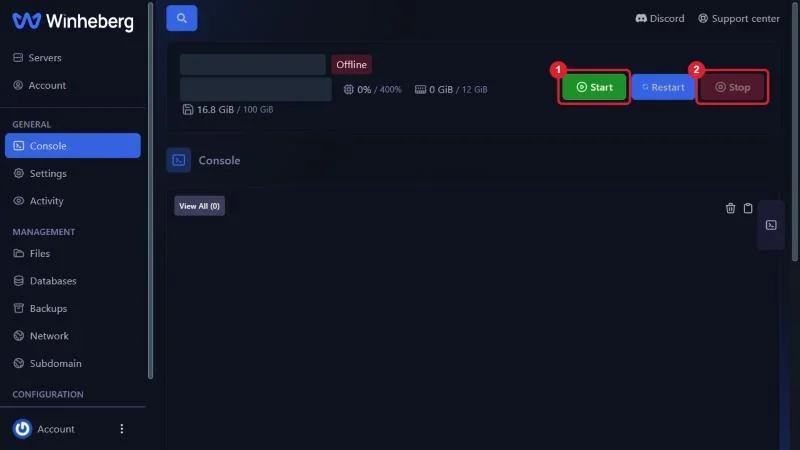
Open the **Console** tab, click **Stop** and wait for the **Offline** state. The configuration file is only read at startup, a change made while the server runs would be ignored.
 ## 2. Open serverconfig.xml
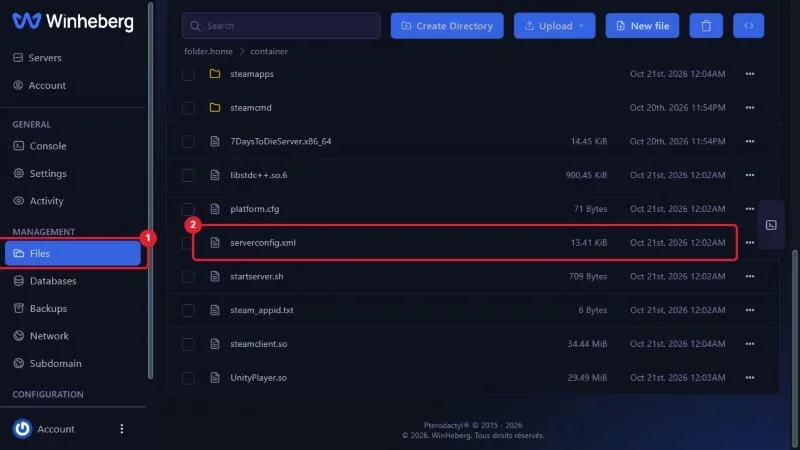
In the **Files** tab, click the `serverconfig.xml` file at the server root to open it in the editor.
 Every setting in this guide sits within the first twenty lines of the file.
 ## 3. Set a password
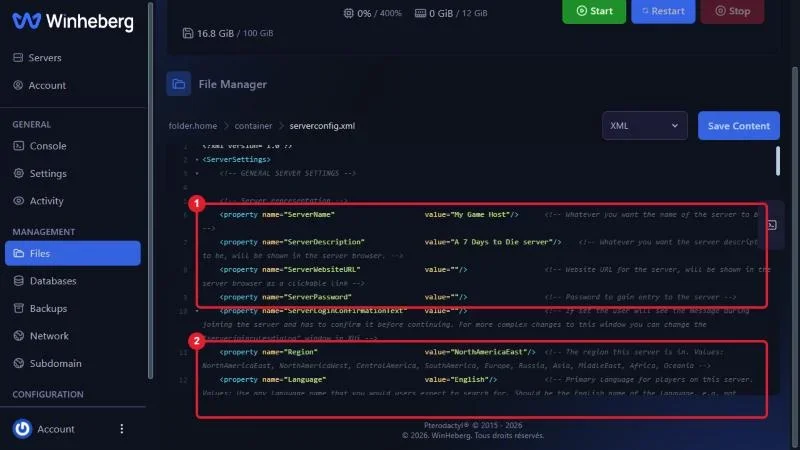
Find the `ServerPassword` line and put your password between the quotes. Empty, the server is open.
```xml
```
Take the opportunity to give the server a real name with `ServerName`, it is what your players will see in their list, and a description with `ServerDescription`.
> [!TIP]
> Avoid quotes and special characters in the password, they break the XML syntax or get mistyped by players. Letters, digits and dashes are enough.
## 4. Choose the visibility
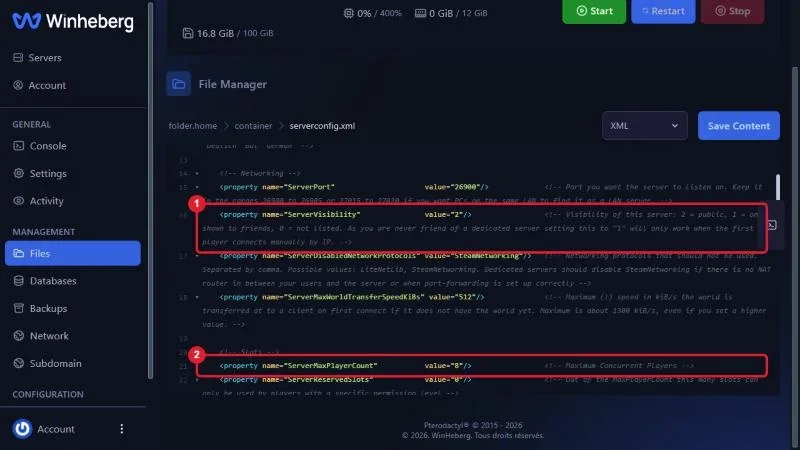
The `ServerVisibility` property decides whether the server shows up in the in-game server browser.
 ::MdTable{caption="ServerVisibility values" variant="info" striped footer="Default value, 2."}
| Value | Effect |
|---|---|
| `2` | Public, visible to everyone in the list |
| `1` | Visible only to the Steam friends of players already connected |
| `0` | Unlisted, the server can only be joined by its address |
::
For a private server, `0` is the right choice, combined with the password. Your players then join through **Connect to IP** with the address and port shown on the **Console** page of the panel.
```xml
```
> [!NOTE]
> Value `1` has a subtlety, documented in the file itself. A dedicated server has no Steam friends, so it only becomes visible to the friends of connected players, which means the first player always has to join by address.
On the same capture, `ServerMaxPlayerCount` sets the number of simultaneous players. No need to show 32 slots for a server of six friends, lower the value and the server reads better in the list.
## 5. Region and language
These two properties only matter if the server stays public. They feed the server browser filters, and a French server declared as `NorthAmericaEast` and `English` will not show up for players filtering on Europe.
```xml
```
::MdTable{caption="Accepted values" variant="info" striped footer="Lists taken from the comments of the serverconfig.xml file shipped with the game."}
| Property | Values |
|---|---|
| `Region` | `NorthAmericaEast`, `NorthAmericaWest`, `CentralAmerica`, `SouthAmerica`, `Europe`, `Russia`, `Asia`, `MiddleEast`, `Africa`, `Oceania` |
| `Language` | The English name of the language, `French`, `German`, `English`, not `Français` |
::
## 6. Save and restart
Click **Save Content** at the top of the editor, go back to the **Console** tab and click **Start**. On restart, the server applies the chosen password and visibility.
## Troubleshooting
### ❌ Players no longer find the server in the list
- That is the expected effect of `ServerVisibility` at `0`, give them the address and port, visible in the **Console** tab
- If visibility is `2`, check `Region` and `Language`, the game's default filters can hide a badly declared server
- The list sometimes takes a few minutes to reflect a restart
### ❌ The password is refused
- Check that it contains no quote or special character, and that no space is left before or after
- Confirm that the server was restarted after saving
- Have players type the password by hand rather than paste it, one invisible character is enough to make it fail
### ❌ The server no longer starts after the change
- A missing or extra quote on a line makes the XML file invalid, reread the lines you changed
- Put the original value back if in doubt, then redo one line at a time
## Best practices
- Combine the password with the [whitelist](https://winheberg.com/en/docs/enable-whitelist-7-days-to-die) on a closed server, the password always ends up circulating
- Declare yourself an [administrator](https://winheberg.com/en/docs/become-admin-7-days-to-die) before locking the server, you keep control in case of a mistake
- Change the password when a player leaves the group on bad terms, it is the only protection it offers
- Keep `Region` and `Language` correct even on a private server, nothing to change the day you open it
## Need help
If the server refuses to start after the change or if the password keeps being refused, open a ticket with our support from your [client area](https://billing.winheberg.com), **Technical** department, with the server involved in the **Related Product** field. Our team can go through your `serverconfig.xml` with you.
Your server is no longer open to the four winds. 🔒