---
title: "How to Reset the World on a 7 Days to Die Server"
description: "Reset the world on your Winheberg 7 Days to Die server, three methods depending on the result you want, a new GameName, deleting the save, or a full world regeneration."
category: jeux
subcategory: 7-days-to-die
icon: tabler:refresh
date: 2026-09-08
author: Winheberg
slug: "reset-world-7-days-to-die"
order: 90
image: /statics/images/docs/en/gaming/7-days-to-die/reset-world-7-days-to-die.webp
tags: [7 Days to Die, Reset, Save, Game panel]
keywords: [7 days to die world reset, wipe 7 days to die server, gamename, worldgenseed, generatedworlds, saves folder, new map]
link_fr: "/docs/7-days-to-die/reinitialiser-monde-7-days-to-die"
---
## Context
After a few weeks of play, a 7 Days to Die server ends up carrying abandoned bases, fully looted towns and a map nobody wants to explore any more. Resetting the world gives everyone a clean start, often timed with a major game update.
There is not one way to do it but three, with very different consequences. Some keep the old game on disk, others erase it for good, and only one actually changes the terrain. Picking the wrong one leads either to wrongly believing the save is lost, or to deleting more than intended.
This guide separates the three cases and walks through each one from the Winheberg game panel.
## Requirements
- An active [7 Days to Die server](https://winheberg.com/en/gaming/7-days-to-die) on the Winheberg game panel
- A recent backup of your world if you want to be able to roll back
- Access to your server's **Console** and **Files** tabs on [panel.winheberg.com](https://panel.winheberg.com/)
> [!CAUTION]
> Deleting a save folder is permanent. Download a copy over [SFTP](https://winheberg.com/en/docs/sftp-gaming-server) before any deletion if the game holds any value for your players.
## 1. Pick the right method
::MdTable{caption="The three methods and what they do" variant="info" striped}
| Method | Effect | The old game |
|---|---|---|
| Change `GameName` | The server starts on a new save folder, on the same map | Kept on disk, recoverable |
| Delete the save | The played world and the player profiles of that game are gone, the map stays | Permanently erased |
| Also delete the generated world | A new map is generated on the next start | Permanently erased |
::
The key point is that the map and the game are two separate things. The map lives in a `GeneratedWorlds` folder, the game in a `Saves` folder. Erasing the second leaves the first untouched, and your players will find exactly the same terrain, towns and roads.
> [!NOTE]
> The Navezgane map ships with the game and has no folder in `GeneratedWorlds`. On that map only the game can be reset, the terrain is fixed.
## 2. Locate the folders
The save path is driven by the `UserDataFolder` setting. The reliable way to know it is to read the `UserDataFolder` line printed at the top of the startup log, visible in the **Console** tab when the server boots.
Two folders in that directory matter here.
::MdTable{caption="What each folder holds" variant="info" striped}
| Folder | Content |
|---|---|
| `Saves` | The game state, modified terrain, buildings, player profiles and progress |
| `GeneratedWorlds` | The generated map itself, terrain, biomes, town and POI placement |
::
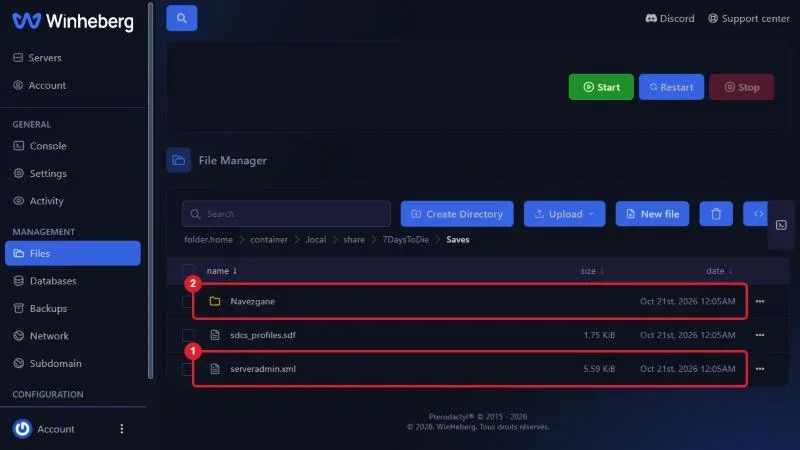
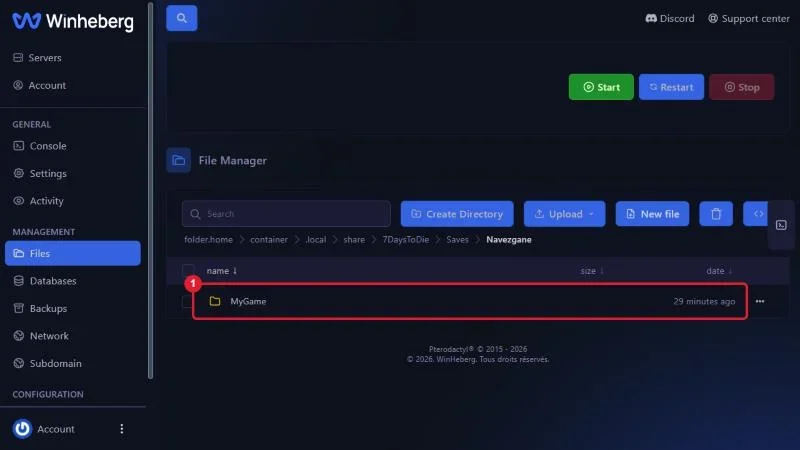
The running game sits inside `Saves`, in a folder named after the map, which itself holds a folder named after the `GameName` value.
On Winheberg servers, that directory is `.local/share/7DaysToDie`. A game named `MyGame` on Navezgane therefore lives in `.local/share/7DaysToDie/Saves/Navezgane/MyGame`.
 ## 3. Reset by changing GameName
This is the safest method, since it deletes nothing.
1. Stop the server from the **Console** tab with **Stop**
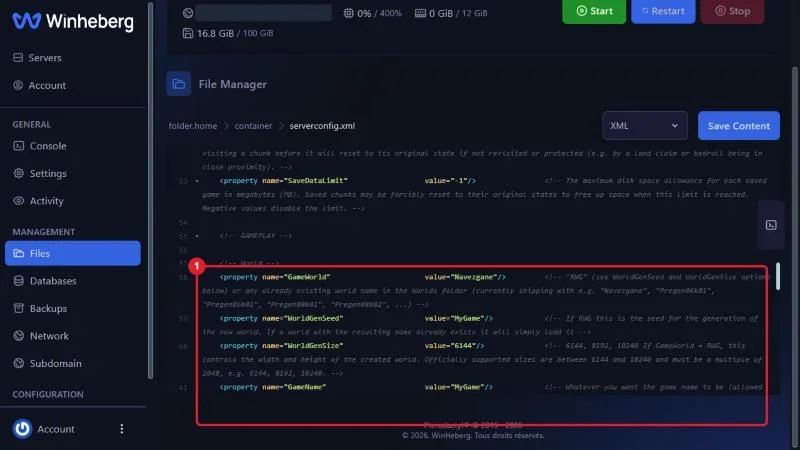
2. Open `serverconfig.xml` in the **Files** tab
3. Replace the `GameName` value with a new name, `MyServer2` for instance
4. Save with **Save Content** and restart with **Start**
The server creates a fresh game in a new folder. The old one stays intact, and restoring the previous value is all it takes to get it back.
> [!TIP]
> This method suits a temporary event or a test server, since one edit brings the main game back.
 ## 4. Delete the save for a clean start
If you want to free disk space or start over under the same name, the game folder has to go.
1. Stop the server
2. In the **Files** tab, open the `Saves` folder, then the map folder, then the folder named after `GameName`
3. Delete that folder entirely
4. Restart the server
The server rebuilds a blank game on the same map. Buildings, chests and player progress are lost, the terrain stays identical.
## 5. Generate a brand new map
To actually change the map, world generation has to be addressed, not just the game.
1. Stop the server
2. Delete the game folder in `Saves` as in the previous step
3. Delete the matching map folder in `GeneratedWorlds`
4. Open `serverconfig.xml` and adjust `WorldGenSeed`, and `WorldGenSize` if needed
5. Save and restart
The server regenerates a map on the next start. This takes noticeably longer than a normal boot, let the process finish without restarting.
> [!WARNING]
> `WorldGenSeed` and `WorldGenSize` are only taken into account when `GameWorld` is `RWG`. On Navezgane or a pregenerated map, changing the seed has no effect.
> [!IMPORTANT]
> A world already present in `GeneratedWorlds` is never regenerated, the server reloads it as is. Changing only the seed without deleting the existing folders can therefore leave the server on the old map. Explicit deletion remains the reliable method.
Every `serverconfig.xml` property is detailed in [How to Configure Your 7 Days to Die Server](https://winheberg.com/en/docs/configure-7-days-to-die-server).
## Troubleshooting
### ❌ The server restarted on the old map
- Check that the matching folder in `GeneratedWorlds` was deleted
- Confirm `GameWorld` is set to `RWG`, otherwise the seed is ignored
- Check the deletion actually completed, large folders can take several seconds to disappear from the listing
### ❌ The server takes a very long time to start after the reset
- That is expected during map generation, the duration depends on the size chosen
- Do not restart during generation, an interrupted process leaves an incomplete world
- Follow the progress in the **Console** tab
### ❌ My players lost their progress when I only wanted a new map
- Progress is stored in the game folder and disappears with it
- Restore your backup if you took one before the operation
- For a test without loss, prefer the `GameName` change method
### ❌ I cannot find the Saves folder
- Read the `UserDataFolder` line at the top of the startup log, it gives the real path
- Use the file manager search on the folder name
- Check the server started at least once, the folders are only created on first boot
## Best practices
- Download a full copy of the game folder over SFTP before any deletion, it is the only way back
- Announce the reset to your players several days ahead, it gives them time to screenshot their bases
- Time resets with a major game update, players accept a wipe far better when it comes with new content
- Write down the seed used for each map, it lets you regenerate exactly the same one if needed
- Try a new seed on a test server before applying it to your main server
## Need help
If the server does not restart after a reset, or if map generation appears stuck, open a ticket with our support team from your [client area](https://billing.winheberg.com), **Technical** department, with the server in the **Related Product** field. Our team can check the folder state and the logs with you.
Your world starts fresh. 🎮