---
title: "How to Install a Lua Plugin on Your BeamMP Server"
description: "Install a server-side Lua plugin on your BeamMP server at Winheberg, in Resources/Server, and check that it loads in the console."
category: jeux
subcategory: beammp
icon: tabler:code
date: 2026-11-01
author: Winheberg
slug: "beammp-server-lua-plugin"
order: 101
image: /statics/images/docs/en/gaming/beammp/beammp-server-lua-plugin.webp
tags: [beammp, plugin, lua, resources server]
keywords: [beammp plugin, beammp lua plugin, beammp resources server, beammp server script, beammp lua error, install beammp plugin]
link_fr: "/docs/beammp/plugin-lua-serveur-beammp"
---
## Context
Want to add features to your **BeamMP server** at Winheberg, such as a welcome message, admin commands or a racing system? All of that runs through **server-side Lua plugins**, which execute on your server rather than on your players' machines.
This guide explains **where to put a plugin**, how to **check that it loads** and what to do if the console shows an error like this one.
```bash
[LUA ERROR] Failed: "Resources/Server/MyPlugin/main.lua": [string "Resources/Server/MyPlugin/main.lua"]:3: ')' expected (to close '(' at line 2) near 'end'
```
## Prerequisites
Before you start, make sure you have the following.
- An active **BeamMP server** on your Winheberg gaming panel
- The **plugin** you want to install, as `.lua` files or as an archive extracted on your computer
> [!WARNING]
> A server plugin runs code on your server. Only download plugins **from trusted sources** (official BeamMP forum, the GitHub repository of a well-known creator) and read the README that comes with the plugin before installing it.
## Server plugin or client mod?
BeamMP splits resources into two kinds, each in its own folder.
| Folder | Content | Run by |
|---|---|---|
| `Resources/Client` | `.zip` mods (cars, maps) | Each player's game, which downloads them on connect |
| `Resources/Server` | Lua plugins, one subfolder per plugin | Your server only |
This guide only covers the `Resources/Server` folder. For mods, see our guides **"How to add modded cars to your BeamMP server"** and **"How to Install a Modded Map on Your BeamMP Server"**.
## 1. Create the plugin folder
Each plugin needs **its own folder** inside `Resources/Server`.
1. Log in to your **Winheberg gaming panel** and select your **BeamMP server**
2. In the side menu, click **Files**
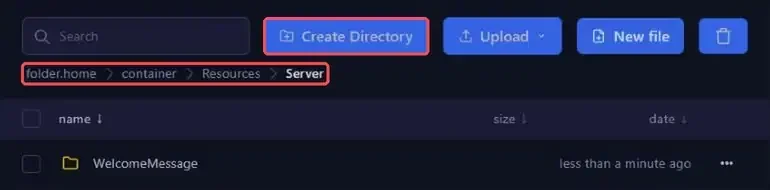
3. Open the **`Resources`** folder, then **`Server`**
4. Click **Create Directory** and name the folder after the plugin, for example `WelcomeMessage`
 ## 2. Add the plugin files
Open the folder you just created and send the plugin's `.lua` files into it with the **Upload** button. If the plugin has several files or subfolders, keep exactly the layout its creator provided.
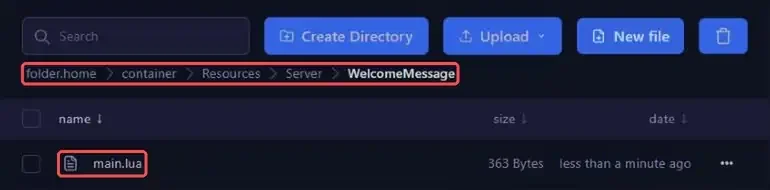 The final path should look like this.
```bash
Resources/Server/WelcomeMessage/main.lua
```
> [!IMPORTANT]
> BeamMP automatically loads the `.lua` files placed **directly** in the plugin folder, in alphabetical order. Files in a subfolder are only loaded if the plugin pulls them in itself with `require()`. A `main.lua` stored in `Resources/Server/WelcomeMessage/WelcomeMessage/` will therefore never run.
## 3. Restart and check the console
A new plugin is only picked up when the server starts.
1. Go back to your server's main page
2. Click **Restart**
3. Watch the **console** during startup
Messages written by your plugins show up with the `[LUA]` prefix. If the plugin prints a message when it loads, you will see it right after the `PluginMonitor started` line.
 ## Example, a welcome plugin
To try it out without downloading anything, you can write a small plugin yourself. In the `Resources/Server/WelcomeMessage` folder, click **New file**, paste the following code and save it as `main.lua`.
```lua
-- WelcomeMessage: greets every player who joins the server
function onInit()
print("WelcomeMessage plugin loaded")
end
function onPlayerJoin(player_id)
local name = MP.GetPlayerName(player_id)
MP.SendChatMessage(-1, "Welcome " .. name .. " to the server!")
end
MP.RegisterEvent("onInit", "onInit")
MP.RegisterEvent("onPlayerJoin", "onPlayerJoin")
```
After a restart, the console shows `[LUA] WelcomeMessage plugin loaded`, and every player who joins is greeted in the chat. The full list of available functions and events is in BeamMP's official documentation, in the server scripting section.
## If you run into trouble
Here are the most common situations with Lua plugins.
### ❌ The console shows LUA ERROR Failed
The file mentioned contains a **Lua syntax error**. The message gives the file, the line number and what is missing.
 - Open the file mentioned and go to the **line given** (here line 3, with an unclosed parenthesis on line 2)
- If you did not write the plugin, download it again, the file may have been damaged during the upload
- Check that the plugin is compatible with your BeamMP version, shown in the console at startup (`BeamMP Server v3.9.3` for example)
> [!NOTE]
> An error in a plugin **does not stop the server**. It keeps running and the other plugins load normally, which is why reading the console after each install matters.
### ❌ No LUA line shows up for my plugin
- Check that the plugin is in `Resources/Server` and **not** in `Resources/Client`
- Check that it has **its own subfolder** and that its `.lua` files are not stored one level too deep
- Keep in mind that some plugins print nothing at startup, check their README to see how to confirm they work
### ❌ The plugin also needs a client-side file
Some plugins ship with a `.zip` archive meant for players (interface, sounds, etc.). That archive goes into `Resources/Client`, and the Lua part into `Resources/Server`. Follow the instructions in the plugin's README.
## Best practices
- **Install one plugin at a time** and read the console after each restart, you will know right away which one causes trouble
- **Create a backup** from the **Backups** tab before installing a plugin that changes your server's data
- **Delete the folder** of a plugin you no longer use instead of leaving it in place
- **Keep a copy** of your plugins' configuration files before updating them
## Need help?
If your plugin does not load despite these checks, our team is here to help. Open a ticket with the **Technical** department from your client area, fill in the **Related Product** field with the server concerned and attach the startup logs.
Your BeamMP server is ready for your plugins, enjoy the ride 🛣️