---
title: "How to Configure Your BeamMP Server (Name, Players, Tags)"
description: "Set the name, description, player and car limits and tags of your BeamMP server at Winheberg, between the Startup page and ServerConfig.toml."
category: jeux
subcategory: beammp
icon: tabler:settings
date: 2026-11-01
author: Winheberg
slug: "configure-beammp-server"
order: 102
image: /statics/images/docs/en/gaming/beammp/configure-beammp-server.webp
tags: [beammp, configuration, startup, serverconfig]
keywords: [configure beammp server, serverconfig.toml, beammp server name, beammp max players, beammp tags, beammp startup, beammp hosting]
link_fr: "/docs/beammp/configurer-serveur-beammp"
---
## Context
Want to name your **BeamMP server** at Winheberg, host more players, allow several cars per person or add tags so players find you more easily on the list? All of these settings live in two places, the panel's **Startup** page and the `ServerConfig.toml` file.
Knowing which one to use for each setting avoids the most common surprise, a change that disappears on restart. This guide explains where to set each option and why.
## Prerequisites
Before you start, make sure you have the following.
- An active **BeamMP server** on your Winheberg gaming panel, available on our [**gaming/beammp**](https://winheberg.com/en/gaming/beammp) page
- A few minutes to change the settings and restart the server
## Startup or ServerConfig.toml, which does what?
On every start, the panel rewrites some lines of `ServerConfig.toml` with the values from the **Startup** page. The other lines of the file stay exactly as you left them.
| Setting | Where to change it |
|---|---|
| Name, description, player count, car count | **Startup** page |
| Map, private mode, AuthKey, chat logging | **Startup** page |
| Tags, guests, debug mode | `ServerConfig.toml` file |
| Port | Do not change it, the panel assigns it |
> [!IMPORTANT]
> If you change a setting managed by the Startup page inside `ServerConfig.toml`, your change will be **overwritten on the next start**. For those settings, always use Startup.
## 1. Set the name, players and cars in Startup
1. Log in to your **Winheberg gaming panel** and select your **BeamMP server**
2. In the side menu, click **Startup**
3. Change the fields you need in the **Variables** section
Changes are **saved automatically** as you type, no save button is needed.
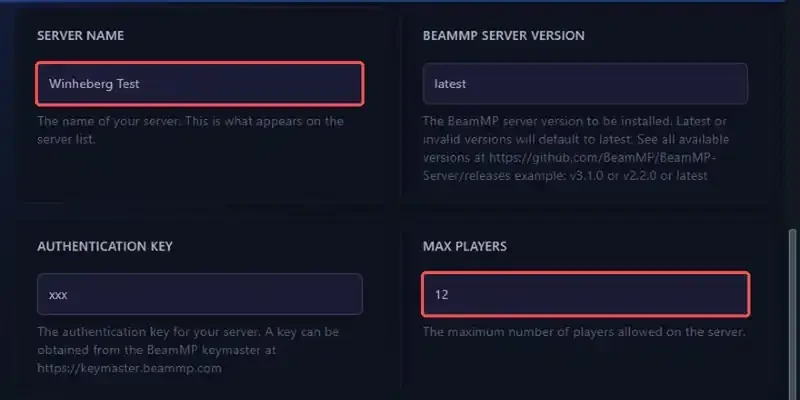
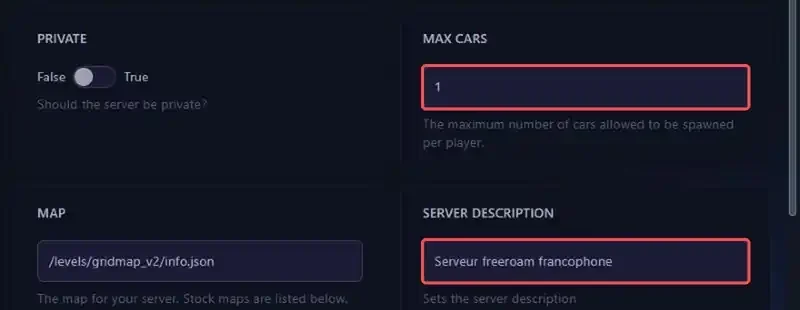 Here is what each field does.
| Field | Purpose |
|---|---|
| **Server Name** | Name shown on the BeamMP server list |
| **Server Description** | Description shown under the name |
| **Max Players** | Maximum number of players connected at the same time |
| **Max Cars** | Maximum number of cars a single player can spawn |
| **BeamMP Server Version** | Server version to install, `latest` by default |
The **Map**, **Private** and **Authentication Key** fields on the same page each have their own guide, [**"How to Change Your BeamMP Server's Official Map"**](https://winheberg.com/en/docs/beammp/change-official-map-beammp), [**"How to Make Your BeamMP Server Private"**](https://winheberg.com/en/docs/beammp/private-beammp-server) and [**"How to Set Up Your BeamMP Server AuthKey"**](https://winheberg.com/en/docs/beammp/beammp-server-authkey).
## 2. Add tags in ServerConfig.toml
Tags help players find your server by play style. They are not managed by the Startup page, you set them directly in the file.
1. In the side menu, click **Files**
2. Open the **`ServerConfig.toml`** file at the root of the server
3. Find the `Tags` line and enter your tags separated by commas, without spaces
4. Click **Save Content**
```toml
Tags = "Freeroam,Racing,Francophone"
```
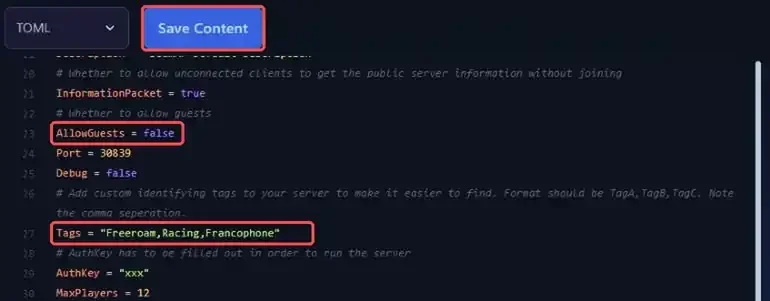 The same file holds other settings that are kept across restarts.
| Line | Purpose |
|---|---|
| `AllowGuests` | `true` lets players join as guests, without a BeamMP account, `false` refuses them |
| `Debug` | `true` prints detailed messages in the console, handy to diagnose a problem |
| `InformationPacket` | Lets players see the server information before joining |
> [!TIP]
> If you restrict your server to a whitelist, set `AllowGuests` to `false` so a guest cannot pose as another player. Setting up the whitelist is covered in our guide [**"How to Moderate Your BeamMP Server (Kick, Ban, Whitelist)"**](https://winheberg.com/en/docs/beammp/moderate-beammp-server).
> [!WARNING]
> Do not change the `Port` line. It matches the port the panel assigned to your server and it is rewritten on every start.
## 3. Restart the server
All these settings are only applied when the server starts.
1. Go back to your server's main page
2. Click **Restart**
3. Watch the **console**, the `Vehicle data network online on port ... with a Max of ... Clients` line confirms the player count in use
## If you run into trouble
Here are the most common situations when configuring the server.
### ❌ My change disappears on restart
You most likely changed a setting managed by the Startup page (name, description, players, cars, map, private mode or AuthKey) inside `ServerConfig.toml`. Make the change again from **Startup**, then restart.
### ❌ The new name does not show up on the list
- Check that the server actually **restarted** after the change
- Check that the server has a **valid AuthKey** and that the **Private** switch is on **False**, otherwise it does not appear on the public list
- Wait a few minutes, the public list is not instant
### ❌ My tags are not applied
- Check that you clicked **Save Content** before closing the file
- Check the format, tags must be in quotes and separated by commas (`"Freeroam,Racing"`)
- Restart the server after the change
## Best practices
- **Pick a short, readable name**, it is shown in a list alongside many other servers
- **Raise Max Cars with care**, each extra car adds load for the server and for players
- **Add tags that really describe your server**, players use them to filter the list
- **Write down your settings** before reinstalling the server, so you can put them back quickly
## Need help?
If a setting does not apply despite these checks, our team is here to help. Open a ticket with the **Technical** department from your client area, fill in the **Related Product** field with the server concerned and attach the startup logs.
Your BeamMP server is set up your way, enjoy the ride 🛣️