---
title: "How to Change the Map of Your DayZ Server (Chernarus or Livonia)"
description: "Switch your Winheberg DayZ server from Chernarus to Livonia, or back, by editing the template line in serverDZ.cfg, while keeping each map's progress."
category: jeux
subcategory: dayz
icon: tabler:file-text
date: 2026-11-01
author: Winheberg
slug: "change-map-dayz-server"
order: 134
image: /statics/images/docs/en/gaming/dayz/change-map-dayz-server.webp
tags: [dayz, map, livonia, chernarus, gaming panel]
keywords: [change dayz map, dayz server, livonia, chernarus, serverDZ.cfg, dayzOffline.enoch, mpmissions]
link_fr: "/docs/dayz/changer-carte-serveur-dayz"
---
## Context
Your Winheberg DayZ server starts on **Chernarus** by default, but it also ships with **Livonia**, ready to use. Switching from one to the other needs no reinstall and no outside tool, a single line in the `serverDZ.cfg` file decides which map loads at startup.
This guide shows you how to change the map of your [DayZ server](https://winheberg.com/en/gaming/dayz) from the Winheberg panel, and what happens to player progress when you move from one map to the other.
## Prerequisites
- An active DayZ server on the Winheberg panel, with its installation complete
- Access to the panel's **Files** manager, or an SFTP connection
> [!NOTE]
> Only Chernarus and Livonia are provided ready to use on your server, so this guide covers these two maps.
## 1. Stop the server and back it up
Log in to the Winheberg panel and select your DayZ server. Stop it with the **Stop** button and wait until it has fully stopped before touching its configuration.
Next, create a backup from the **Backups** tab, in the **MANAGEMENT** section of the side menu. If you make a typo, you can get back to the current state in a few clicks. The full procedure is covered in our guide [How to Create and Restore a Backup of Your Gaming Server](https://winheberg.com/en/docs/panel-gaming/create-restore-backup-gaming-server).
## 2. Find the map folder
Open **Files** in the side menu, then the `mpmissions` folder. It holds one mission folder per available map.
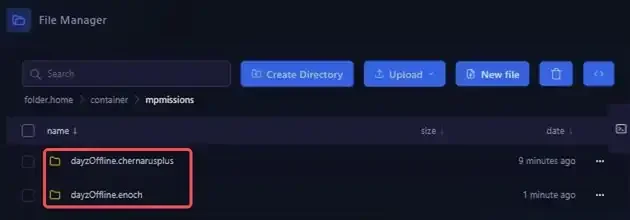 | Map | Mission folder |
|---|---|
| Chernarus | `dayzOffline.chernarusplus` |
| Livonia | `dayzOffline.enoch` |
The name of this folder is exactly the value to enter in `serverDZ.cfg` in the next step.
> [!CAUTION]
> Do not rename or delete these folders. Each one also holds the progress saved on its map.
## 3. Edit the template line in serverDZ.cfg
Go back to the server root and open the `serverDZ.cfg` file. Scroll down to the `class Missions` section, which contains the `template` line. By default, it points to Chernarus.
```cpp
class Missions
{
class DayZ
{
template="dayzOffline.chernarusplus";
};
};
```
Replace the value between quotes with the folder of the map you want, keeping the quotes and the trailing semicolon.
| Target map | Line to write |
|---|---|
| Chernarus | `template="dayzOffline.chernarusplus";` |
| Livonia | `template="dayzOffline.enoch";` |
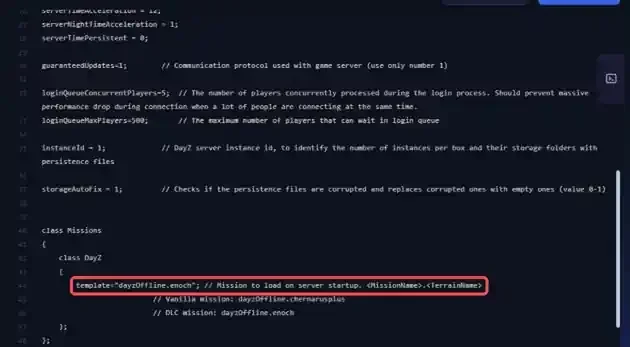 Click **Save Content** to save the file.
> [!NOTE]
> The **Startup** tab has no map setting. At every start, the panel rewrites the values it manages from that tab, such as the server name, but the `template` line is not one of them. Your change is therefore kept when the server restarts.
> [!TIP]
> You can also edit the file from your computer with an SFTP client. Our guide [How to Connect to Your Gaming Server via SFTP](https://winheberg.com/en/docs/panel-gaming/sftp-gaming-server) explains how to connect.
## 4. Start the server on the new map
Click **Start**. A DayZ server takes a few minutes to boot, the status goes from **Starting** to **Online**, and the server then runs on the map you chose.
On its first start on Livonia, the server creates the `mpmissions/dayzOffline.enoch/storage_1` folder, where it saves the progress for that map.
## 5. Understand each map's progress
Each map keeps its own progress, in the `storage_1` folder of its mission folder. It holds, among other things, the player file `players.db` and the world data in `data`.
| Map | Progress folder |
|---|---|
| Chernarus | `mpmissions/dayzOffline.chernarusplus/storage_1` |
| Livonia | `mpmissions/dayzOffline.enoch/storage_1` |
The first time you switch to Livonia, progress on that map therefore starts from scratch, while Chernarus progress stays untouched in its own folder. By setting `template="dayzOffline.chernarusplus";` again, you get back the progress left on Chernarus.
> [!TIP]
> Let your players know before switching maps, their characters do not carry over from one map to the other.
## If you run into trouble
### ❌ The server still starts on Chernarus
- Check that the `serverDZ.cfg` file was saved with **Save Content**
- Check that you edited the `template` line in the `class Missions` section
- Check that the value matches the folder name in `mpmissions` exactly, with the quotes and the trailing semicolon
### ❌ Players can no longer find their characters
- This is normal after a map change, each map has its own progress
- Set the previous map back in the `template` line to get back the progress saved on it
## Need help?
If your server no longer starts after the map change, or if you are unsure before editing `serverDZ.cfg`, our team is here. Open a ticket in the **Technical** department from your client area, fill in the **Related Product** field with your DayZ server, and specify the target map along with the `template` line you used.
Your DayZ server now runs on the map of your choice 🎮