---
title: "How to Reset (Wipe) Your DayZ Server"
description: "Reset (wipe) your Winheberg DayZ server, full wipe of the storage_1 folder, player-only wipe with players.db or an instanceId change, after a backup."
category: jeux
subcategory: dayz
icon: tabler:file-text
date: 2026-11-01
author: Winheberg
slug: "wipe-dayz-server"
order: 136
image: /statics/images/docs/en/gaming/dayz/wipe-dayz-server.webp
tags: [dayz, wipe, reset, gaming panel]
keywords: [dayz wipe, reset dayz server, dayz storage_1, dayz players.db, dayz instanceId, dayz player wipe, dayz server]
link_fr: "/docs/dayz/wipe-serveur-dayz"
---
## Context
On a DayZ server, everything that persists from one session to the next is saved in a storage folder specific to the map being played, `storage_1`. It holds the state of the world managed by the game's central economy, along with the database of player characters. Resetting the server, what the community calls a wipe, means starting again from an empty storage.
A wipe is useful to start a new season, to put every survivor back on the same starting line, or to apply changes made to the mission XML files. According to the official Bohemia Interactive wiki, those changes often only take effect once the storage folder has been deleted.
This guide shows you how to perform a full wipe, a player-only wipe, or a no-deletion alternative, from the Winheberg panel of your [DayZ server](https://winheberg.com/en/gaming/dayz).
## Prerequisites
- An active DayZ server on the Winheberg panel
- An account with access to the server's **Files** and **Backups** tabs
- A few minutes of downtime, the time it takes to stop and restart the server
> [!NOTE]
> If your account is a sub-user, check that the server owner has granted you the permissions related to files and backups.
## 1. Back up the server
A wipe deletes files the game cannot rebuild. Before doing anything, create a backup from the **Backups** tab in the **MANAGEMENT** section, with a clear name such as `before-wipe`. It lets you roll back if you are not happy with the result.
Creating, locking and restoring a backup are covered in our guide [How to Create and Restore a Backup of Your Gaming Server](https://winheberg.com/en/docs/panel-gaming/create-restore-backup-gaming-server).
## 2. Stop the server
In the **Console**, click **Stop** and wait until the server has fully stopped before touching any files. The official DayZ wiki recommends a clean shutdown to avoid side effects on characters and saved data, and the wipe method reported on the Bohemia Interactive tracker also starts by stopping the server.
> [!TIP]
> If you have scheduled automatic restarts, temporarily turn off the relevant Schedule with the **Schedule enabled** option, so it does not start the server in the middle of the operation. Schedules are covered in our guide [How to Schedule Automatic Restarts with Schedules](https://winheberg.com/en/docs/panel-gaming/schedule-automatic-restart).
## 3. Locate the storage folder
Each map has its own mission folder in `mpmissions`, and each mission folder has its own storage. On the Winheberg panel, `mpmissions` contains `dayzOffline.chernarusplus` for Chernarus and `dayzOffline.enoch` for Livonia.
To find out which mission your server loads, open **Files**, then the `serverDZ.cfg` file at the root, and look for the `template` line in the `class Missions` block. By default, its value is `dayzOffline.chernarusplus`.
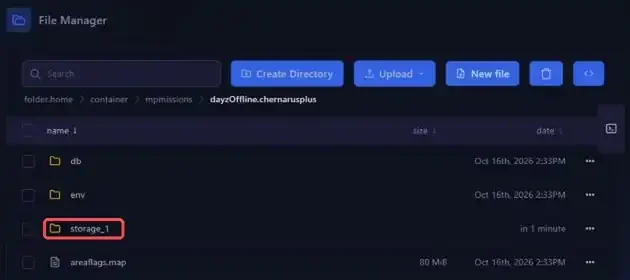
Then go back to **Files**, open `mpmissions` and then that mission's folder. The `storage_1` folder is inside.
 After a first full boot, `storage_1` contains the `backup` and `data` folders, along with the `players.db` and `spawnpoints.bin` files.
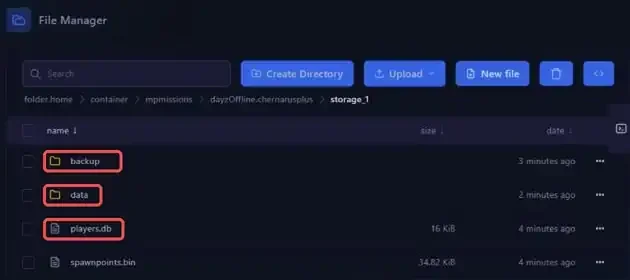 | Item | Contents |
|---|---|
| `players.db` | The database of player characters |
| `data` | The world's binary files, `building_*.bin`, `doors.bin`, `dynamic_*.bin`, `events.bin`, `types.bin` and `vehicles.bin` |
These files are written by the game itself and are not meant to be edited by hand.
> [!IMPORTANT]
> If you have already switched maps, each mission that was loaded created its own `storage_1` folder. A wipe only affects the mission whose storage you delete, so repeat the operation in each mission folder to reset every map.
## 4. Choose the type of wipe
### 4.1 Full wipe
A full wipe resets both the world and the players. In the mission folder, tick the checkbox on the `storage_1` row, then delete it with the trash icon in the toolbar and confirm the deletion.
The Bohemia Interactive wiki states that this folder is recreated when the mission initializes. That is also how it appears on the first start of a brand new server. If the mission folder contains other folders whose name starts with `storage_`, the wiki recommends deleting them too.
> [!CAUTION]
> Deleting `storage_1` is permanent. Without the backup from step 1, the world and every character are lost for good.
### 4.2 Player-only wipe
To reset characters while keeping the world, open `storage_1` and delete only the `players.db` file. This is the method reported on the official Bohemia Interactive tracker, server stopped, `players.db` deleted on its own, then a restart. The central economy stays in place and only the players start over. The `data` folder is left untouched.
> [!CAUTION]
> Deleting `players.db` permanently erases every player character. Make sure the backup from step 1 has finished before confirming.
> [!WARNING]
> Do not try to empty the player database by setting `load` to `0` on the `player` line of the mission's `db/economy.xml` file. A Bohemia Interactive team member explains on the tracker that this setting turns off loading of the database and must never be used to empty it. It causes the `login error: unexpected database response` error.
### 4.3 No-deletion alternative, change the instanceId
Open `serverDZ.cfg` at the root of the server and find the `instanceId = 1;` line. The comment next to it in the file describes it as the server instance id, used to identify the number of instances per machine and their storage folders with persistence files.
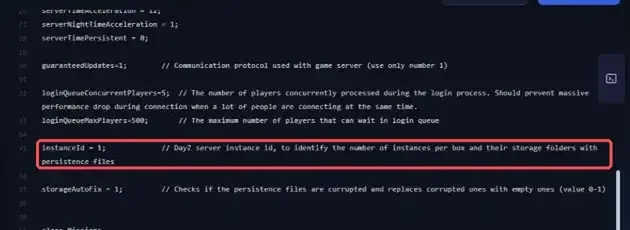 Based on that comment, changing this value makes the server use a different storage folder, without deleting anything. For example, change the value to `2`, then save the file.
```cpp
instanceId = 2;
```
`instanceId` is not one of the variables in the **Startup** tab, so the change is made directly in the file. After the restart in step 5, check that the line has kept its new value, then open the mission folder to confirm that a new storage folder has been created next to `storage_1`.
> [!NOTE]
> With this method, `storage_1` and its contents stay in the mission folder. You can delete it later, once you are sure you no longer need it.
## 5. Restart the server
In the **Console**, click **Start**. A DayZ server takes a few minutes to start, and its status goes from **Starting** to **Online**. After a full wipe, the `storage_1` folder is recreated in the mission folder.
If you turned off a Schedule in step 2, turn it back on with the **Schedule enabled** option.
## If you run into trouble
### ❌ The world was not reset
- Check that you deleted the storage of the mission set by the `template` line in `serverDZ.cfg`, each map has its own
- If the mission folder contains other folders starting with `storage_`, delete them too, with the server stopped
- Check that the server was fully stopped when you deleted the folder, then start again from step 2
### ❌ The `login error: unexpected database response` error appears
- Open `db/economy.xml` in the mission folder and restore the original `load` value on the `player` line
- You can also restore the backup created in step 1
- To reset the players, delete `players.db` with the server stopped instead, as described in step 4.2
### ❌ The player database is corrupted
- A Bohemia Interactive developer states on the tracker that the only fix is to delete the database file completely, which is the same as the player-only wipe in step 4.2
- The other option is to restore the storage to an earlier state, for example with a backup from the **Backups** tab
## Need help?
If the wipe does not give the expected result, if the server no longer starts, or if you are unsure before deleting a folder, our team is here. Open a ticket in the **Technical** department from your client area, fill in the **Related Product** field with the DayZ server in question, and specify the type of wipe you performed along with the map in use.
Your DayZ server is ready for a fresh start 🎮