---
title: "How to Manage Passwords and Roles on Your Enshrouded Server"
description: "Secure your Winheberg Enshrouded server, Admin, Friend, Guest and Visitor role passwords in Startup, bans, reserved slots and custom roles."
category: jeux
subcategory: enshrouded
icon: tabler:file-text
date: 2026-11-02
author: Winheberg
slug: "password-roles-enshrouded-server"
order: 165
image: /statics/images/docs/en/gaming/enshrouded/password-roles-enshrouded-server.webp
tags: [Enshrouded, Administration, Password, Roles, Game panel]
keywords: [enshrouded server password, enshrouded server admin, enshrouded roles, enshrouded userGroups, ban player enshrouded, private enshrouded server]
link_fr: "/docs/enshrouded/mot-de-passe-roles-serveur-enshrouded"
---
## Context
On an Enshrouded dedicated server, there is no single password but one password **per role**. The one a player types when joining decides what they can do, whether that is managing the server, opening chests, building in bases or just visiting.
This guide walks you through the four roles set up on your Winheberg Enshrouded server and shows you how to change their passwords from the panel, become an administrator, ban a player and create a custom role.
## Prerequisites
- An active **Enshrouded server** on your [Winheberg gaming panel](https://panel.winheberg.com)
- Access to the **Startup** and **Files** tabs of your server
## 1. Understand the four roles
Your server comes with four roles, called user groups. Each one has its own password and permissions.
::MdTable{caption="Role permissions on a new Winheberg Enshrouded server" variant="info" striped}
| Permission | Admin | Friend | Guest | Visitor |
|---|---|---|---|---|
| Kick and ban players | Yes | No | No | No |
| Open chests, workshops and containers in bases | Yes | Yes | No | No |
| Change the world outside bases | Yes | Yes | No | No |
| Build and edit bases | Yes | Yes | No | No |
| Place, remove and upgrade Flame Altars | Yes | Yes | No | No |
| Reserved slots | 0 | 1 | 3 | 0 |
::
Each permission matches a key in the enshrouded_server.json file. You will use these keys in step 5 to create a custom role.
| Key | What it allows |
|---|---|
| `canKickBan` | Kick or permanently ban other players |
| `canAccessInventories` | Use chests, workshops, collections and other containers in bases. Treasure chests in the open world stay open to everyone |
| `canEditWorld` | Terraform or destroy terrain in the open world |
| `canEditBase` | Build, terraform, remove constructions and add or remove water in bases |
| `canExtendBase` | Place, remove and upgrade Flame Altars |
| `reservedSlots` | Number of slots reserved for this role. When the server fills up, it shows as full to players of other roles, so for example your friends can still join even if many guests connect |
## 2. Change the passwords in Startup
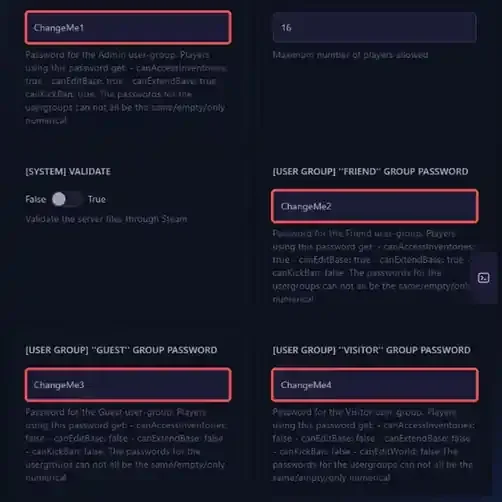
Open the **Startup** tab of your server. The four **[USER GROUP]** variables hold the passwords of the Admin, Friend, Guest and Visitor roles.
 > [!CAUTION]
> The default passwords are `ChangeMe1` for Admin, `ChangeMe2` for Friend, `ChangeMe3` for Guest and `ChangeMe4` for Visitor. As long as they are not replaced, anyone can guess the Admin password and take control of your server. **Replace them all** before inviting players.
No password can be left empty or made of digits only, and the fields save automatically. Pick four different passwords, then go back to the **Console** and click **Restart** to apply them.
> [!IMPORTANT]
> Do not change these four passwords in the enshrouded_server.json file. On every start, the panel copies the ones from the **Startup** tab into it and overwrites any change made in the file.
## 3. Join the server with the right role
When joining your server from the game, every player has to type a password, and it is what sets their role. To become an administrator, connect with the password of the **Admin** role.
Give each player only the password of the role that suits them, for example the **Friend** one to your trusted friends and the **Guest** one to occasional players.
> [!NOTE]
> On a dedicated server, players cannot be promoted or demoted during the game. To change roles, a player has to reconnect with the password of their new role.
## 4. Kick or ban a player
Players with the **Admin** role, or any role with the `canKickBan` permission, can kick or ban other players. This is done in game, in the **Social** tab, where you can also view the list of banned players and lift a ban.
Bans are stored in the `bannedAccounts` key of the enshrouded_server.json file, with an anonymized account ID, the Steam name, the character name and the ban date for each player. Only edit this list by hand while the server is stopped.
## 5. Create a custom role
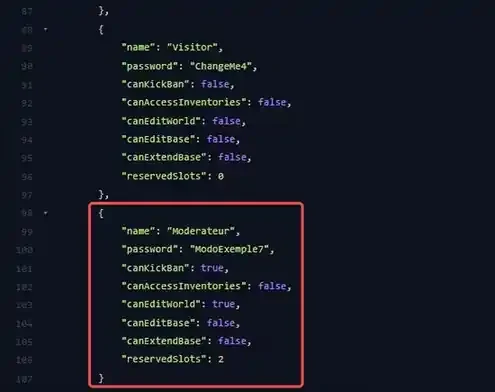
You can add your own roles, for example a moderator role that can ban without touching bases. Stop the server with **Stop**, open enshrouded_server.json in the **Files** tab, then paste the block below at the end of the `userGroups` list, after the Visitor one.
 ```json
{
"name": "Moderator",
"password": "AUniquePassword",
"canKickBan": true,
"canAccessInventories": false,
"canEditWorld": true,
"canEditBase": false,
"canExtendBase": false,
"reservedSlots": 2
}
```
Add a comma after the `}` that closes the Visitor block, just before your new block, and keep the four default blocks at the top of the list, in their original order, since the panel writes the passwords into them on every start. Save with **Save Content**, then start the server with **Start**.
Unlike the four default roles, the password of a custom role is set directly in the file. It is kept across restarts.
> [!TIP]
> On a new server, the Guest and Visitor roles have the same permissions. To let your guests mine and terraform outside bases, set `canEditWorld` to `true` in the Guest role block.
## If you run into trouble
### ❌ A player does not have the expected rights
- Check the password they typed, since it is what sets their role
- Check that the four passwords are all different
- If you just changed a password, check that the server has been restarted since then and that the player has reconnected
### ❌ The panel refuses to save a password
An empty password or one made of digits only is refused. Add at least one letter.
### ❌ The server no longer starts after adding a role
A missing comma between two `userGroups` blocks prevents the server from starting. Open the file again, add the missing comma after the `}` of the previous block, then click **Start**. Our guide **"How to Configure Your Enshrouded Server"** shows the messages displayed in the console in that case.
## Best practices
- **Only share the Admin password with the people who run the server**, it lets them ban any player
- **Change the passwords when a member leaves your team**, then restart the server
- **Reserve slots for your friends** with `reservedSlots`, so they can always join a busy public server
- **To delegate panel management**, use a sub-user with limited permissions instead, as explained in our guide [How to Add a Sub-User to Your Gaming Panel](https://winheberg.com/en/docs/panel-gaming/add-sub-user-gaming-panel)
## Need help?
If the roles still do not apply after these checks, our team is here to help. Open a ticket in the **Technical** department from your [client area](https://billing.winheberg.com) and fill in the **Related Product** field with your Enshrouded server.
Check out our plans on the [Enshrouded Hosting](https://winheberg.com/en/gaming/enshrouded) page. Your Enshrouded server is now in good hands 🔒