---
title: "How to add a resource or script to your FiveM server"
description: "Install a resource or script on your FiveM server from the Winheberg gaming panel, upload to resources, ensure line in server.cfg, console check and common errors."
category: jeux
subcategory: fivem
icon: tabler:file-text
date: 2026-11-01
author: Winheberg
slug: "add-resource-fivem-server"
order: 100
image: /statics/images/docs/en/gaming/fivem/add-resource-fivem-server.webp
tags: [fivem, resource, script, server.cfg, fxmanifest]
keywords: [add fivem resource, install fivem script, fxmanifest.lua, ensure server.cfg, couldn't find resource, fivem server, gaming panel]
link_fr: "/docs/fivem/ajouter-ressource-serveur-fivem"
---
## Context
Adding a script or a resource, whether it is a job, a vehicle, a map or a full framework, is the most common task on a **FiveM** server. A resource is a folder that contains an `fxmanifest.lua` file, and the server only loads it if it is declared in `server.cfg`.
This guide shows you how to install a resource from your Winheberg gaming panel, from uploading the files to checking the console, along with the most frequent errors and how to fix them.
> [!WARNING]
> Only install resources from trusted sources. A pirated or "leaked" resource can contain a backdoor able to modify your other resources. To learn how to spot one, see our guide **["How to Detect a Backdoor on Your FiveM Server"](https://winheberg.com/en/docs/fivem/detect-fivem-backdoor)**.
## Prerequisites
- An active [Winheberg FiveM server](https://winheberg.com/en/gaming/fivem) on your gaming panel, with its License Key set (see our guide **["How to generate your FiveM License Key on the Cfx.re portal"](https://winheberg.com/en/docs/fivem/generate-fivem-license-key)**)
- The **resource to install**, extracted, with its `fxmanifest.lua` file
- Access to your server's **Files** tab, or an SFTP connection for large files
> [!NOTE]
> If the **ENABLE TXADMIN** option is turned on in the **Startup** tab, txAdmin starts the server, with the `server.cfg` chosen during its setup. In that case, add the `ensure` line from step 4 through txAdmin's **CFG Editor** menu, which opens the file actually in use.
## 1. Check the resource structure
Before uploading anything, open the resource folder on your computer. The `fxmanifest.lua` file must sit directly inside the folder, not in a subfolder.
```bash
resources/
└── my_resource/
├── fxmanifest.lua
├── client.lua
└── server.lua
```
The name of this folder is the resource name, the one you will use in step 4. Keep it simple, in lowercase, with no spaces or accents.
> [!TIP]
> A common mistake comes from an archive extracted twice, which gives a path like `my_resource/my_resource/fxmanifest.lua`. In that case, upload only the inner folder.
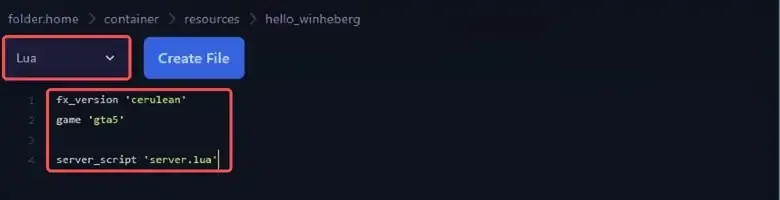
As an example, here is the minimal `fxmanifest.lua` of the demo resource used in this guide, `hello_winheberg`. Resources you download already ship with their own, you do not have to write it. The `fx_version` and `game` lines are required, without them the resource does not start.
```lua
fx_version 'cerulean'
game 'gta5'
server_script 'server.lua'
```
 ## 2. Open the resources folder
From your gaming panel, open your FiveM server, then the **Files** tab. At the root, open the **resources** folder.
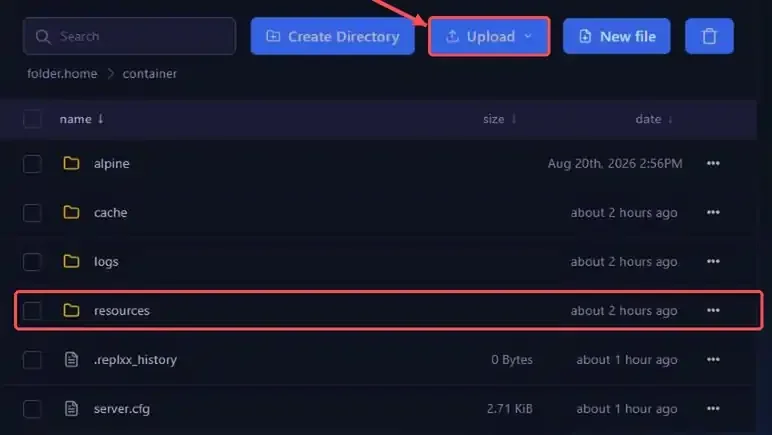 The `resources` folder already contains subfolders in brackets, such as `[gameplay]` or `[managers]`. The brackets only group resources into categories. You can place your resource directly in `resources`, or in one of these categories.
## 3. Upload the resource
The **Upload** button offers three options.
::MdTable{caption="Upload button options" variant="info"}
| Option | Use |
|---|---|
| **Upload Files** | Uploads one or more files |
| **Upload Folders** | Uploads a whole folder, the simplest method for an extracted resource |
| **Upload from URL** | Fetches a file from a web address |
::
> [!NOTE]
> **Upload from URL** needs the direct link to the file. A link that redirects, such as GitHub release download links, brings no file and shows no error. In that case, download the archive to your computer and upload it with **Upload Files**.
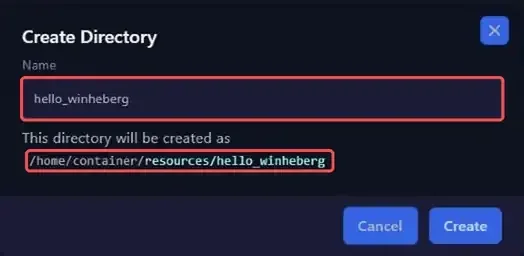
Choose **Upload Folders**, then select your resource folder. For a small resource, you can also create the folder with **Create Directory**, then each file with **New file**.
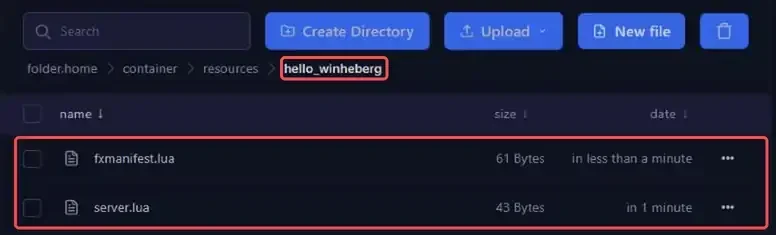
 Once the upload is done, open the resource folder and check that `fxmanifest.lua` is at its root.
 > [!NOTE]
> Uploads from the panel are limited to 100 MB. For a heavier resource, such as a map or a vehicle pack, use SFTP by following our guide **["How to Connect to Your Gaming Server via SFTP"](https://winheberg.com/en/docs/panel-gaming/sftp-gaming-server)**.
## 4. Declare the resource in server.cfg
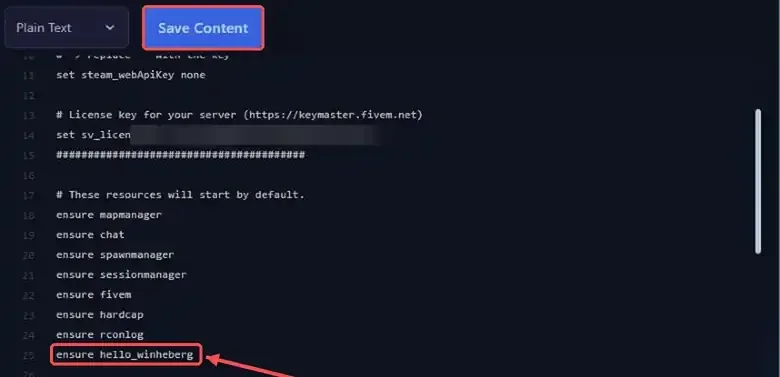
Go back to the root of the **Files** tab and open **server.cfg**. Find the lines starting with `ensure`, then add a line below them with your resource folder name.
```bash
ensure hello_winheberg
```
Then click **Save Content** to save the file.
 > [!IMPORTANT]
> The name after `ensure` must match the folder name exactly, including uppercase letters, without the bracketed category name. If the resource documentation lists other resources to install first, such as a database or a framework, place its line after theirs.
> [!CAUTION]
> `server.cfg` holds your License Key in clear text, on the `sv_licenseKey` line. Never share a full screenshot of this file, on Discord or anywhere else.
## 5. Restart and check the console
Open your server's **Console** and click **Restart**. On startup, the server creates the resource environment and then starts it. Two lines confirm it.
```bash
Creating script environments for hello_winheberg
Started resource hello_winheberg
```
 In our example, the `[hello_winheberg] Resource started` line is printed by the script itself. Your resource will print its own messages, or none.
## If you run into trouble
### ❌ Couldn't find resource
On startup, the console shows this message for each declared resource it cannot find.
```bash
Couldn't find resource hello_winheberg.
```
 The server finds no resource with that name. Check the following points.
- The name after `ensure` matches the folder name exactly, including uppercase letters, without the bracketed category name
- The folder is inside `resources`, or inside one of its categories
- The `fxmanifest.lua` file sits directly in the resource folder, otherwise the console also reports `does not have a resource manifest (fxmanifest.lua)`
- The archive was not extracted into a duplicate folder
### ❌ You lack the required entitlement
This message concerns resources protected by the Cfx.re escrow system, most often paid resources.
```bash
You lack the required entitlement to use resource_name
```
- The License Key entered in the **FIVEM LICENSE** field of the **Startup** tab is correct
- It comes from the Cfx.re account that bought the resource
- The resource shows up in **Granted Assets**, on `portal.cfx.re`
### ❌ The server stays stuck on Stopping
If the server status stays on **Stopping** during a restart, the **Stop** button turns into **Kill**. Click it, then confirm the forced stop with **Continue**. If you had requested a restart, the panel then starts the server again.
> [!WARNING]
> A forced stop cuts the server off without giving it time to save. The panel itself warns that it can corrupt data. Keep it for cases where the server no longer responds.
## Best practices
- **Install one resource at a time** and check the console before moving on, so an error is easy to locate
- **Make a backup** from the **Backups** tab before installing a major resource, such as a framework
- **Keep folder names simple**, in lowercase, with no spaces or accents
- **Read the resource documentation**, many require a database or other resources installed first
- **Never share your server.cfg** without hiding the `sv_licenseKey` line
## Need help?
If your resource does not start despite these checks, our team is here. Open a ticket in the **Technical** department from your client area, fill in the **Related Product** field with the server concerned, and attach the console lines that mention the resource.
Your resource is installed and your FiveM server loads it on every startup 📦