---
title: "How to connect your FiveM server to a MySQL database"
description: "Set up the MySQL connection for your FiveM server at Winheberg, connection string, password security, and fixes for common errors."
category: jeux
subcategory: fivem
icon: tabler:file-text
date: 2026-07-24
author: Winheberg
slug: "connect-mysql-fivem-server"
order: 15
image: /statics/images/docs/en/gaming/fivem/connect-mysql-fivem-server.webp
tags: [fivem, mysql, database, oxmysql, configuration]
keywords: [fivem mysql, fivem database connection, oxmysql setup, mysql_connection_string, fivem server winheberg]
link_fr: "/docs/fivem/connexion-mysql-serveur-fivem"
---
## Context
You manage a **FiveM server** (GTA RP) and want to connect it to a **MySQL database** to store player accounts, inventory, vehicles, money, or any other persistent data? Whether you use **oxmysql**, **ghmattimysql**, or another connector, the configuration always goes through the same `mysql_connection_string` variable in your `server.cfg`.
This guide walks you through setting up this connection correctly, with security best practices and fixes for the most common errors.
> [!IMPORTANT]
> Make sure sensitive information such as passwords stays secure and isn't shared publicly. Never commit your `server.cfg` to a public Git repository, even temporarily.
## Prerequisites
Before you start, make sure you have the following.
- An active **FiveM server** on your Winheberg gaming panel
- A **MySQL connector** installed on your FiveM server (oxmysql, ghmattimysql, mysql-async, etc.)
## 1. Create a database from the gaming panel
Your database is created directly from the **Winheberg gaming panel**, in your FiveM server's dedicated section.
1. Log in to your **Winheberg gaming panel**
2. Go to your FiveM server
3. Open the **Databases** tab
4. Click **Create Database** (or equivalent) to create a new one
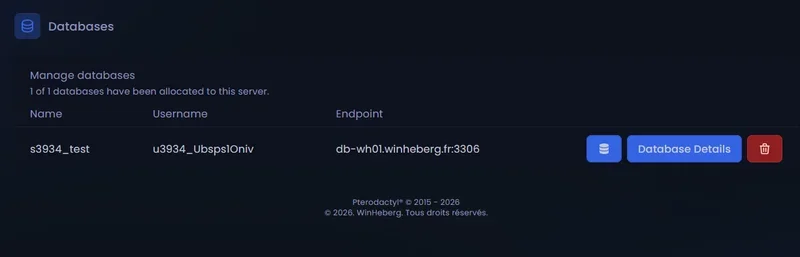
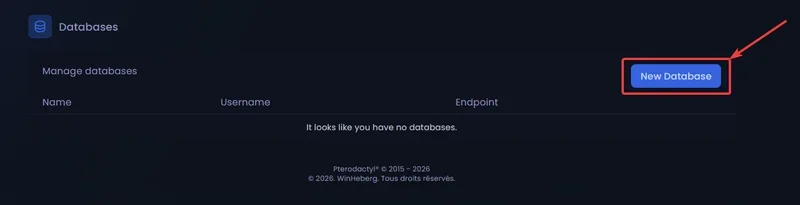 Once the database is created, you'll get a database name, a username, and a password. This information will appear immediately in the databases table.
 ## 2. Get the ready-to-use connection string
To make things easier, Winheberg automatically generates the **full connection string** in the **Database Details** section.
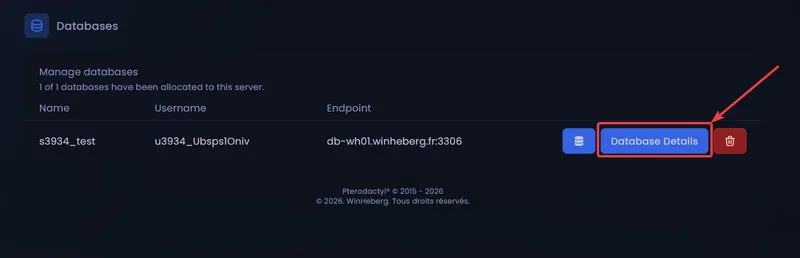
1. Click your freshly created database
2. Scroll down to the **Database Details** section
3. Find the **Fxserver Database** line, which contains the `mysql_connection_string` ready to copy
## 2. Get the ready-to-use connection string
To make things easier, Winheberg automatically generates the **full connection string** in the **Database Details** section.
1. Click your freshly created database
2. Scroll down to the **Database Details** section
3. Find the **Fxserver Database** line, which contains the `mysql_connection_string` ready to copy
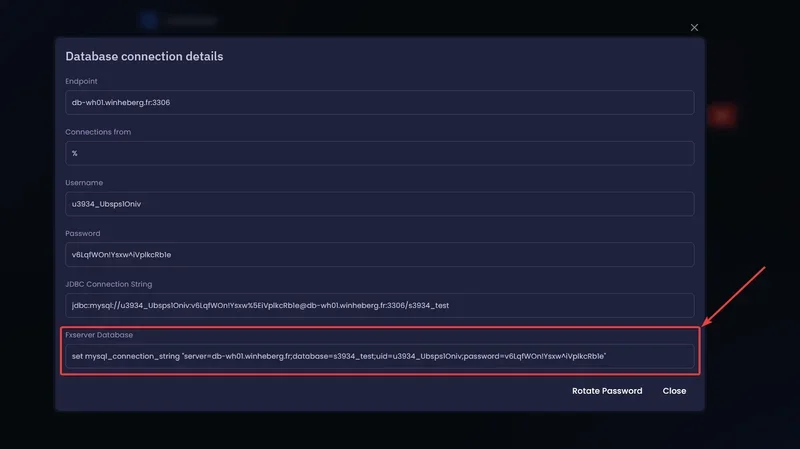 This line looks like this.
```bash
set mysql_connection_string "server=dbXX.wh-nodes.net;database=sxx_Exemple;userid=uxxx_Exemple;password=PASSWORD"
```
You just need to copy it into your `server.cfg`.
> [!WARNING]
> If your password contains characters like `=`, `;`, `"`, or `'`, parsing the connection string will fail (especially with OXMYSQL). If that happens, **regenerate the password** from the panel (the **Rotate password** option or equivalent) until you get a clean password. See the "Password containing problematic characters" section below.
## 3. Add the string to server.cfg
Open your `server.cfg` file (at the root of your FiveM server) and **paste the line** you just copied from the panel.
```bash
set mysql_connection_string "server=dbXX.wh-nodes.net;database=sxx_Exemple;userid=uxxx_Exemple;password=YOUR_PASSWORD"
```
If the `mysql_connection_string` line already exists in your `server.cfg`, **replace it** entirely with the new one.
## 4. Restart your FiveM server
After saving the changes, **fully restart your server** so the new configuration takes effect. A simple resource `restart` isn't enough, since `mysql_connection_string` is loaded when the server starts.
## 5. Check the connection
Once the server has restarted, check the FiveM logs. If the connection works, you should see a message like this.
```
[oxmysql] Database server connection established!
```
If you see an error instead, check the "If you run into trouble" section at the end of this guide.
## Password containing problematic characters
Some special characters (`=`, `;`, `"`, `'`) are used in the **syntax itself** of the `mysql_connection_string` and will break the string's parsing. This is especially true with **OXMYSQL**, which is very strict.
If your password contains one of these characters, the simplest solution is to **regenerate the password** from the panel.
1. Go back to the **Databases** tab on the gaming panel
2. Click your database
3. Use the **Rotate password** option (or equivalent)
4. Check that the new password doesn't contain any of the problematic characters
5. If needed, rotate again until you get a clean password
6. Get the updated **Fxserver Database** string again from **Database Details**
7. Replace it in your `server.cfg` and restart your server
## Security best practices
A few rules to follow to keep your MySQL connection secure.
- **Never share your `server.cfg`** on public forums or GitHub, it contains your MySQL password in plain text
- **Regenerate your password** from the panel if you suspect a leak, for example if you accidentally shared your `server.cfg`
- **Make regular backups** of your database with `mysqldump` or through the panel
- **Don't give panel access** to unauthorized people, they could see your MySQL password in plain text in Database Details
## If you run into trouble
Here are the most common errors you might run into.
### ❌ Access denied for user
The username or password is incorrect. Check the following.
- That you correctly copied the full line from **Database Details** without truncating it
- That the password doesn't contain forbidden characters (`=`, `;`, `"`, `'`), if it does, regenerate it from the panel
- That there's no extra space before or after the values in your `mysql_connection_string`
### ❌ Can't connect to MySQL server
FiveM can't reach the MySQL server. Check the following.
- That the server address (`dbXX.wh-nodes.net`) is spelled correctly in your `mysql_connection_string`
- That your database is active in the gaming panel, not suspended or deleted
- That your FiveM server has outbound network access, normally always the case at Winheberg
### ❌ The server starts but no data is being saved
Check the FiveM logs at startup. You'll likely see a silent connection error. If you're using oxmysql, run the following command in the FiveM console to enable debug mode.
```
oxmysql_debug true
```
This will enable detailed MySQL query logs and help you identify the issue.
### ❌ Unknown collation 'utf8mb4_0900_ai_ci'
This error happens when you import a database exported from MySQL 8 into MariaDB. Before importing, replace every occurrence of `utf8mb4_0900_ai_ci` with `utf8mb4_unicode_ci` in your SQL file.
## Need help?
If your FiveM server still won't connect to MySQL despite these steps, our team is here. Open a ticket in the **Technical** department from your client area, fill in the **Produit lié** field with the server in question, and attach your FiveM server's startup logs.
Your FiveM server is now connected to its database and ready to save your players' data 🎮
This line looks like this.
```bash
set mysql_connection_string "server=dbXX.wh-nodes.net;database=sxx_Exemple;userid=uxxx_Exemple;password=PASSWORD"
```
You just need to copy it into your `server.cfg`.
> [!WARNING]
> If your password contains characters like `=`, `;`, `"`, or `'`, parsing the connection string will fail (especially with OXMYSQL). If that happens, **regenerate the password** from the panel (the **Rotate password** option or equivalent) until you get a clean password. See the "Password containing problematic characters" section below.
## 3. Add the string to server.cfg
Open your `server.cfg` file (at the root of your FiveM server) and **paste the line** you just copied from the panel.
```bash
set mysql_connection_string "server=dbXX.wh-nodes.net;database=sxx_Exemple;userid=uxxx_Exemple;password=YOUR_PASSWORD"
```
If the `mysql_connection_string` line already exists in your `server.cfg`, **replace it** entirely with the new one.
## 4. Restart your FiveM server
After saving the changes, **fully restart your server** so the new configuration takes effect. A simple resource `restart` isn't enough, since `mysql_connection_string` is loaded when the server starts.
## 5. Check the connection
Once the server has restarted, check the FiveM logs. If the connection works, you should see a message like this.
```
[oxmysql] Database server connection established!
```
If you see an error instead, check the "If you run into trouble" section at the end of this guide.
## Password containing problematic characters
Some special characters (`=`, `;`, `"`, `'`) are used in the **syntax itself** of the `mysql_connection_string` and will break the string's parsing. This is especially true with **OXMYSQL**, which is very strict.
If your password contains one of these characters, the simplest solution is to **regenerate the password** from the panel.
1. Go back to the **Databases** tab on the gaming panel
2. Click your database
3. Use the **Rotate password** option (or equivalent)
4. Check that the new password doesn't contain any of the problematic characters
5. If needed, rotate again until you get a clean password
6. Get the updated **Fxserver Database** string again from **Database Details**
7. Replace it in your `server.cfg` and restart your server
## Security best practices
A few rules to follow to keep your MySQL connection secure.
- **Never share your `server.cfg`** on public forums or GitHub, it contains your MySQL password in plain text
- **Regenerate your password** from the panel if you suspect a leak, for example if you accidentally shared your `server.cfg`
- **Make regular backups** of your database with `mysqldump` or through the panel
- **Don't give panel access** to unauthorized people, they could see your MySQL password in plain text in Database Details
## If you run into trouble
Here are the most common errors you might run into.
### ❌ Access denied for user
The username or password is incorrect. Check the following.
- That you correctly copied the full line from **Database Details** without truncating it
- That the password doesn't contain forbidden characters (`=`, `;`, `"`, `'`), if it does, regenerate it from the panel
- That there's no extra space before or after the values in your `mysql_connection_string`
### ❌ Can't connect to MySQL server
FiveM can't reach the MySQL server. Check the following.
- That the server address (`dbXX.wh-nodes.net`) is spelled correctly in your `mysql_connection_string`
- That your database is active in the gaming panel, not suspended or deleted
- That your FiveM server has outbound network access, normally always the case at Winheberg
### ❌ The server starts but no data is being saved
Check the FiveM logs at startup. You'll likely see a silent connection error. If you're using oxmysql, run the following command in the FiveM console to enable debug mode.
```
oxmysql_debug true
```
This will enable detailed MySQL query logs and help you identify the issue.
### ❌ Unknown collation 'utf8mb4_0900_ai_ci'
This error happens when you import a database exported from MySQL 8 into MariaDB. Before importing, replace every occurrence of `utf8mb4_0900_ai_ci` with `utf8mb4_unicode_ci` in your SQL file.
## Need help?
If your FiveM server still won't connect to MySQL despite these steps, our team is here. Open a ticket in the **Technical** department from your client area, fill in the **Produit lié** field with the server in question, and attach your FiveM server's startup logs.
Your FiveM server is now connected to its database and ready to save your players' data 🎮