---
title: "How to generate your FiveM License Key on the Cfx.re portal"
description: "Generate your FiveM License Key (Server Registration Key) for free on the Cfx.re portal, then enter it in the FIVEM LICENSE field of your Winheberg gaming panel."
category: fivem
icon: tabler:file-text
date: 2026-10-31
author: Winheberg
slug: "generate-fivem-license-key"
order: 96
image: /statics/images/docs/en/gaming/fivem/generate-fivem-license-key.webp
tags: [fivem, license key, cfx.re, startup, gaming panel]
link_fr: "/docs/fivem/generer-license-key-fivem"
head:
meta:
- name: "og:title"
content: "How to generate your FiveM License Key on the Cfx.re portal"
- name: "og:description"
content: "Generate your FiveM License Key (Server Registration Key) for free on the Cfx.re portal, then enter it in the FIVEM LICENSE field of your Winheberg gaming panel."
- name: "og:image"
content: /statics/images/docs/en/gaming/fivem/generate-fivem-license-key.webp
- name: "og:type"
content: "article"
- name: "twitter:title"
content: "How to generate your FiveM License Key on the Cfx.re portal"
- name: "twitter:description"
content: "Generate your FiveM License Key (Server Registration Key) for free on the Cfx.re portal, then enter it in the FIVEM LICENSE field of your Winheberg gaming panel."
- name: "twitter:image"
content: /statics/images/docs/en/gaming/fivem/generate-fivem-license-key.webp
- name: "twitter:card"
content: "summary_large_image"
---
## Context
Every **FiveM** server needs a key to start and to appear on the public Cfx.re list. This key is known by two names, **License Key** and **Server Registration Key**, and you generate it for free from the official Cfx.re portal at `portal.cfx.re`. Without it, your server won't start.
This guide walks you through every step, from creating the key on the Cfx.re portal to entering it in the dedicated field of your Winheberg gaming panel. To then make your server visible on the FiveM server list, see our guide **"How to list your FiveM server on the Cfx.re server list"**.
> [!WARNING]
> Always generate your key directly on `portal.cfx.re`. Keys resold by third parties are unreliable and can be revoked without notice. Each server needs its own dedicated key.
## Prerequisites
- A **Cfx.re account**, the same one you use for the forum and the game
- An active **FiveM server** on your Winheberg gaming panel
- A name, a tagline and a description for your server, which you'll be asked for during generation
> [!NOTE]
> A single Cfx.re account can hold up to three active servers at the same time. A generated key stays tied to your account, so you do not have to regenerate it on every restart.
## 1. Sign in to the Cfx.re portal
Go to `portal.cfx.re` and sign in with your Cfx.re account. This is the same login as the Cfx.re forum and FiveM, there is no separate account to create.
## 2. Open the Server Registration Keys page
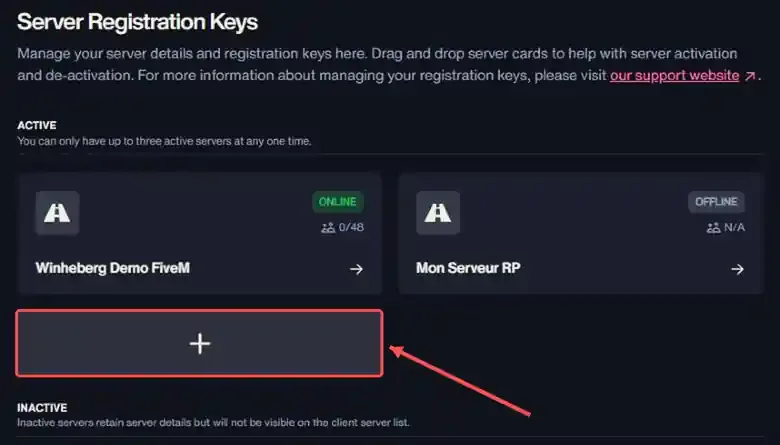
Once signed in, open the **Servers** menu at the top of the page, then the **Server Registration Keys** tab. You'll see your already-registered servers there, split between **Active** and **Inactive**. To create a new key, click the card marked with a **+** in the Active section.
 > [!NOTE]
> The Active section is limited to three servers. If it is full, deactivate a server you no longer use before adding a new one.
## 3. Fill in the server details
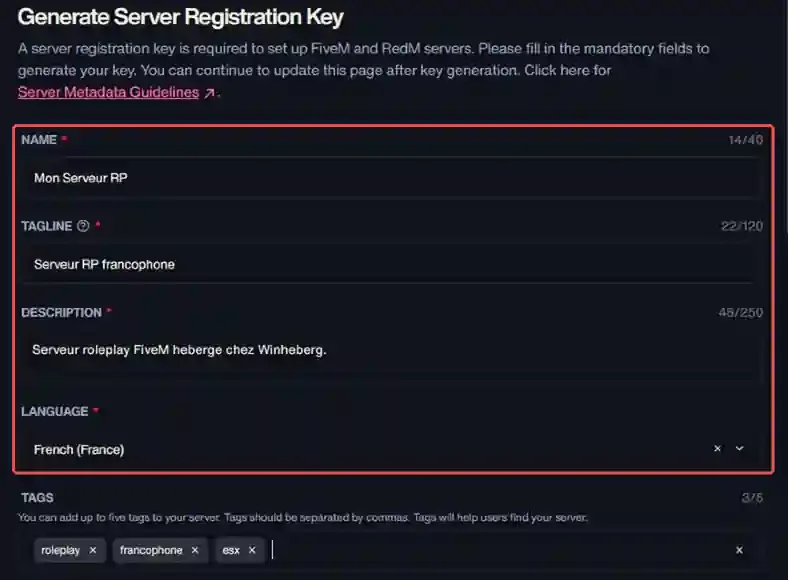
The **Generate Server Registration Key** page shows a form. Four fields are mandatory, marked with a red asterisk.
::MdTable{caption="Fields in the generation form" variant="info"}
| Field | Purpose |
|---|---|
| **Name** | Your server name |
| **Tagline** | Short tagline shown under the name |
| **Description** | A few sentences presenting your server |
| **Language** | Main language of the server |
| **Tags** | Optional keywords, five at most |
| **Banner image / Icon** | Optional visuals for your listing |
::
 > [!TIP]
> These details stay editable after generation, through the **Edit Server Details** button. You can start with simple values and refine them later.
> [!NOTE]
> The name, description, tags, language and visuals shown on the server list are managed from this portal form. On startup, the FiveM console points this out, `sv_projectName`, `sv_projectDesc`, `tags`, `locale`, `banner_detail` and `banner_connecting` are no longer read from the server configuration for the list.
## 4. Generate the key
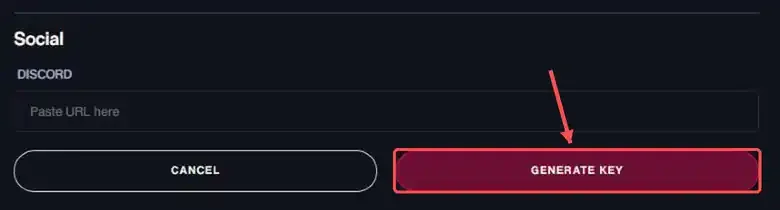
At the bottom of the form, click **Generate Key**. The portal then creates your key and shows your server page.
 ## 5. Retrieve your key
On the server page, the **Server Registration Key** block shows your key, masked by default as `cfxk...`. Click the eye icon to reveal it, or **Copy Key** to copy it straight to your clipboard.
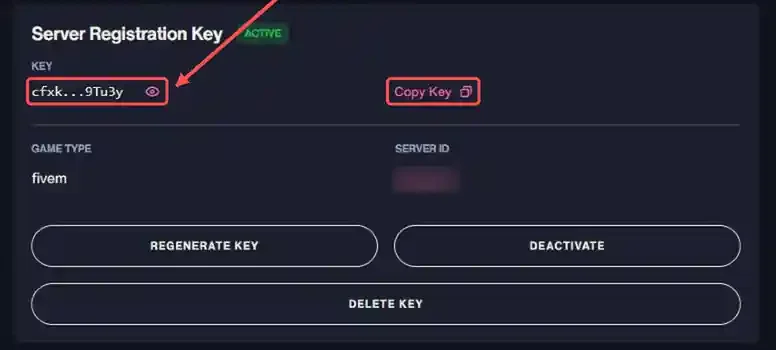 ::MdTable{caption="Actions available on the server page"}
| Button | Effect |
|---|---|
| **Copy Key** | Copies the key to the clipboard |
| **Regenerate Key** | Replaces the current key with a new one, which you then enter in your panel |
| **Deactivate** | Moves the server to Inactive, it keeps its details but no longer shows on the server list |
| **Delete Key** | Deletes the key |
::
> [!CAUTION]
> Your key is a secret, just like a password. Never post it in a screenshot, a shared file or a public message. If it has leaked, use **Regenerate Key** to get a new one, then replace it in your panel.
## 6. Enter the key in your Winheberg panel
On the Winheberg side, the key is not pasted by hand into `server.cfg`. You enter it in a dedicated panel field, which injects it automatically into your `sv_licenseKey` at startup.
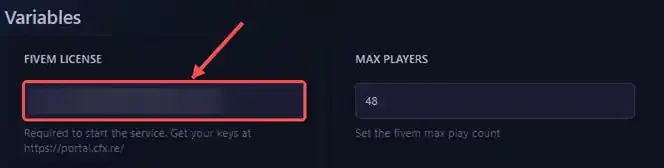
From your gaming panel, open your FiveM server, then the **Startup** tab. In the **Variables** section, find the **FIVEM LICENSE** field. By default it holds the value `none`. Replace `none` with the key copied from the Cfx.re portal.
 > [!IMPORTANT]
> Paste the key on its own, with no space before or after, and no quotes. A value left on `none` or pasted incorrectly stops the server from starting.
## 7. Start the server
Once the field is set, open your server's **Console** and click **Start**. On startup, the server has Cfx.re check the key. If it is valid, two lines confirm it in the console.
```bash
Authenticating server license key...
Server license key authentication succeeded. Welcome!
```
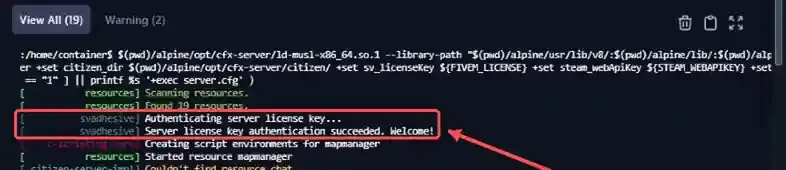 If the console shows an error instead, see the **If you run into trouble** section.
## 8. Check the publication on the Cfx.re portal
Once the server has started, go back to its page on `portal.cfx.re`. The **Server Publish Status** block switches to **Published** and ticks each step completed, from the server starting to its publication on the server list.
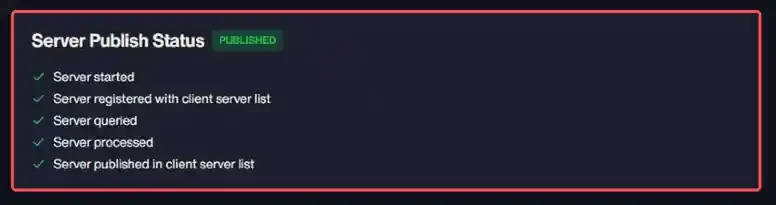 On the **Server Registration Keys** page, your server card then shows the **Online** status and the number of connected players out of the number of slots.
## If you run into trouble
### ❌ Could not authenticate server license key
On startup, the console shows the following message, then the server stops.
```bash
Could not authenticate server license key. Invalid key format specified.
```
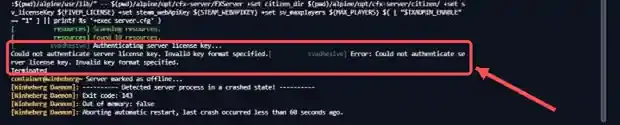 The server does not recognize the key it received. This happens in particular when the **FIVEM LICENSE** field was left on `none`. Check the following points.
- The **FIVEM LICENSE** field holds your key and not the original `none` value
- The key is pasted on its own, with no space or quotes around it
- The key was not truncated during copy and paste, compare it with the one shown on the portal
- The field change was applied before restarting the server
### ❌ The key is pasted correctly but still rejected
- The key comes from the official `portal.cfx.re` portal and not a third-party reseller
- The key was not regenerated in the meantime from the server page, in which case enter the new one in your panel
- The Cfx.re server tied to this key was not deleted or deactivated
### ❌ You cannot create a new key
- The **Active** section already holds three servers, deactivate one to free a slot
- All four mandatory form fields are filled in
## Best practices
- **One key per server**, do not reuse the same key across several servers
- **Keep your key confidential**, treat it like a password
- **Enter accurate details** about your project from the start, they feed your public listing
- **Note the Server ID** shown on the page, it helps you keep track when you run several servers
- **Regenerate without delay** any key that may have leaked
> [!NOTE]
> The free base key allows up to 48 slots. To welcome more players, an Element Club subscription, also taken out on `portal.cfx.re`, unlocks higher slot tiers.
## Need help?
If your server does not start despite a correctly entered key, our team is here. Open a ticket in the **Technical** department from your client area, fill in the **Related product** field with the server concerned, and attach the startup logs from the console.
Your FiveM server now has its key, ready to start and welcome your players 🎮