---
title: "How to update your FiveM server's artifacts"
description: "Update your FiveM server's artifacts (builds) at Winheberg, choosing the right version, update procedure, and rollback in case of issues."
category: jeux
subcategory: fivem
icon: tabler:file-text
date: 2026-07-24
author: Winheberg
slug: "update-fivem-artifacts"
order: 17
image: /statics/images/docs/en/gaming/fivem/update-fivem-artifacts.webp
tags: [fivem, artifacts, fxserver, update, jgscripts]
keywords: [update fivem artifacts, fxserver build, artifacts.jgscripts, stable fivem version, fivem server winheberg]
link_fr: "/docs/fivem/mise-a-jour-artifacts-fivem"
---
## Context
You manage a **FiveM server** at Winheberg and want to **update the artifacts** (also called "builds" or "FXServer")? Whether it's to get the latest features, fix a bug, or meet the requirements of a new resource, updating artifacts takes just a few clicks from your Winheberg gaming panel.
This guide explains how to change your artifact version cleanly and how to **pick the right version** to avoid nasty surprises.
## Prerequisites
Before you start, make sure you have the following.
- An active **FiveM server** on your Winheberg gaming panel
- A **recent backup** of your server (recommended in case something goes wrong after the update)
> [!WARNING]
> An artifact update **automatically stops and then restarts your server**. Warn your players if your server is active, and avoid updating during a busy session.
## Choosing the right artifact version
Before clicking any download button, **take a few minutes to pick the right version**. Not all versions are equal, and some contain known bugs that can break your server.
### ❌ Don't just grab the latest version by default
This is the classic mistake, seeing the most recent version at the top of the list and clicking it without thinking. **Bad idea**. The very latest versions are often unstable and can introduce regressions or bugs that haven't hit other servers yet.
### ✅ Check each version's status on jgscripts
The site [artifacts.jgscripts.com](https://artifacts.jgscripts.com/) is an **essential resource** for FiveM server admins. For **each artifact version**, it tracks the following.
- **Known bugs** on that version
- **Features added**
- Whether the version is marked as **stable** or **problematic**
- Community feedback
> [!TIP]
> Our recommendation, before every update, go to [artifacts.jgscripts.com](https://artifacts.jgscripts.com/), find a recent version **with no major reported bug**, and use that one. It's much safer than blindly grabbing the latest.
### Why not the official "RECOMMENDED" version?
FiveM highlights a **RECOMMENDED** version (in green in the panel). It's a good baseline, but it's often several weeks behind on new features. If you need a recent feature, you'll have to go beyond it, and that's where jgscripts becomes useful to validate your choice.
## 1. Access the Artifacts section
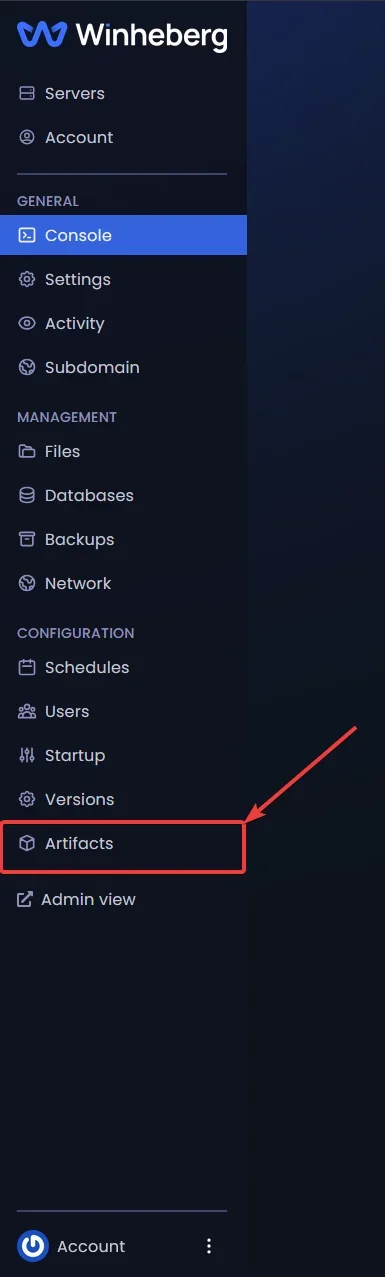
1. Log in to your **Winheberg gaming panel**
2. Select your **FiveM server**
3. In the left sidebar menu, find the **CONFIGURATION** section
4. Click **Artifacts**
 ## 2. Choose and download the new version
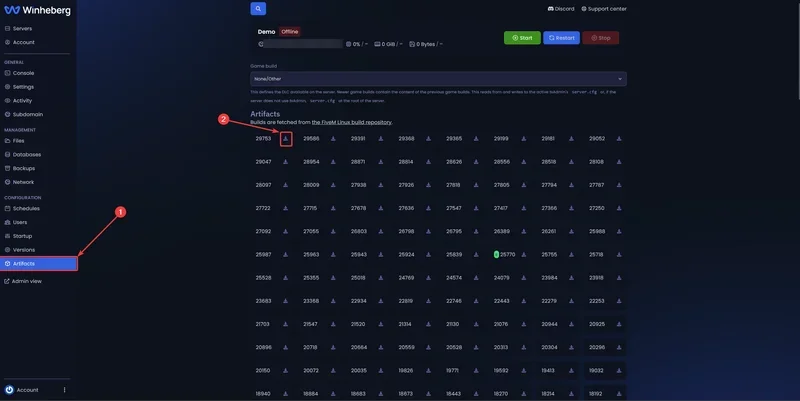
The **Artifacts** page shows the list of all available versions, from the most recent (at the top) to the oldest (at the bottom). The currently installed version is usually marked with a green **R** (RECOMMENDED) or another visual indicator.
1. Find the version you want to install (after checking [artifacts.jgscripts.com](https://artifacts.jgscripts.com/))
2. Click the **download icon** next to the version number
## 2. Choose and download the new version
The **Artifacts** page shows the list of all available versions, from the most recent (at the top) to the oldest (at the bottom). The currently installed version is usually marked with a green **R** (RECOMMENDED) or another visual indicator.
1. Find the version you want to install (after checking [artifacts.jgscripts.com](https://artifacts.jgscripts.com/))
2. Click the **download icon** next to the version number
 ## 3. Wait for the installation to finish
Once you've clicked the download button, **the panel automatically takes over**.
- Your FiveM server is **stopped** automatically
- The new artifact version is **downloaded and installed**
- An **installation message** appears in the panel console to track progress
- Your server is **restarted** automatically with the new version
> [!NOTE]
> No need to manually restart your server. The panel handles everything from start to finish, you just need to wait for the installation to complete.
## 4. Check the update
Once the server has restarted, check that everything is working correctly.
- Check the panel's **console** for any startup errors
- Connect to the server in-game and **test the main features** of your server (map loading, database connection, essential scripts)
- Check that all your resources load correctly (`txAdmin` or FiveM logs)
If everything works, your server is now running on the new artifact version 🎉
## What if the new version breaks your server?
This can happen, especially if the version has a bug that hadn't been reported on jgscripts at the time of your update. Don't panic, **you can roll back** easily.
1. Go back to the panel's **Artifacts** section
2. Find the **previous version** you were using before the update
3. Click its download icon
4. The panel will automatically switch back to that version
> [!TIP]
> Before every update, **note down the number of the currently installed version** somewhere. That way, if something goes wrong, you know exactly which version to roll back to.
## If you run into trouble
Here are the most common errors after an artifact update.
### ❌ The server doesn't restart after installation
Check the panel's **console**. You'll see the exact error there. The most common causes are the following.
- A server resource **incompatible** with the new artifact version
- A dependency (oxmysql, ESX, QBCore) that also needs updating
- A `server.cfg` syntax that's changed or outdated in this new version
### ❌ Script errors after the update
Some FiveM native functions can change between versions. If your scripts stop working, check **artifacts.jgscripts.com** to see if the new version introduced major changes (deprecations, removals). You may need to update your resources.
### ❌ The download stays stuck
If the download isn't progressing anymore, wait a few minutes. If nothing happens after 10 minutes, **reload the panel page** and check your server's status. If the issue persists, contact our support.
### ❌ My players get connection errors
An artifact update can create a **version mismatch** between your server and players' FiveM clients. Ask them to **update their FiveM client** (client-side FXServer) and relaunch their game.
## Best practices
A few recommendations for managing your artifact updates smoothly.
- **Always check [artifacts.jgscripts.com](https://artifacts.jgscripts.com/)** before updating to avoid buggy versions
- **Don't update during an active gaming session**, do it during off-peak hours
- **Note the current version** before updating, so you can roll back easily
- **Make a backup** of your server (files and database) before a major update
- **Test your resources** after the update, especially frameworks (ESX, QBCore, vRP) that can be affected
## Need help?
If you run into an issue after an artifact update, or if you can't roll back to a previous version, our team is here. Open a ticket in the **Technical** department from your client area, fill in the **Related product** field with the server in question, and specify the current version, the target version, and any error messages from the console.
Your FiveM artifacts are now up to date, enjoy the latest features 🚀
## 3. Wait for the installation to finish
Once you've clicked the download button, **the panel automatically takes over**.
- Your FiveM server is **stopped** automatically
- The new artifact version is **downloaded and installed**
- An **installation message** appears in the panel console to track progress
- Your server is **restarted** automatically with the new version
> [!NOTE]
> No need to manually restart your server. The panel handles everything from start to finish, you just need to wait for the installation to complete.
## 4. Check the update
Once the server has restarted, check that everything is working correctly.
- Check the panel's **console** for any startup errors
- Connect to the server in-game and **test the main features** of your server (map loading, database connection, essential scripts)
- Check that all your resources load correctly (`txAdmin` or FiveM logs)
If everything works, your server is now running on the new artifact version 🎉
## What if the new version breaks your server?
This can happen, especially if the version has a bug that hadn't been reported on jgscripts at the time of your update. Don't panic, **you can roll back** easily.
1. Go back to the panel's **Artifacts** section
2. Find the **previous version** you were using before the update
3. Click its download icon
4. The panel will automatically switch back to that version
> [!TIP]
> Before every update, **note down the number of the currently installed version** somewhere. That way, if something goes wrong, you know exactly which version to roll back to.
## If you run into trouble
Here are the most common errors after an artifact update.
### ❌ The server doesn't restart after installation
Check the panel's **console**. You'll see the exact error there. The most common causes are the following.
- A server resource **incompatible** with the new artifact version
- A dependency (oxmysql, ESX, QBCore) that also needs updating
- A `server.cfg` syntax that's changed or outdated in this new version
### ❌ Script errors after the update
Some FiveM native functions can change between versions. If your scripts stop working, check **artifacts.jgscripts.com** to see if the new version introduced major changes (deprecations, removals). You may need to update your resources.
### ❌ The download stays stuck
If the download isn't progressing anymore, wait a few minutes. If nothing happens after 10 minutes, **reload the panel page** and check your server's status. If the issue persists, contact our support.
### ❌ My players get connection errors
An artifact update can create a **version mismatch** between your server and players' FiveM clients. Ask them to **update their FiveM client** (client-side FXServer) and relaunch their game.
## Best practices
A few recommendations for managing your artifact updates smoothly.
- **Always check [artifacts.jgscripts.com](https://artifacts.jgscripts.com/)** before updating to avoid buggy versions
- **Don't update during an active gaming session**, do it during off-peak hours
- **Note the current version** before updating, so you can roll back easily
- **Make a backup** of your server (files and database) before a major update
- **Test your resources** after the update, especially frameworks (ESX, QBCore, vRP) that can be affected
## Need help?
If you run into an issue after an artifact update, or if you can't roll back to a previous version, our team is here. Open a ticket in the **Technical** department from your client area, fill in the **Related product** field with the server in question, and specify the current version, the target version, and any error messages from the console.
Your FiveM artifacts are now up to date, enjoy the latest features 🚀