---
title: "How to update txAdmin on your FiveM server"
description: "Console says \"This version of txAdmin is outdated\"? txAdmin ships with the FiveM artifacts, update it by switching artifact version from the Winheberg gaming panel."
category: jeux
subcategory: fivem
icon: tabler:refresh
date: 2026-11-01
author: Winheberg
slug: "update-txadmin-fivem"
order: 98
image: /statics/images/docs/en/gaming/fivem/update-txadmin-fivem.webp
tags: [fivem, txadmin, artifacts, update]
keywords: [update txadmin, txadmin update, txadmin fivem, txadmin version, fivem artifacts, fxserver, fivem server]
link_fr: "/docs/fivem/mise-a-jour-txadmin-fivem"
---
## Context
You run **txAdmin** on your **FiveM server** at Winheberg and the console tells you an update is available? Unlike a regular resource, txAdmin is not downloaded or installed separately.
Since 2020, txAdmin has been part of **FXServer** and ships directly inside the FiveM **artifacts** (the official FiveM documentation states it is included in every build from 2524 onwards). Each artifact version therefore bundles its own txAdmin version. To update txAdmin, you simply **update your server's artifacts**.
## Prerequisites
- An active **FiveM server** on your Winheberg gaming panel, with txAdmin enabled
- A **recent backup** of your server, including the `txData` folder
> [!WARNING]
> Changing the artifact version **stops your server** during the installation. Let your players know and update during off-peak hours.
## How do you know txAdmin needs an update?
Every time the server starts, the panel **console** shows the txAdmin version. When a newer version exists, txAdmin says so right below.
```bash
[tx] Starting txAdmin v8.1.1/b35245/Ptero...
[tx:UpdateChecker] This version of txAdmin is outdated.
[tx:UpdateChecker] A patch (bug fix) update is available for txAdmin.
[tx:UpdateChecker] If you are experiencing any kind of issue, please update now.
```
 The first number (`v8.1.1` here) is the txAdmin version, the second one (`b35245`) is the artifact build in use. Write them down before changing anything, you will need them if you have to roll back.
## 1. Pick a newer artifact version
Before updating, check [artifacts.jgscripts.com](https://artifacts.jgscripts.com/) to find a recent version **with no major known bug**. Avoid blindly picking the very latest one, which may be unstable.
txAdmin release notes are published on the [txAdmin GitHub releases page](https://github.com/citizenfx/txAdmin/releases), handy to see what a new version brings.
## 2. Open the Artifacts page
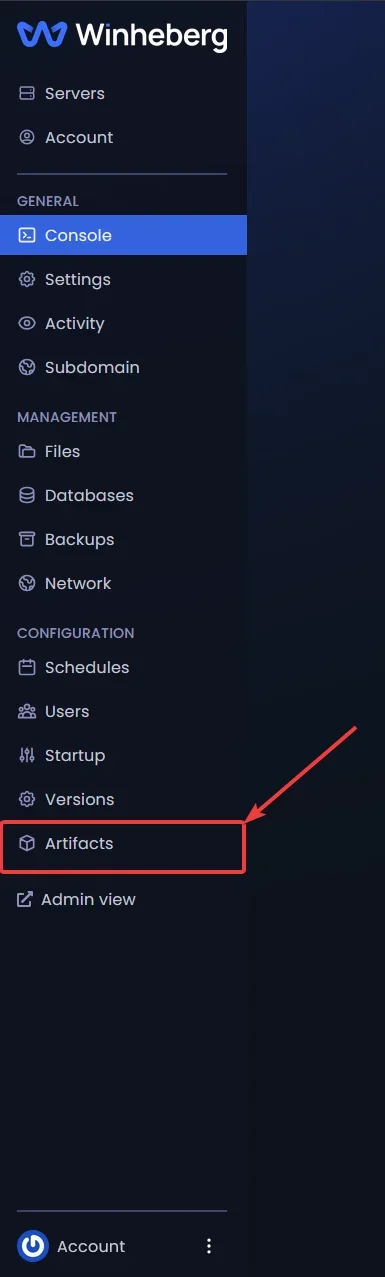
Log in to your **Winheberg gaming panel** and select your FiveM server. In the side menu, under **CONFIGURATION**, click **Artifacts**.
 ## 3. Install the new version
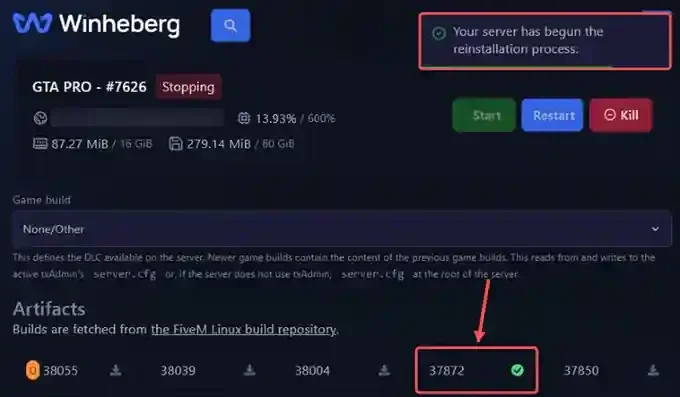
The page lists every available version, newest first. The version recommended by FiveM has a green **R** badge. Click the **download icon** next to the chosen version.
The panel shows the message **Your server has begun the reinstallation process**, stops the server and installs the new version. During the installation, the server page shows **Running Installer**, wait a moment.
 The full procedure is also described in our guide **"How to update your FiveM server's artifacts"**.
## 4. Restart the server and check the version
Once the installation is done, go back to the **console**. If the server stayed **Offline**, click **Start**.
On startup, read the `Starting txAdmin` line again. The version number should have changed, and the `This version of txAdmin is outdated` warning should be gone.
```bash
[tx] Starting txAdmin v8.1.2/b37872/Ptero...
```
 Then log in to the txAdmin interface with your usual account and make sure your server starts correctly.
> [!NOTE]
> If the txAdmin version number did not change, the artifact you picked simply bundles the same txAdmin version as the previous one. Pick a more recent artifact to get a newer txAdmin.
## If you run into trouble
### ❌ The server no longer starts after the update
Go back to **Artifacts** and reinstall the artifact version you were using before (the build noted at the start). The panel switches back to that version, and txAdmin with it.
### ❌ I can no longer log in to txAdmin
In **Startup**, check that the **ENABLE TXADMIN** toggle is still on, then restart the server and read the console. If you lost your password, follow the procedure in our guide **"How to enable txAdmin on your FiveM server"**.
## Need help?
If the update does not go as planned, open a ticket in the **Technical** department from your client area, fill in the **Related product** field with your FiveM server, and include the starting artifact version, the target one and any console error messages.
Your txAdmin is now up to date, happy administrating 🎮