---
title: "How to Keep Your Emails Out of Spam with SPF, DKIM and DMARC"
description: "Check and adapt the SPF, DKIM and DMARC records of your domain on Winheberg Plesk web hosting, third-party sending services, external DNS and tests with Mail-Tester."
category: cloud
subcategory: hebergement-web
icon: tabler:file-text
date: 2026-11-02
author: Winheberg
slug: "configure-spf-dkim-dmarc-plesk"
order: 141
image: /statics/images/docs/en/hebergement-web/configure-spf-dkim-dmarc-plesk.webp
tags: [Email, DNS, SPF, DKIM, DMARC, Web Hosting]
keywords: [email spam, spf dkim dmarc, configure spf, dkim signature, dmarc policy, email deliverability]
link_fr: "/docs/hebergement-web/configurer-spf-dkim-dmarc-plesk"
---
## Context
Major mailbox providers such as Gmail or Outlook check the identity of every email they receive, and even require it from senders who send in volume. An email whose sender cannot be authenticated is likely to land in spam, or to be rejected outright.
This authentication relies on three DNS records. SPF lists the servers allowed to send email for your domain, DKIM signs every outgoing email, and DMARC tells the recipient what to do with an email that fails these checks.
On your [Winheberg web hosting](https://winheberg.com/en/cloud/web-hosting), Plesk creates these three records automatically for every domain with mail enabled. This guide shows you how to check them, adapt them when another service sends email for you, copy them if your DNS is managed elsewhere and test the result.
> [!NOTE]
> The Winheberg Plesk panel is displayed in French. Menu, field and button names are quoted below exactly as they appear on screen, followed by their English meaning.
## Prerequisites
- A Winheberg web hosting plan with access to the Plesk panel
- A domain connected to the hosting, see our guide [How to Connect an External Domain to Your Plesk Hosting](https://winheberg.com/en/docs/hebergement-web/connect-external-domain-plesk)
- Mail enabled on this domain, which is the default
- If your DNS is managed somewhere other than Winheberg, access to your DNS provider interface
## 1. Understand the three records
::MdTable{caption="Records created by Plesk" variant="info" striped footer="Example taken from a demonstration domain. The exact values of your domain are in its DNS zone, see step 3."}
| Record | Role | Example value |
|---|---|---|
| SPF | Lists the servers allowed to send email for your domain | `v=spf1 +a +mx +a:plesk.winheberg.fr -all` |
| DKIM | Publishes the key the recipient uses to check your email signature | `v=DKIM1; p=MIIBIjANBgkqh...` |
| DMARC | Says what to do with an email that fails the checks | `v=DMARC1; p=quarantine; adkim=s; aspf=s` |
::
The default DMARC policy is strict. With `p=quarantine`, an email that fails goes to the recipient's spam folder, and both `adkim=s` and `aspf=s` require the signature and the sending address to match your domain exactly.
## 2. Check that DKIM signing is on
In the side menu, open **Boîte mail** (*Mail*), then the **Paramètres de la messagerie** (*Mail Settings*) tab. Click your domain name.
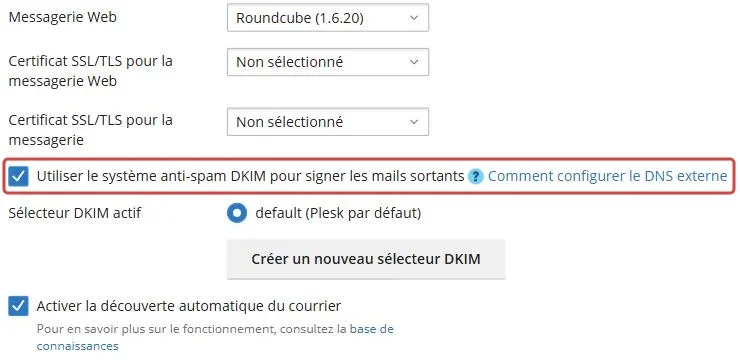 The **Utiliser le système anti-spam DKIM pour signer les mails sortants** (*Use DKIM spam protection system to sign outgoing email messages*) box must be ticked, with the **Sélecteur DKIM actif** (*Active DKIM selector*) on **default (Plesk par défaut)** (*default, Plesk default*). If it is not, tick it then click **Enregistrer** (*Save*), Plesk then publishes the matching key in the DNS zone.
## 3. Check the records in the DNS zone
Open your domain from **Sites Web & Domaines** (*Websites & Domains*), then the **Hébergement et DNS** (*Hosting & DNS*) tab and the **DNS** entry.
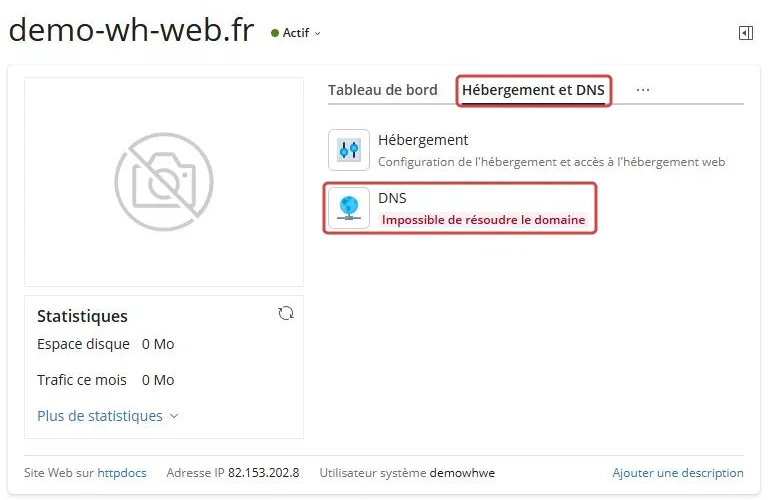 In **Paramètres DNS** (*DNS Settings*), click the **Type d'enregistrement** (*Record type*) column header to group the TXT records.
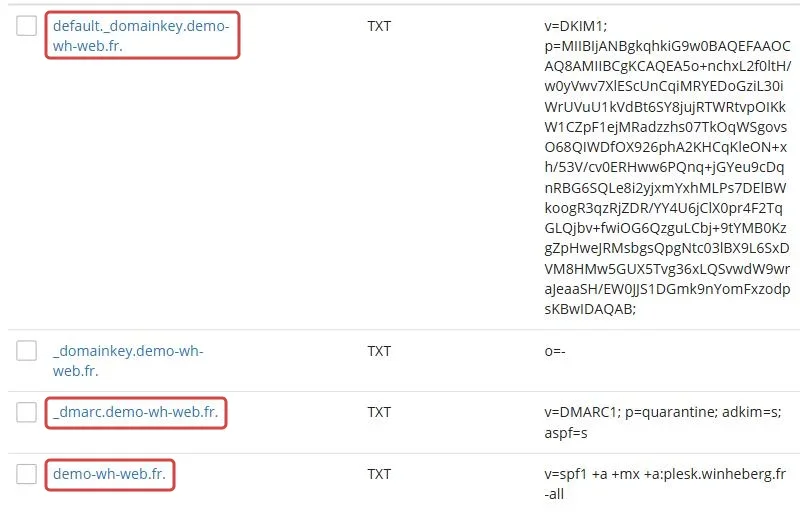 ::MdTable{caption="Where to find each record" variant="info" striped}
| Host | Type | Content |
|---|---|---|
| `default._domainkey.your-domain.com.` | TXT | The DKIM public key, starting with `v=DKIM1` |
| `_dmarc.your-domain.com.` | TXT | The DMARC policy, starting with `v=DMARC1` |
| `your-domain.com.` | TXT | The SPF record, starting with `v=spf1` |
::
The `_domainkey.your-domain.com.` record with the `o=-` value is a leftover of the old DomainKeys standard, leave it as it is.
## 4. Allow another service to send for your domain
If a newsletter tool, a CRM or a mail service hosted elsewhere sends email with your address, it must be declared, otherwise its emails fail the checks and go to spam.
### Add the service to SPF
In **Paramètres DNS**, click the host of the SPF record, the line whose value starts with `v=spf1`. Add the `include:` mechanism given by the service right before `-all`, then confirm with **OK**.
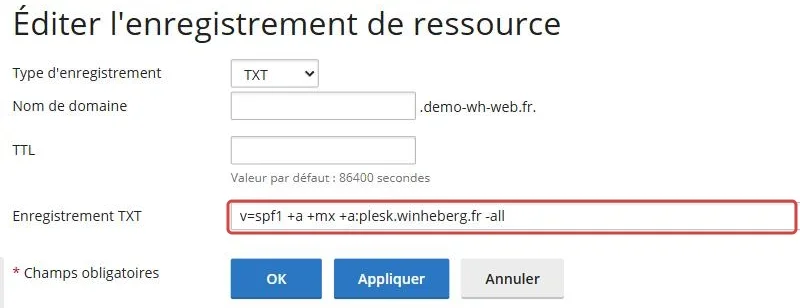 ```text
v=spf1 +a +mx +a:plesk.winheberg.fr include:spf.your-service.com -all
```
> [!WARNING]
> A domain must have a single SPF record. Add services to the existing line and never create a second `v=spf1` line, recipients would then consider the SPF invalid.
### Add the service DKIM signature
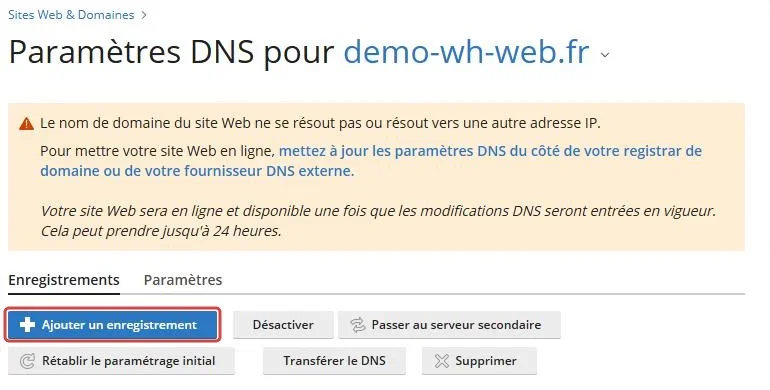
The service gives you its own DKIM records, most often one or more CNAME or TXT records. Create them with **Ajouter un enregistrement** (*Add Record*), using exactly the host and value given.
 > [!IMPORTANT]
> With the strict default DMARC policy, an email sent by a third-party service is only accepted if it is signed with your exact domain. So always turn on the domain authentication offered by the service. If it only signs with a subdomain, replace `adkim=s; aspf=s` with `adkim=r; aspf=r` in the `_dmarc` record, this mode also accepts subdomains.
## 5. Copy the records to an external DNS
If your domain does not use the Winheberg name servers, the records created by Plesk are not visible on the Internet. Copy them to your DNS provider.
For DKIM, Plesk shows the exact record to create. In **Paramètres de la messagerie**, click the **Comment configurer le DNS externe** (*How to configure external DNS*) link next to the DKIM box, then copy the host and value shown.
```text
default._domainkey.your-domain.com. IN TXT "v=DKIM1; p=MIIBIjANBgkqh..."
```
::MdTable{caption="Records to create at your DNS provider" variant="info" striped footer="Use the exact values of your Plesk zone, not those of this example."}
| Host | Type | Value |
|---|---|---|
| `your-domain.com` | TXT | The SPF line of your Plesk zone |
| `default._domainkey` | TXT | The key shown by **Comment configurer le DNS externe** |
| `_dmarc` | TXT | The DMARC line of your Plesk zone |
| `your-domain.com` | MX | `mail.your-domain.com`, if your mailboxes are hosted with us |
| `mail` | A | The **Adresse IP** (*IP address*) shown at the bottom of your domain page in Plesk |
::
> [!NOTE]
> A TXT value cannot exceed 255 characters per segment, and the DKIM key is longer. Most interfaces split it on their own. If yours rejects the value, split it into several quoted chunks, placed one after the other on the same line.
## 6. Test the result
From a Linux or macOS terminal, check that the three records are published. On Windows, replace `dig +short TXT` with `nslookup -type=txt`.
```bash
dig +short TXT your-domain.com @8.8.8.8
dig +short TXT default._domainkey.your-domain.com @8.8.8.8
dig +short TXT _dmarc.your-domain.com @8.8.8.8
```
Then send an email from your address to the one given by [Mail-Tester](https://www.mail-tester.com/). The website shows a score out of 10 and the details of the SPF, DKIM and DMARC checks. [MXToolbox](https://mxtoolbox.com/) also lets you query each record separately.
> [!TIP]
> In Gmail, open an email received from your domain, then the three-dot menu and **Show original**. The header shows `PASS` or `FAIL` for SPF, DKIM and DMARC.
## Troubleshooting
### ❌ SPF fails with "too many DNS lookups"
An SPF record cannot trigger more than 10 DNS queries, and each `include:`, `a` and `mx` counts for at least one.
- Remove the `include:` of services you no longer use
- Check that there is only one `v=spf1` line for the domain
- If the limit is still reached, ask your providers whether they offer a sending address on a dedicated subdomain, which will have its own SPF
### ❌ The DKIM signature fails
The recipient could not verify the email signature.
- Compare the published key, with `dig +short TXT default._domainkey.your-domain.com @8.8.8.8`, with the one shown by **Comment configurer le DNS externe**
- On an external DNS, check that the key was not truncated or split at the wrong place
- If you created a new DKIM selector, wait until its record is published before activating it
### ❌ Emails from a third-party service go to spam since DMARC was set up
The strict policy rejects emails signed with a domain other than yours.
- Turn on domain authentication in the service and add its records, as in step 4
- Check with **Show original** in Gmail that DKIM shows `PASS` for your domain
- As a last resort, switch alignment to relaxed mode with `adkim=r; aspf=r`
### ❌ Emails go to spam although everything shows PASS
Authentication is in order, filtering then looks at the content or the domain reputation.
- Read the details of the Mail-Tester score, it flags penalised links, images or wording
- A brand new domain has no reputation yet, increase your sending gradually
- Ask your first recipients to mark your emails as legitimate
## Best practices
- Keep `-all` at the end of the SPF, it is what forbids sending from undeclared servers
- Test every new sending service with Mail-Tester before a first campaign
- Add `rua=mailto:dmarc@your-domain.com` to the DMARC record to receive reports from major mailbox providers, they reveal sending you do not know about
- After any change at an external DNS provider, check the three records again with `dig`
- To create your addresses and set up your mail clients, follow our guide [How to Create an Email Address on Your Plesk Hosting](https://winheberg.com/en/docs/hebergement-web/create-email-address-plesk)
## Need help?
If your emails stay blocked although the checks are in order, open a ticket with our support from your [client area](https://billing.winheberg.com), **Technical** department, filling in the **Related Product** field with the web hosting concerned. Attach the link to your Mail-Tester result, it lets our team see right away what is wrong.
Your emails are authenticated and ready to reach the inbox 📧