---
title: "How to Enable or Disable Hardcore Mode on PocketMine-MP"
description: "Learn how to easily enable or disable hardcore mode (permanent death) on your PocketMine-MP server using the server.properties file on the Winheberg gaming panel."
category: jeux
subcategory: minecraft-bedrock
docGroup: pocketmine
docGroupIcon: tabler:brand-minecraft
icon: tabler:file-text
date: 2026-07-24
author: Winheberg
slug: "enable-disable-hardcore-mode-pocketmine"
order: 56
image: /statics/images/docs/en/gaming/minecraft-bedrock/enable-disable-hardcore-mode-pocketmine.webp
tags: [pocketmine, minecraft, hardcore, configuration, gaming-panel]
keywords: [hardcore mode pocketmine, enable hardcore minecraft, winheberg gaming panel, server.properties bedrock, permanent death minecraft, vps pocketmine configuration]
link_fr: "/docs/minecraft-bedrock/activer-desactiver-mode-hardcore-pocketmine"
---
## Contexte
Hardcore mode is a challenging gameplay variant designed for communities seeking the ultimate test. When enabled on a Minecraft Bedrock Edition server via the PocketMine-MP architecture, player death becomes permanent: the player is instantly kicked (banned) or forced into spectator mode, halting their progression. This guide will walk you through managing this feature step-by-step.
## Access the File Manager
Modifying the fundamental mechanics of your world requires direct interaction with its main configuration file.
1. Log in to your management panel at [panel.winheberg.com](https://panel.winheberg.com/).
2. Select your PocketMine-MP instance.
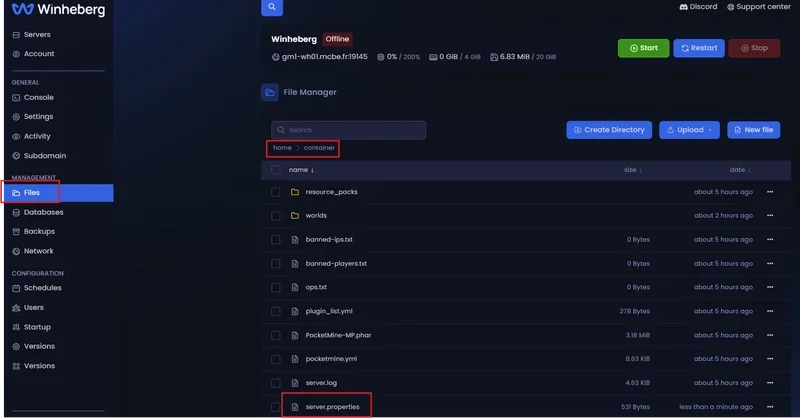
3. In the left sidebar menu, click on the **File manager** tab.
 ## Configure Hardcore Mode: Step-by-Step
Follow these steps carefully to adjust the game mode and avoid any loading errors or file write conflicts.
### 1. Stop the Server Process
> [!IMPORTANT]
> Before editing any file, ensure your server is completely shut down. If the process remains active in the background, PocketMine-MP will automatically overwrite your changes during its next write cycle or upon restart.
### 2. Edit the Main Configuration File
At the root of your server directory (`/`), locate and open the following document:
```properties
server.properties
```
Click on the file to open it within the text editor built into your management panel.
### 3. Modify the Hardcore Directive
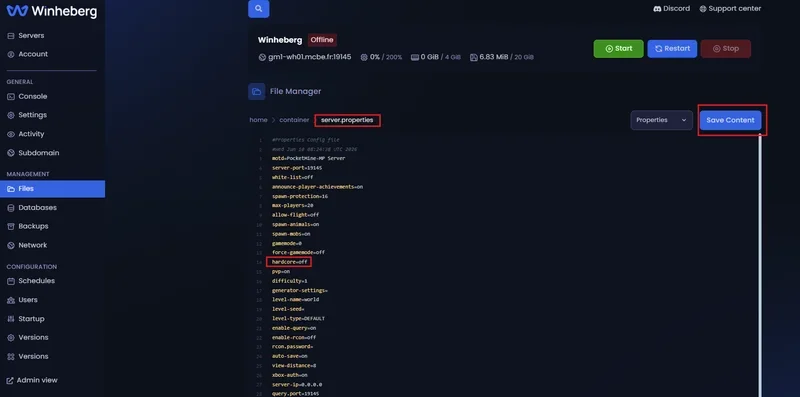
Scroll through the parameters until you locate the `hardcore` line. It is usually found around line 14 in the default configuration.
- **To enable permadeath (Hardcore Mode):**
```ini
hardcore=on
```
- **To disable permadeath (Return to classic mode):**
```ini
hardcore=off
```
## Configure Hardcore Mode: Step-by-Step
Follow these steps carefully to adjust the game mode and avoid any loading errors or file write conflicts.
### 1. Stop the Server Process
> [!IMPORTANT]
> Before editing any file, ensure your server is completely shut down. If the process remains active in the background, PocketMine-MP will automatically overwrite your changes during its next write cycle or upon restart.
### 2. Edit the Main Configuration File
At the root of your server directory (`/`), locate and open the following document:
```properties
server.properties
```
Click on the file to open it within the text editor built into your management panel.
### 3. Modify the Hardcore Directive
Scroll through the parameters until you locate the `hardcore` line. It is usually found around line 14 in the default configuration.
- **To enable permadeath (Hardcore Mode):**
```ini
hardcore=on
```
- **To disable permadeath (Return to classic mode):**
```ini
hardcore=off
```
 ### 4. Save Your Changes
Save your edits by clicking the **Save Content** button on the editor interface, or use the standard keyboard shortcut Ctrl + S (Cmd + S on macOS).
### 5. Boot the Server
Navigate to the **Console** tab of your panel and click the start button. The server will initialize and immediately apply your new gameplay rules.
## Configuration Variables Behavior
| Applied Value | Player Status After Death | Impact on Global Difficulty |
| :--- | :--- | :--- |
| **`hardcore=on`** | Automatic kick and respawn restriction (spectator mode or ban depending on setup). | Automatically locks the game difficulty to the maximum level. |
| **`hardcore=off`** | Standard respawn allowed at the world spawn point or near a valid bed. | The difficulty relies strictly on the separate `difficulty` variable. |
## Troubleshooting
### ❌ Players respawn normally after dying
- Ensure the `server.properties` file was successfully saved and the syntax is exactly `hardcore=on` (with no extra space after "on").
- Make sure you have restarted the server from the **Console** tab to apply the modifications.
- Temporarily disable any death management or respawn plugins that might override PocketMine-MP's native configuration.
### ❌ The configuration file resets itself
- The server instance was likely still running while you edited the file. Always completely shut down the server (using the **Stop** button) before editing `server.properties`.
## Best Practices
- **Preventive Communication**: Enabling Hardcore mode applies instantly upon the next login. Always notify your community beforehand; an unannounced permadeath is a major source of frustration.
- **Regular Backups**: Even though death is permanent in Hardcore mode, generate regular server restoration points (**Backups**). This allows you to restore the world or reinstate a dead player in the event of a server bug or cheating (exploit).
- **Dependency Checks**: If you are using third-party plugins for ban management (such as advanced UHC systems), verify their compatibility with the `hardcore=on` variable to prevent disconnection loops.
## Need Help?
If respawn behaviors do not apply despite following this tutorial, or if the file refuses to save, our team is here to assist you.
You can submit a support ticket to our **Technical** department from your client area at [billing.winheberg.com](https://billing.winheberg.com) by linking your PocketMine-MP subscription for personalized troubleshooting.
Have a great survival journey on your PocketMine-MP infrastructure! 🎮
### 4. Save Your Changes
Save your edits by clicking the **Save Content** button on the editor interface, or use the standard keyboard shortcut Ctrl + S (Cmd + S on macOS).
### 5. Boot the Server
Navigate to the **Console** tab of your panel and click the start button. The server will initialize and immediately apply your new gameplay rules.
## Configuration Variables Behavior
| Applied Value | Player Status After Death | Impact on Global Difficulty |
| :--- | :--- | :--- |
| **`hardcore=on`** | Automatic kick and respawn restriction (spectator mode or ban depending on setup). | Automatically locks the game difficulty to the maximum level. |
| **`hardcore=off`** | Standard respawn allowed at the world spawn point or near a valid bed. | The difficulty relies strictly on the separate `difficulty` variable. |
## Troubleshooting
### ❌ Players respawn normally after dying
- Ensure the `server.properties` file was successfully saved and the syntax is exactly `hardcore=on` (with no extra space after "on").
- Make sure you have restarted the server from the **Console** tab to apply the modifications.
- Temporarily disable any death management or respawn plugins that might override PocketMine-MP's native configuration.
### ❌ The configuration file resets itself
- The server instance was likely still running while you edited the file. Always completely shut down the server (using the **Stop** button) before editing `server.properties`.
## Best Practices
- **Preventive Communication**: Enabling Hardcore mode applies instantly upon the next login. Always notify your community beforehand; an unannounced permadeath is a major source of frustration.
- **Regular Backups**: Even though death is permanent in Hardcore mode, generate regular server restoration points (**Backups**). This allows you to restore the world or reinstate a dead player in the event of a server bug or cheating (exploit).
- **Dependency Checks**: If you are using third-party plugins for ban management (such as advanced UHC systems), verify their compatibility with the `hardcore=on` variable to prevent disconnection loops.
## Need Help?
If respawn behaviors do not apply despite following this tutorial, or if the file refuses to save, our team is here to assist you.
You can submit a support ticket to our **Technical** department from your client area at [billing.winheberg.com](https://billing.winheberg.com) by linking your PocketMine-MP subscription for personalized troubleshooting.
Have a great survival journey on your PocketMine-MP infrastructure! 🎮