---
title: "How to OP (become admin) on a PowerNukkitX server"
description: "Learn how to grant or revoke operator privileges to a player on your Minecraft Bedrock PowerNukkitX server from the WinHeberg console."
category: jeux
subcategory: minecraft-bedrock
docGroup: powernukkitx
docGroupIcon: tabler:bolt
icon: tabler:file-text
date: 2026-08-01
author: Winheberg
slug: "how-to-op-powernukkitx-server"
order: 75
image: /statics/images/docs/en/gaming/minecraft-bedrock/how-to-op-powernukkitx-server.webp
tags: [powernukkitx, minecraft, bedrock, admin, console, hosting]
keywords: [op powernukkitx, become admin minecraft bedrock, op command pnx, winheberg, pterodactyl console]
link_fr: "/docs/minecraft-bedrock/comment-devenir-op-serveur-powernukkitx"
---
## Context
To manage your server directly in-game (changing game modes, kicking players, using command blocks or specific plugins), you or your moderators need operator rights (being "OP").
This is done directly from your [Winheberg panel](https://panel.winheberg.com) console, with no need to connect to the game beforehand.
## Prerequisites
- An active **PowerNukkitX server** at Winheberg (**Online** status)
- The player's exact Xbox Live username
## Steps to become OP
### 1. Access the console
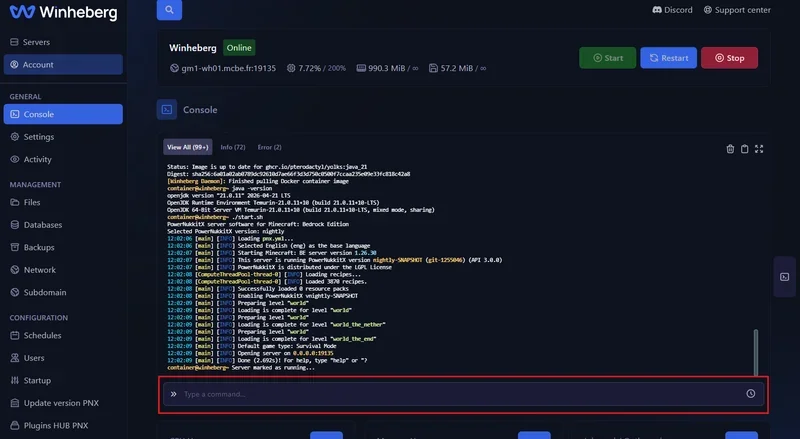
1. Log in to your [Winheberg panel](https://panel.winheberg.com) and select your PowerNukkitX server.
2. Go to the **Console** tab in the left-hand side menu.
3. At the very bottom of the console window, you'll see an input bar showing `Type a command...`. This is where you'll type your commands.
 ### 2. Grant rights (simple username)
If the player's Xbox Live username **doesn't contain a space** (for example, the player *demo*):
1. In the command bar, simply type `op` followed by the player's username.
2. Press **Enter** on your keyboard.
### 2. Grant rights (simple username)
If the player's Xbox Live username **doesn't contain a space** (for example, the player *demo*):
1. In the command bar, simply type `op` followed by the player's username.
2. Press **Enter** on your keyboard.
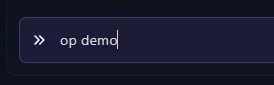 If the command worked, the console will show a confirmation message reading `Opped: [username]`. The player can now use admin commands in-game.
 ### 3. Usernames with spaces (Very important)
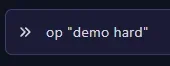
On the Bedrock edition (Xbox Live), it's very common to have usernames with spaces (e.g. *demo hard*).
If you simply type `op demo hard`, the console will think you're trying to op a player named "demo" and a command named "hard", which won't work.
To op a player with a space in their name, **you must put their username in quotes**:
1. Type `op "player username"`.
2. Press **Enter**.
### 3. Usernames with spaces (Very important)
On the Bedrock edition (Xbox Live), it's very common to have usernames with spaces (e.g. *demo hard*).
If you simply type `op demo hard`, the console will think you're trying to op a player named "demo" and a command named "hard", which won't work.
To op a player with a space in their name, **you must put their username in quotes**:
1. Type `op "player username"`.
2. Press **Enter**.
 ## Removing admin rights (Deop)
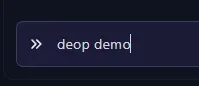
If you want to remove a player's permissions, the logic is exactly the same, but using the `deop` command instead.
1. In the console, type `deop` followed by the username (don't forget the quotes if there's a space).
2. Press **Enter**. The player will immediately go back to having regular player rights.
## Removing admin rights (Deop)
If you want to remove a player's permissions, the logic is exactly the same, but using the `deop` command instead.
1. In the console, type `deop` followed by the username (don't forget the quotes if there's a space).
2. Press **Enter**. The player will immediately go back to having regular player rights.
 ## If you run into trouble
### ❌ Player not found
- **Typo**: Check the exact spelling of the Xbox Live gamertag, including uppercase and lowercase letters.
- **The player has never connected**: Sometimes the server needs the player to have connected at least once for their username to be registered. Ask the player to join the server, then try again.
### ❌ The command does nothing in the console
- **Don't add a slash (/)**: In the web panel's console, unlike in-game, there's no need to put a slash before the command. Type `op username` directly, not `/op username`.
## Best practices
- **Absolute security**: Never give OP rights to a player you don't know in real life or don't fully trust. An OP can destroy your server or permanently ban other players.
- **Use a permissions system (Ranks)**: If you have a large server and want to appoint moderators (who can ban but not break everything), avoid giving them OP. Instead, use the **PNX Plugins Hub** tab to install a permissions plugin like *LuckPerms*, which lets you create specific ranks with limited rights.
## Need help?
If you run into ongoing trouble granting rights, our team is here. Open a ticket in the **Technical** department from your client area and fill in the **Related Product** field with the server in question.
Your server is now in good hands, yours and your trusted moderators' 🛡️
## If you run into trouble
### ❌ Player not found
- **Typo**: Check the exact spelling of the Xbox Live gamertag, including uppercase and lowercase letters.
- **The player has never connected**: Sometimes the server needs the player to have connected at least once for their username to be registered. Ask the player to join the server, then try again.
### ❌ The command does nothing in the console
- **Don't add a slash (/)**: In the web panel's console, unlike in-game, there's no need to put a slash before the command. Type `op username` directly, not `/op username`.
## Best practices
- **Absolute security**: Never give OP rights to a player you don't know in real life or don't fully trust. An OP can destroy your server or permanently ban other players.
- **Use a permissions system (Ranks)**: If you have a large server and want to appoint moderators (who can ban but not break everything), avoid giving them OP. Instead, use the **PNX Plugins Hub** tab to install a permissions plugin like *LuckPerms*, which lets you create specific ranks with limited rights.
## Need help?
If you run into ongoing trouble granting rights, our team is here. Open a ticket in the **Technical** department from your client area and fill in the **Related Product** field with the server in question.
Your server is now in good hands, yours and your trusted moderators' 🛡️