---
title: "How to update your PowerNukkitX server"
description: "Step-by-step guide to install the latest version of PowerNukkitX (PNX) on your Minecraft Bedrock server via the WinHeberg panel."
category: jeux
subcategory: minecraft-bedrock
docGroup: powernukkitx
docGroupIcon: tabler:bolt
icon: tabler:file-text
date: 2026-08-01
author: Winheberg
slug: "update-powernukkitx-server"
order: 73
image: /statics/images/docs/en/gaming/minecraft-bedrock/update-powernukkitx-server.webp
tags: [powernukkitx, minecraft, bedrock, update, pterodactyl, hosting]
keywords: [update powernukkitx, update pnx, minecraft bedrock server, winheberg, install powernukkitx]
link_fr: "/docs/minecraft-bedrock/mettre-a-jour-serveur-powernukkitx"
---
## Context
You're hosting a Minecraft Bedrock server running **PowerNukkitX (PNX)** at Winheberg and a new update is available?
The [Winheberg panel](https://panel.winheberg.com) has a built-in tool specifically designed to make updating your server easy in just a few clicks, with no need to manually handle `.jar` files via FTP.
## Prerequisites
- A **PowerNukkitX server** at Winheberg
- Ideally, a recent backup of your server
## Update steps
To make sure the update goes smoothly with no risk of corruption to your worlds or plugins, follow these steps carefully.
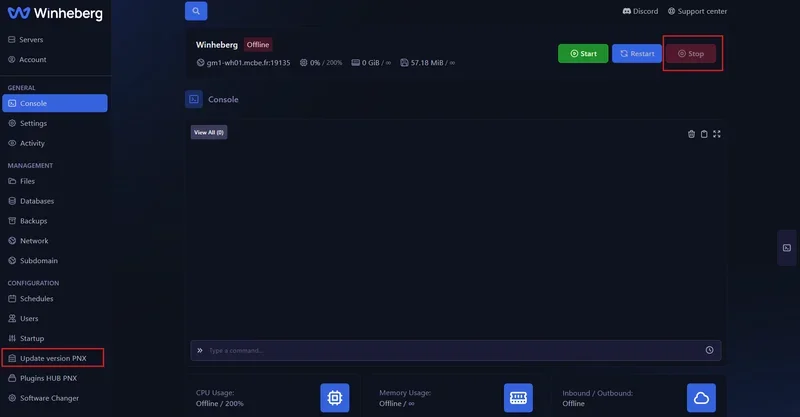
### 1. Stop the server and access the tool
You must shut down your server before changing its version.
1. Log in to your [Winheberg panel](https://panel.winheberg.com) and go to your PowerNukkitX server.
2. In the **Console** tab, click the red **Stop** button at the top right of the screen to fully stop the server.
3. Once the server shows as *Offline*, look at the left-hand side menu.
4. Under the **CONFIGURATION** section, click the **Update version PNX** tab.
 ### 2. Install the new version
In this new menu, you'll find the history of PowerNukkitX versions available for your server.
1. Find the most recent version at the top of the list (it usually comes with a green **Latest** badge).
2. Click the **INSTALL** button to the right of that version.
### 2. Install the new version
In this new menu, you'll find the history of PowerNukkitX versions available for your server.
1. Find the most recent version at the top of the list (it usually comes with a green **Latest** badge).
2. Click the **INSTALL** button to the right of that version.
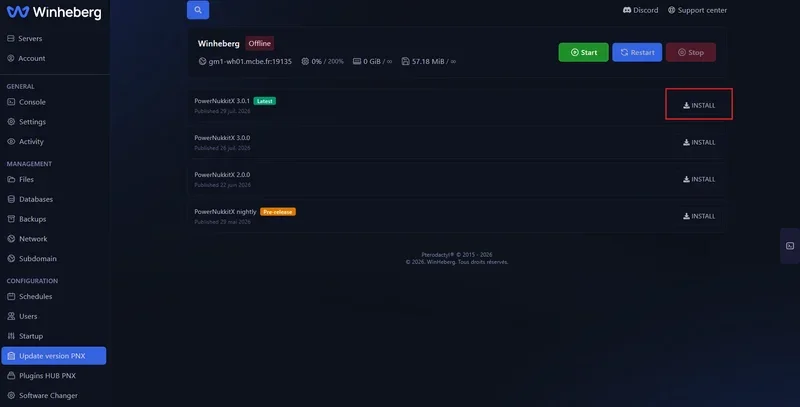 The panel will automatically download and replace your server's main file with the new version.
### 3. Restart the server
Once the installation is finished:
1. Go back to the **Console** tab in the left-hand menu.
2. Click the green **Start** button to relaunch your server.
3. Check the console logs to confirm the server starts up correctly with the new PowerNukkitX version.
## If you run into trouble
### ❌ The server crashes on startup after the update
- **Plugin incompatibility**: This is the most common issue. One or more of your plugins isn't compatible with the new PowerNukkitX version yet. Check the console to identify which plugin is causing the error, then update it or temporarily remove it.
- **Fallback option**: If the server truly won't start anymore, go back to the **Update version PNX** tab and reinstall the previous version, or restore your latest backup.
### ❌ The version didn't update
- **Server running during installation**: If you clicked "Install" while the server was running, the file couldn't be replaced. Stop the server and try again.
## Best practices
- **Make a backup**: Before any major server software update, it's strongly recommended to create a full backup of your server from the **Backups** tab.
- **Check your plugins**: Make sure the plugins you're using are compatible with the new version you're about to install, to avoid crashes.
## Need help?
If your server refuses to start after an update or you're running into a persistent bug, our team is here. Open a ticket in the **Technical** department from your client area and fill in the **Related Product** field with the server in question, or go straight through [Winheberg support](https://winheberg.com/support).
Your PowerNukkitX server is now running its very latest version 🚀
The panel will automatically download and replace your server's main file with the new version.
### 3. Restart the server
Once the installation is finished:
1. Go back to the **Console** tab in the left-hand menu.
2. Click the green **Start** button to relaunch your server.
3. Check the console logs to confirm the server starts up correctly with the new PowerNukkitX version.
## If you run into trouble
### ❌ The server crashes on startup after the update
- **Plugin incompatibility**: This is the most common issue. One or more of your plugins isn't compatible with the new PowerNukkitX version yet. Check the console to identify which plugin is causing the error, then update it or temporarily remove it.
- **Fallback option**: If the server truly won't start anymore, go back to the **Update version PNX** tab and reinstall the previous version, or restore your latest backup.
### ❌ The version didn't update
- **Server running during installation**: If you clicked "Install" while the server was running, the file couldn't be replaced. Stop the server and try again.
## Best practices
- **Make a backup**: Before any major server software update, it's strongly recommended to create a full backup of your server from the **Backups** tab.
- **Check your plugins**: Make sure the plugins you're using are compatible with the new version you're about to install, to avoid crashes.
## Need help?
If your server refuses to start after an update or you're running into a persistent bug, our team is here. Open a ticket in the **Technical** department from your client area and fill in the **Related Product** field with the server in question, or go straight through [Winheberg support](https://winheberg.com/support).
Your PowerNukkitX server is now running its very latest version 🚀