---
title: "How to Install LuckPerms and Create Ranks on a Minecraft Server"
description: "Install LuckPerms on your Winheberg Paper Minecraft server from the panel Plugins tool, create ranks with prefixes, add your players and manage everything with the web editor."
category: jeux
subcategory: minecraft-java
icon: tabler:file-text
date: 2026-11-01
author: Winheberg
slug: "install-luckperms-ranks-minecraft"
order: 121
image: /statics/images/docs/en/gaming/minecraft-java/install-luckperms-ranks-minecraft.webp
tags: [minecraft, luckperms, permissions, ranks, plugin, gaming panel]
keywords: [luckperms, minecraft ranks, minecraft permissions, luckperms plugin, minecraft prefix, paper server, lp editor]
link_fr: "/docs/minecraft-java/installer-luckperms-grades-minecraft"
---
## Context
On a Minecraft server, giving operator status to every moderator hands them every command in the game. **[LuckPerms](https://luckperms.net/)** solves this by letting you create ranks (VIP, moderator, admin...) that only grant the permissions you choose. A player inherits the rights of their rank, a rank can inherit from another one, and a prefix can be shown in front of the player name.
This guide explains how to install LuckPerms on your Winheberg Minecraft Java server from the panel, give yourself admin rights, create your first ranks and add players to them, either with commands or with the web editor.
## Prerequisites
- A [Winheberg Minecraft Java server](https://winheberg.com/en/gaming/minecraft) running Paper, Spigot or Purpur
- Access to the [Winheberg panel](https://panel.winheberg.com/)
- The exact username of each player you want to add to a rank (each one must have joined the server at least once)
> [!NOTE]
> In the panel console, type commands without a leading `/`. In game, add the `/` (for example `/lp user PlayerName info`).
## 1. Install LuckPerms from the panel
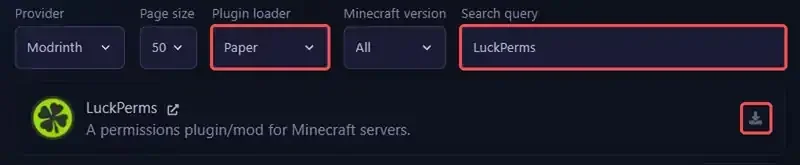
Log in to the Winheberg panel, select your server and open **Plugins** in the side menu. Before searching, set **Plugin loader** to **Paper** (or to your server software), then type `LuckPerms` in **Search query**. Click the download icon on the right of the **LuckPerms** result.
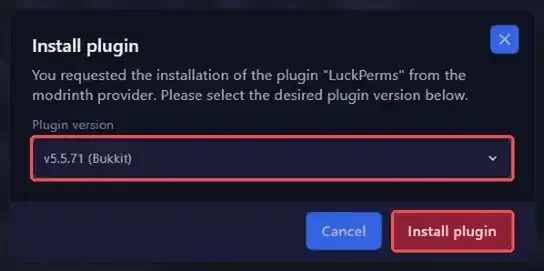
 In the **Install plugin** window, check that the **Plugin version** menu shows a version ending in **(Bukkit)**, then click **Install plugin**. The `LuckPerms-Bukkit` file is placed in your server's `plugins` folder.
 > [!WARNING]
> Without the **Plugin loader** filter, the panel first offers the Velocity version of LuckPerms, which is meant for proxies. It does not run on a Paper server. If the version name ends in **(Velocity)** or **(BungeeCord)**, pick the **(Bukkit)** line in the list.
Then open **Console** and click **Restart**. On startup, the console confirms it loaded with the line `[LuckPerms] Successfully enabled`.
## 2. Give yourself admin rights
Right after installation, nobody can use LuckPerms commands except the console and operators. From the panel console, give yourself full access to the plugin, replacing `YourName` with your Minecraft username.
```bash
lp user YourName permission set luckperms.* true
```
You can now use `/lp` in game, even without being an operator.
## 3. Create your ranks
In this example, we create a `vip` rank and a `moderateur` rank that inherits every permission of the VIP rank. Type these commands in the console, one per line.
```bash
lp creategroup vip
lp creategroup moderateur
lp group moderateur parent add vip
lp group moderateur permission set minecraft.command.kick true
lp group moderateur meta setprefix 20 "&9[Modo] "
lp group moderateur setweight 20
```
Each command is confirmed by an `[LP]` line in the console.
 ::MdTable{caption="What each command does" variant="info" striped}
| Command | Effect |
|---|---|
| `lp creategroup ` | Creates a new rank |
| `lp group parent add ` | The rank inherits the permissions of the other rank |
| `lp group permission set true` | Grants a permission to the rank (`false` denies it) |
| `lp group meta setprefix ""` | Sets the prefix shown in front of the player name |
| `lp group setweight ` | Gives the rank a weight, the highest one wins in case of conflict |
::
> [!TIP]
> Permission names are listed on each plugin's page, for example `essentials.fly` for EssentialsX. The `*` wildcard covers every permission of a plugin, such as `essentials.*`. Leave large gaps between weights (10, 20, 100...) so you can slot in a new rank later.
Every player belongs to the `default` rank, which LuckPerms creates automatically. This rank cannot be deleted and holds the basic permissions everyone gets.
## 4. Add a player to a rank
The player must have joined the server at least once. Add them to the rank you want, then check the result.
```bash
lp user PlayerName parent add moderateur
lp user PlayerName info
```
The `parent add` command adds the rank without removing the others. To replace all of their ranks with a single one, use `lp user PlayerName parent set moderateur`. To remove a rank, use `lp user PlayerName parent remove moderateur`.
> [!WARNING]
> The `parent set` command also removes the `default` rank. To make sure the player keeps the basic permissions, make your ranks inherit `default`, for example with `lp group vip parent add default`.
> [!IMPORTANT]
> LuckPerms does not show the prefix in chat by itself. To show it, add **Vault** and a chat formatting plugin that reads prefixes, such as **EssentialsX Chat**. See our guide **[How to install and configure EssentialsX on a Minecraft server](https://winheberg.com/en/docs/minecraft-java/install-use-essentialsx-minecraft)**.
## 5. Manage ranks with the web editor
If you would rather click than type commands, LuckPerms offers an editor in your browser. Type the following command in the console.
```bash
lp editor
```
The console shows a link to `luckperms.net/editor/...`. Open it, then select a rank under **Groups** to view and change its permissions, weight and parent ranks. The screenshots below show the editor in French, but the buttons are in the same place in English.
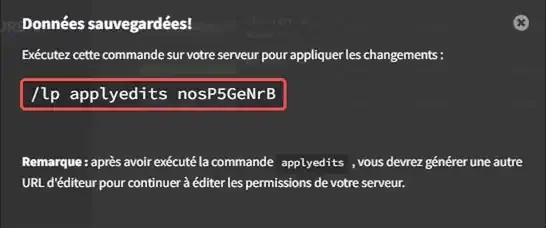
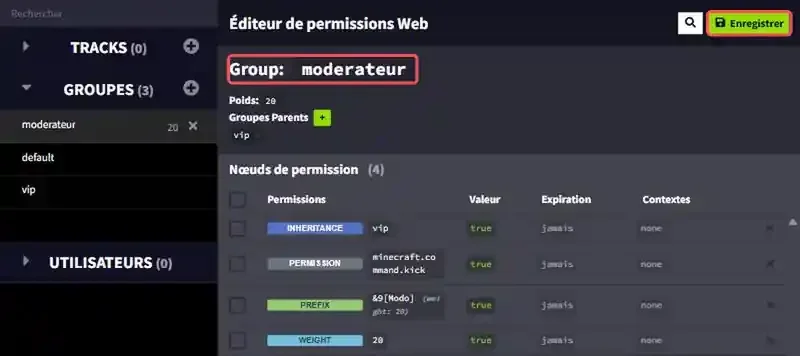 Once you are done, click **Save** in the top right corner. The editor generates an `lp applyedits` command followed by a code. Copy it and paste it into the panel console to apply your changes.
 > [!NOTE]
> When it opens, the editor may show a window suggesting an `lp trusteditor` command to apply changes live. This step is optional, so you can close the window and use the **Save** button instead. After an `applyedits`, run `lp editor` again to get a fresh link before you continue.
## If you run into trouble
### ❌ The console replies "A user for ... could not be found"
```text
[LP] A user for PlayerName could not be found.
```
- Check the spelling of the username (capital letters do not matter)
- Ask the player to join the server once, since LuckPerms only knows players who have already connected
### ❌ A player cannot use a command despite their rank
- Check they are in the rank with `lp user PlayerName info`
- Test the permission with `lp user PlayerName permission check `
- To find which permission a command needs, type `lp verbose on`, have the player run the command, then `lp verbose off`
- Make sure LuckPerms is the only permissions plugin installed on the server
### ❌ The /lp command only shows the plugin version
If `/lp` only shows the plugin version, you have no LuckPerms permission. Go back to step 2 from the panel console.
### ❌ The prefix does not show in chat
- Install **Vault** and a compatible chat plugin, such as EssentialsX Chat
- Check with `lp user PlayerName meta info` that the player does not inherit another prefix with a higher priority (the number given in `meta setprefix`)
## Best practices
- **Avoid giving operator** to your staff, use a rank with only the permissions they need instead
- **Chain your ranks** with `parent add` (player, VIP, moderator, admin), so each rank only adds its own permissions
- **Test with a non-operator account** to see exactly what a player can do
- **Back up before a big change** from the **Backups** tab, LuckPerms stores its data in the `plugins/LuckPerms` folder
- **Keep a single permissions plugin**, as two plugins of this kind on the same server conflict with each other
## Need help?
If your ranks do not behave as expected, our team can help. Open a ticket in the **Technical** department from your client area, fill in the **Related Product** field with the server in question, and include the commands you used along with the message shown in the console.
Your Minecraft server now has clean, well-organised ranks 🎮