---
title: "How to reset player data on your Palworld server"
description: "Complete guide to clear a specific player's save, inventory, and stats on your Palworld server via the Pterodactyl panel."
category: jeux
subcategory: palworld
icon: tabler:file-text
date: 2026-08-11
author: Winheberg
slug: "reset-palworld-player-data"
order: 68
image: /statics/images/docs/en/gaming/palworld/reset-palworld-player-data.webp
tags: [palworld, wipe, save, pterodactyl, hosting]
keywords: [reset palworld player, wipe player data palworld, delete palworld player save, winheberg palworld server, pterodactyl panel]
link_fr: "/docs/palworld/reinitialiser-donnees-joueur-palworld"
---
## Context
Are you hosting a **Palworld** server at Winheberg and need to reset a specific player's progress (to fix a bug, clear a corrupted save, or upon request)?
On Palworld, player data (inventory, level, captured Pals) is stored in individual `.sav` files linked to each user's unique **Player ID** (UUID). Resetting progress involves finding and deleting this specific file from your [Winheberg panel](https://panel.winheberg.com).
## 1. Locate the player's Player ID
Before deleting any files, you need to identify the exact code assigned to the player. Save files do not display usernames, but hexadecimal strings.
1. Go to the **Console** tab on your [Winheberg panel](https://panel.winheberg.com).
2. Ask the player to connect to the server.
3. Check the console log: when they join, a log line will show their name and **Player id**.
4. Copy the character string listed under **Player id**.
 ## 2. Access the save files
Now that you have the ID, navigate to the player saves directory.
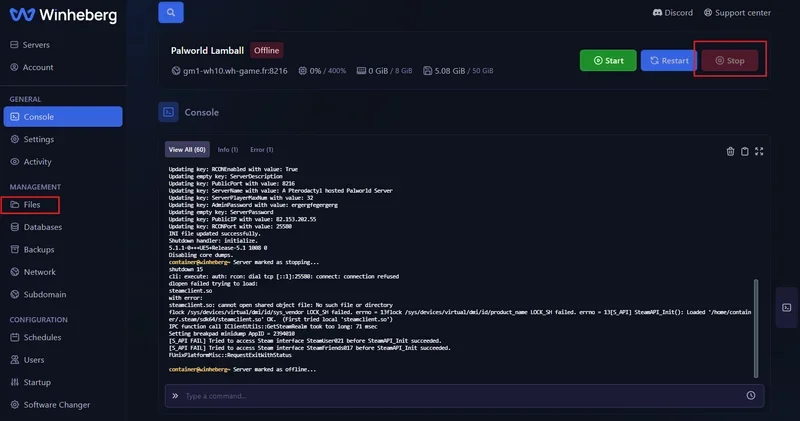
1. **Stop your server** by clicking **Stop** (this step is crucial to prevent the server from overwriting the save file from RAM).
2. Go to the **Files** tab on your panel.
## 2. Access the save files
Now that you have the ID, navigate to the player saves directory.
1. **Stop your server** by clicking **Stop** (this step is crucial to prevent the server from overwriting the save file from RAM).
2. Go to the **Files** tab on your panel.
 3. Navigate to the following path:
```bash
Pal/Saved/SaveGames/0/[Session_ID]/Players/
```
> [!NOTE]
> The `[Session_ID]` folder is named after a unique string of characters (e.g., `C2777061EB1F49F18BFE6364B6481A9A`). If multiple folders exist, pick the one with the most recent modification date.
## 3. Delete the player save file
Inside the **Players** folder, you will see all `.sav` files for players who have joined your server.
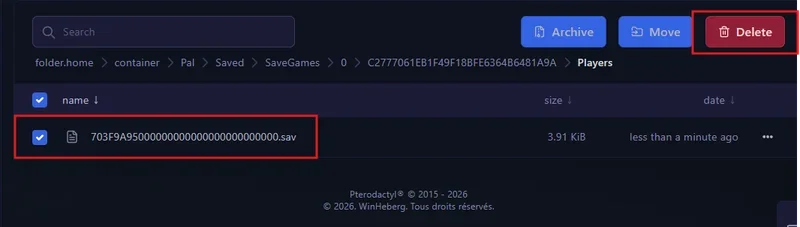
1. Locate the file matching the **Player id** obtained in Step 1 (e.g., `703F9A95000000000000000000000000.sav`).
2. Check the box next to the file.
3. Click the red **Delete** button at the top right to permanently remove it.
3. Navigate to the following path:
```bash
Pal/Saved/SaveGames/0/[Session_ID]/Players/
```
> [!NOTE]
> The `[Session_ID]` folder is named after a unique string of characters (e.g., `C2777061EB1F49F18BFE6364B6481A9A`). If multiple folders exist, pick the one with the most recent modification date.
## 3. Delete the player save file
Inside the **Players** folder, you will see all `.sav` files for players who have joined your server.
1. Locate the file matching the **Player id** obtained in Step 1 (e.g., `703F9A95000000000000000000000000.sav`).
2. Check the box next to the file.
3. Click the red **Delete** button at the top right to permanently remove it.
 ## 4. Restart the server
1. Go back to the **Console** tab.
2. Click **Start** to launch your Palworld server.
When the player reconnects, the server will treat them as a new player, requiring character creation starting at level 1.
## Troubleshooting
### ❌ The player still has their old character upon joining
- **Server was running during deletion**: If the server was active, cached RAM data was written back to the file upon shutdown. Stop the server completely (*Offline* status), delete the `.sav` file again, then restart.
### ❌ The player cannot log in to reveal their Player ID
- **SteamID lookup**: You can convert the player's SteamID64 to hexadecimal format using an online converter to match their `.sav` filename.
## Best Practices
- **Create a backup before deletion**: Before deleting any files, create a quick backup by downloading the `.sav` file or creating a snapshot in the **Backups** tab on your panel.
- **Mind the guild leadership**: If the player being reset is the guild leader, ask them to transfer guild leadership to another member before the wipe to prevent base management issues.
## Need help?
If you have trouble identifying the correct `.sav` file, feel free to contact the [Winheberg support team](https://winheberg.com/support).
## 4. Restart the server
1. Go back to the **Console** tab.
2. Click **Start** to launch your Palworld server.
When the player reconnects, the server will treat them as a new player, requiring character creation starting at level 1.
## Troubleshooting
### ❌ The player still has their old character upon joining
- **Server was running during deletion**: If the server was active, cached RAM data was written back to the file upon shutdown. Stop the server completely (*Offline* status), delete the `.sav` file again, then restart.
### ❌ The player cannot log in to reveal their Player ID
- **SteamID lookup**: You can convert the player's SteamID64 to hexadecimal format using an online converter to match their `.sav` filename.
## Best Practices
- **Create a backup before deletion**: Before deleting any files, create a quick backup by downloading the `.sav` file or creating a snapshot in the **Backups** tab on your panel.
- **Mind the guild leadership**: If the player being reset is the guild leader, ask them to transfer guild leadership to another member before the wipe to prevent base management issues.
## Need help?
If you have trouble identifying the correct `.sav` file, feel free to contact the [Winheberg support team](https://winheberg.com/support).