---
title: "How to Fully Reset Your Gaming Server"
description: "Fully reset your Winheberg gaming server, delete the files then reinstall cleanly through the panel."
category: autres
subcategory: panel-gaming
icon: tabler:file-text
date: 2026-07-24
author: Winheberg
slug: "reset-gaming-server"
order: 48
image: /statics/images/docs/en/panel-gaming/reset-gaming-server.webp
tags: [gaming server, reinstall server, gaming panel, reset]
keywords: [reset gaming server, reinstall server, delete server files, winheberg server reset, gaming panel]
link_fr: "/docs/panel-gaming/reinitialiser-serveur-gaming"
---
## Context
Fully resetting a server lets you start over with a clean install, with no leftover files, configuration, or mods. This operation is useful in several cases.
- Your server is running into significant errors
- You want to start completely from scratch
- Some files are corrupted
- You're switching to a completely different configuration or game
> [!WARNING]
> On our gaming panel, the **Reinstall Server** button doesn't automatically delete existing files. It only reinstalls the server's missing files. To perform a true full reset, you need to manually delete the server's files first, before using the reinstall function.
## Prerequisites
- An active **server** on your Winheberg gaming panel, regardless of the game
- A **backup** of your files and configuration if you want to keep a copy, this operation is irreversible
- A few spare minutes, ideally during off-peak hours if the server is used by players
## 1. Access the gaming panel
Log in to your Winheberg gaming panel at `https://panel.winheberg.com/`, then select the server you want to reset.
## 2. Stop the server
Before doing anything else, open your server and click **Stop**.
> [!IMPORTANT]
> The server must be fully stopped before deleting the files, otherwise some files may stay locked or get recreated automatically.
## 3. Delete all the server's files
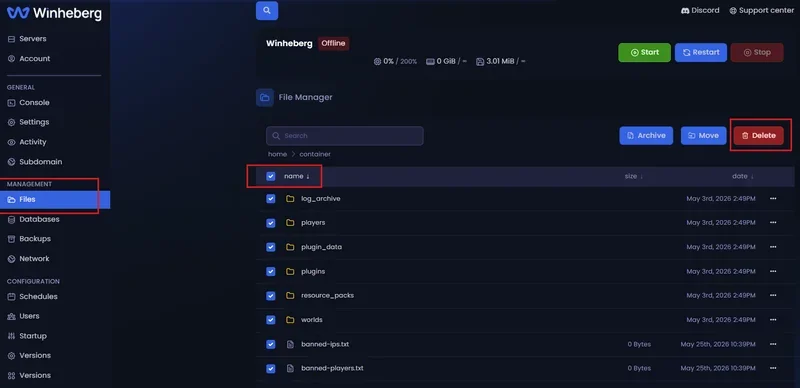
In the side menu, click **Files**, use the select-all button to select every file on the server, then delete all of them.
 > [!TIP]
> This step is what actually resets the server to zero. If you don't delete the files manually, some old files will still be present after reinstalling.
## 4. Reinstall the server
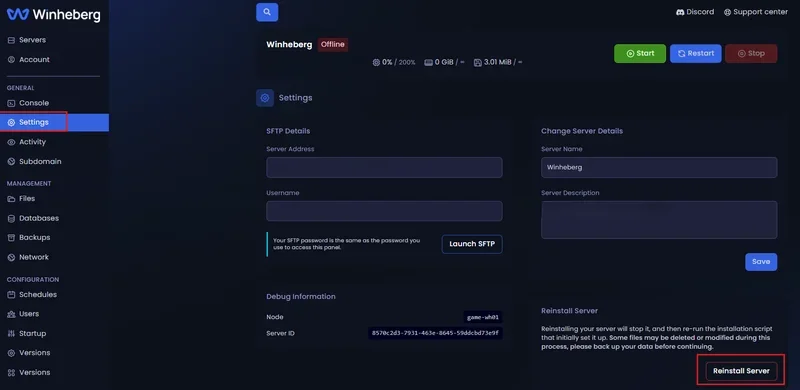
Once the files are deleted, open the **Settings** section and click **Reinstall Server**.
> [!TIP]
> This step is what actually resets the server to zero. If you don't delete the files manually, some old files will still be present after reinstalling.
## 4. Reinstall the server
Once the files are deleted, open the **Settings** section and click **Reinstall Server**.
 The panel will automatically redownload the files needed for a fresh, clean install of the server.
## 5. Start the server
Once the reinstall is done, go back to the server's console and click **Start**. The server will restart with a clean, empty install.
> [!TIP]
> Remember to reconfigure your server, your settings, and your files after the full reset.
## If you run into trouble
### ❌ The Reinstall Server button doesn't do anything
- Check that the server is **stopped**, the operation doesn't work while the server is running
- Reload the panel page and try again
### ❌ Files reappear after deletion
- Reload the **Files** page to confirm the deletion actually went through before moving to the next step
- If files persist, select them again and run the deletion once more
### ❌ The server doesn't start after reinstalling
- Check the panel's **console** for the exact error
- Check that the reinstall fully finished before clicking Start
- If the issue persists, contact our support
## Best practices
- **Back up your important files** before deleting everything, the operation is irreversible
- **Write down your current configuration** (Startup, variables, installed mods) so you can reproduce it more easily afterward
- **Warn your players** if the server is currently in use, the reset causes an extended outage
- **Check the installed game version** after reinstalling, it matches the panel's default version and may differ from the one you were using before
## Need help?
If your server doesn't reinstall correctly, or if some files reappear after deletion, our team is here. Open a ticket in the **Technical** department from your client area and fill in the **Related product** field with the server in question, our team can help you perform a full reset and check that the install is correctly rebuilt.
Your server is now ready to start fresh on solid ground 📦
The panel will automatically redownload the files needed for a fresh, clean install of the server.
## 5. Start the server
Once the reinstall is done, go back to the server's console and click **Start**. The server will restart with a clean, empty install.
> [!TIP]
> Remember to reconfigure your server, your settings, and your files after the full reset.
## If you run into trouble
### ❌ The Reinstall Server button doesn't do anything
- Check that the server is **stopped**, the operation doesn't work while the server is running
- Reload the panel page and try again
### ❌ Files reappear after deletion
- Reload the **Files** page to confirm the deletion actually went through before moving to the next step
- If files persist, select them again and run the deletion once more
### ❌ The server doesn't start after reinstalling
- Check the panel's **console** for the exact error
- Check that the reinstall fully finished before clicking Start
- If the issue persists, contact our support
## Best practices
- **Back up your important files** before deleting everything, the operation is irreversible
- **Write down your current configuration** (Startup, variables, installed mods) so you can reproduce it more easily afterward
- **Warn your players** if the server is currently in use, the reset causes an extended outage
- **Check the installed game version** after reinstalling, it matches the panel's default version and may differ from the one you were using before
## Need help?
If your server doesn't reinstall correctly, or if some files reappear after deletion, our team is here. Open a ticket in the **Technical** department from your client area and fill in the **Related product** field with the server in question, our team can help you perform a full reset and check that the install is correctly rebuilt.
Your server is now ready to start fresh on solid ground 📦