---
title: "How to Become Admin and Make Your Project Zomboid Server Private"
description: "Become administrator of your Winheberg Project Zomboid server, use console commands and make the server private with a whitelist."
category: jeux
subcategory: project-zomboid
icon: tabler:file-text
date: 2026-11-01
author: Winheberg
slug: "admin-whitelist-project-zomboid-server"
order: 125
image: /statics/images/docs/en/gaming/project-zomboid/admin-whitelist-project-zomboid-server.webp
tags: [project-zomboid, admin, whitelist, server, gaming]
keywords: [project zomboid admin, project zomboid admin commands, project zomboid whitelist, private project zomboid server, setaccesslevel, adduser, server password]
link_fr: "/docs/project-zomboid/admin-whitelist-serveur-project-zomboid"
---
## Context
On a Project Zomboid server, the administrator can kick or ban players, give rights to their team, broadcast messages to the whole server or decide who is allowed to connect. On your [Winheberg Project Zomboid server](https://winheberg.com/en/gaming/project-zomboid), an administrator account is created automatically on startup from the panel variables.
This guide shows you how to log in with that account, which commands to use from the panel console and how to make the server private, with a password or a whitelist.
## Prerequisites
- An active Project Zomboid server at Winheberg
- Access to the gaming panel `https://panel.winheberg.com/`
- Project Zomboid on your computer to connect as administrator
## 1. Get the administrator account
In the panel, open the **Startup** tab of your server. The **ADMIN USERNAME** and **ADMIN PASSWORD** variables define the server administrator account.
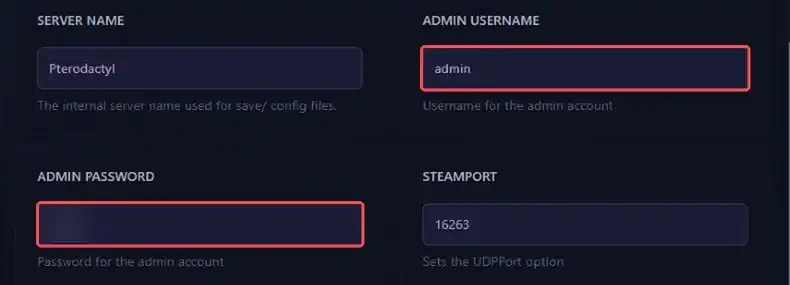 On every startup, the server creates this account if it does not exist yet, then applies the password from the variable. The console shows these lines.
```bash
Administrator account 'admin' created.
admin password changed via -adminpassword option
```
> [!WARNING]
> Replace the password with a long and unique one before opening your server to players. Anyone who knows it has full powers in game. The change applies on the next restart.
## 2. Connect in game as administrator
Launch Project Zomboid, open the multiplayer menu and add your server with its address and port, shown at the top of your server page in the panel. Then log in with the username and password set in **ADMIN USERNAME** and **ADMIN PASSWORD**.
Once in game, you have administrator rights. Commands are then typed in the chat, starting with a slash, for example `/players`.
## 3. Use commands from the panel console
You can also manage the server without launching the game. Open the **Console** tab of the panel, with the server running, and type commands in the field at the bottom of the page, **without** a leading slash.
```bash
players
```
The `help` command lists every command available on your game version. Here are the most useful ones.
::MdTable{caption="Common administration commands" variant="info" striped}
| Command | Effect |
|---|---|
| `players` | Lists connected players |
| `setaccesslevel "username" "admin"` | Gives an access level to a player, among admin, moderator, gm, observer, priority and user |
| `servermsg "message"` | Broadcasts a message to all connected players |
| `banuser "username"` | Bans a player, add `-ip` to also ban their IP address |
| `unbanuser "username"` | Lifts a player's ban |
| `save` | Saves the world right away |
| `quit` | Saves and stops the server cleanly |
::
For example, to give administrator rights to a team member already registered on the server, type this command. The console confirms with `User Survivant is now admin`.
```bash
setaccesslevel "Survivant" "admin"
```
> [!TIP]
> To remove rights, use the same command with the `user` level, the console then answers `User Survivant is now user`. Prefer the `moderator` level for team members who do not need full powers.
## 4. Protect the server with a password
The simplest way to restrict access is to require a password on connection. Stop the server, open the **Files** tab, then the `.cache/Server/Pterodactyl.ini` file (the file name follows the **SERVER NAME** variable). Fill in the `Password=` line.
```ini
Password=ServerPassword
```
Save with **Save Content** and restart. Players will now need this password to connect.
## 5. Switch the server to a whitelist
With a whitelist, only the accounts you created can connect. It is set with the `Open` option, near the top of the `.ini` file. By default it is `true` and anyone can create an account by connecting.
The fastest way is to change it from the console, with the server running. The option applies immediately and is saved to the `.ini` file.
```bash
changeoption Open "false"
```
 You can also stop the server and edit the line directly in the file.
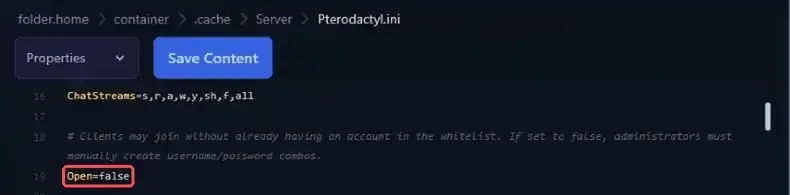 Then create an account for each allowed player. The player will connect with this username and password.
```bash
adduser "Survivant" "PlayerPassword"
```
The console confirms with `User Survivant created with password`. To remove a player from the whitelist, use `removeuserfromwhitelist "Survivant"`.
## Troubleshooting
### ❌ The admin account does not work in game
- Check that you use exactly the name and password from the **ADMIN USERNAME** and **ADMIN PASSWORD** variables.
- Restart the server after changing these variables, they only apply on startup.
- Look in the console for the `admin password changed via -adminpassword option` line.
### ❌ A command does nothing in the panel console
- Remove the slash in front of the command, it is only used in the in-game chat.
- Put usernames and values between straight quotes, as in the examples.
- Check that the server is running, the console accepts no command while the server is stopped.
### ❌ The console answers "Access Level unknown"
The requested level does not exist. The console then lists the accepted levels.
```bash
list of access level: banned, user, priority, observer, gm, moderator, admin
```
Run the command again with one of these levels, spelled as shown.
## Need help?
If you run into an issue with rights or access to your server, our team can help. Open a ticket from your client area `https://billing.winheberg.com` with the **Technical** department, selecting your server in the **Related Product** field. To go further, also read our guide **How to Install Mods on Your Project Zomboid Server**.
Your server is now in good hands 🎮