---
title: "How to Back Up and Restore Your RuneScape: Dragonwilds Server World"
description: "Back up and restore the world of your Winheberg RuneScape: Dragonwilds server, automatic save every 5 minutes, Backups tab, restore and .sav file to download."
category: jeux
subcategory: runescape-dragonwilds
icon: tabler:device-floppy
date: 2026-11-01
author: Winheberg
slug: "backup-world-runescape-dragonwilds"
order: 129
image: /statics/images/docs/en/gaming/runescape-dragonwilds/backup-world-runescape-dragonwilds.webp
tags: [RuneScape: Dragonwilds, Backup, Backups, Game panel]
keywords: [dragonwilds server backup, dragonwilds backup, restore dragonwilds world, dragonwilds sav file, runescape dragonwilds dedicated server]
link_fr: "/docs/runescape-dragonwilds/sauvegarder-monde-runescape-dragonwilds"
---
## Context
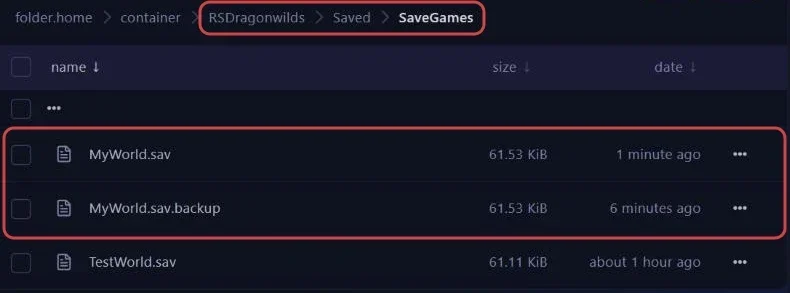
The world of a RuneScape: Dragonwilds server fits in a single file, for example `MyWorld.sav`, stored in the `RSDragonwilds/Saved/SaveGames` folder. On a Winheberg server it is protected at three levels, the game's automatic save, the full backups of the panel and the copy you can keep on your computer.
This guide explains how each level works, how to create and restore a backup, and how to download or put back the world file.
## Requirements
- An active [RuneScape: Dragonwilds server](https://winheberg.com/en/gaming/runescape-dragonwilds) on the Winheberg game panel
- Access to the server's **Console**, **Files** and **Backups** tabs on [panel.winheberg.com](https://panel.winheberg.com/)
## 1. Understand the automatic save
The server saves the world on its own. In our tests, it did so every 5 minutes, and each save shows up in the console like this.
```text
LogPersistence: [DedicatedServer] operator()() : Save completed SUCCESSFULLY (slot: MyWorld)
```
The `RSDragonwilds/Saved/SaveGames` folder then holds two files per world.
 ::MdTable{caption="Files of a world" variant="info" striped}
| File | Content |
|---|---|
| `MyWorld.sav` | The world as of the last automatic save |
| `MyWorld.sav.backup` | The previous automatic save, about 5 minutes older |
::
> [!WARNING]
> In our tests, no save was written when the server stopped. Before a **Stop** or a **Restart**, wait for a `Save completed SUCCESSFULLY` line to have just appeared in the console, otherwise the last minutes of play will be lost.
## 2. Create a backup from the panel
Panel backups copy the whole server, world included. They let you go back much further than the `.sav.backup` copy.
1. Open the **Backups** tab, under **MANAGEMENT** in the side menu.
2. Click **Create backup**.
3. Give it a meaningful name in **Backup name**, for example `before-update`.
4. Tick **Locked** if it must not be deletable by mistake.
5. Click **Start backup**.
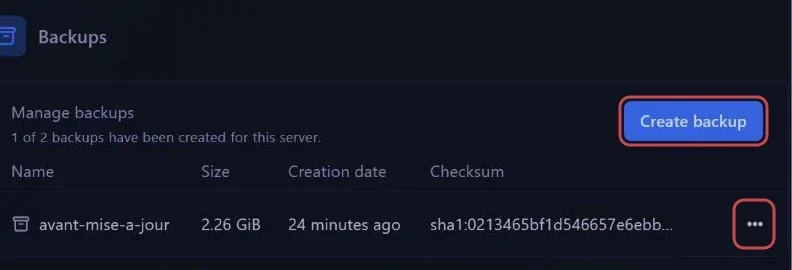 The line under **Manage backups** shows how many backups already exist and how many your server allows. On our test server, a full backup weighed a little over 2 GB and took about a minute.
For all the details on this tab, see our guide [How to Create and Restore a Backup of Your Gaming Server](https://winheberg.com/en/docs/panel-gaming/create-restore-backup-gaming-server).
## 3. Restore a panel backup
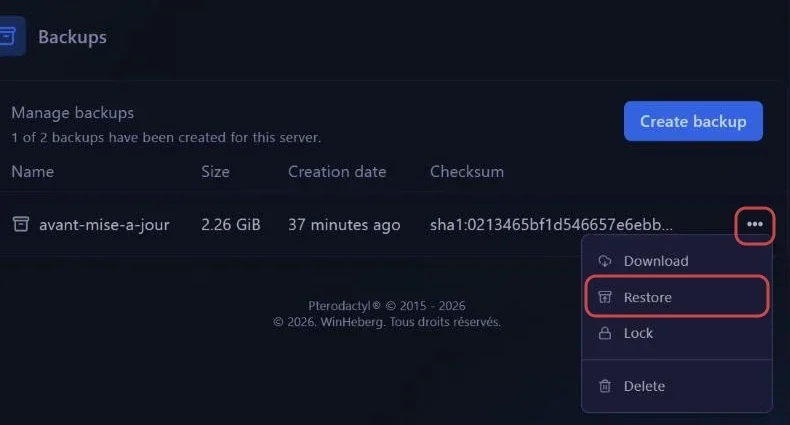
In the **Backups** tab, click the **…** button at the end of the backup's row. The menu offers **Download**, **Restore**, **Lock** and **Delete**. Choose **Restore** and confirm.
 > [!CAUTION]
> **Restore** puts every server file back in the state of the backup, not just the world. Everything played since the backup is lost. When in doubt, first create a new backup of the current state.
## 4. Download the world file
To keep a copy of the world on your computer, there is no need to download the whole server. The `.sav` file only weighs a few dozen kilobytes.
1. Stop the server with **Stop** right after a `Save completed SUCCESSFULLY` line, so the file is up to date.
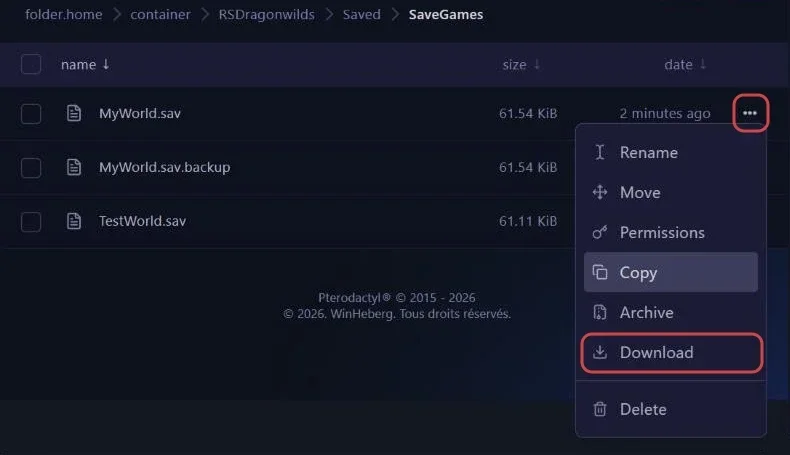
2. In the **Files** tab, open `RSDragonwilds/Saved/SaveGames`.
3. Download the world file, for example `MyWorld.sav`.
 You can also fetch it over SFTP, see our guide [How to Connect to Your Gaming Server via SFTP](https://winheberg.com/en/docs/panel-gaming/sftp-gaming-server).
## 5. Put a world file back on the server
1. Stop the server with **Stop**.
2. In the **Files** tab, open `RSDragonwilds/Saved/SaveGames` and upload your `.sav` file.
3. Check that its name, without the `.sav` extension, matches the **DEFAULT WORLD NAME** variable of the **Startup** tab exactly. This name decides which world is loaded.
4. Start the server with **Start**.
 > [!NOTE]
> If a file with the same name already exists, rename the old one before uploading, for example to `MyWorld-old.sav`. You can go back to it later by changing **DEFAULT WORLD NAME**, as explained in our guide **"How to Change or Reset the World on a RuneScape: Dragonwilds Server"**.
## Troubleshooting
### ❌ The last minutes of play disappeared after a restart
- The server saves the world at regular intervals, and no save was written on stop in our tests
- Before a restart, wait for the `Save completed SUCCESSFULLY` line in the console
### ❌ The world put back on the server does not load
- Compare the file name with **DEFAULT WORLD NAME**, capital letters included
- Check that the file sits in `RSDragonwilds/Saved/SaveGames` and not in a subfolder
- Make sure the server was stopped during the upload
### ❌ A new backup cannot be created
- The maximum number of backups may be reached, the line under **Manage backups** shows it
- Delete an old backup, after unlocking it if it is marked **Locked**
## Best practices
- Create a backup from the **Backups** tab before every game update or reset
- Keep a backup locked with **Lock** for the state you never want to lose
- Download the `.sav` file to your computer from time to time, it weighs almost nothing
- Always restart right after an automatic save, never in the middle of the interval
## Need help
If a restore fails or your world cannot be found, open a ticket with our support team from your [client area](https://billing.winheberg.com), **Technical** department, with the server in the **Related Product** field. Our team can check the server files with you.
Your world is safe. 🔒