---
title: "How to Become an Admin on a RuneScape: Dragonwilds Server"
description: "Become an admin on your Winheberg RuneScape: Dragonwilds server, ADMIN PASSWORD to change in the Startup tab, in game Server Management screen, owner and admin rights."
category: jeux
subcategory: runescape-dragonwilds
icon: tabler:user-shield
date: 2026-11-01
author: Winheberg
slug: "become-admin-runescape-dragonwilds"
order: 120
image: /statics/images/docs/en/gaming/runescape-dragonwilds/become-admin-runescape-dragonwilds.webp
tags: [RuneScape: Dragonwilds, Administration, Permissions, Game panel]
keywords: [dragonwilds admin, dragonwilds admin password, dragonwilds server management, ban player dragonwilds, runescape dragonwilds dedicated server, runescape dragonwilds server]
link_fr: "/docs/runescape-dragonwilds/devenir-admin-runescape-dragonwilds"
---
## Context
In RuneScape: Dragonwilds, there is no command or file to declare admins. The game relies on a password, the **ADMIN PASSWORD**. Any player who enters it in the **Server Management** screen becomes an admin, and stays one until this password changes again.
Above the admins sits the owner, set by the Owner ID. The two roles do not have the same rights, and the difference matters the day a ban has to be lifted.
This guide explains how to choose the admin password on your Winheberg server, how to use it in game and how to remove an admin's rights.
## Requirements
- An active [RuneScape: Dragonwilds server](https://winheberg.com/en/gaming/runescape-dragonwilds) on the Winheberg game panel
- Access to the server's **Startup** tab on [panel.winheberg.com](https://panel.winheberg.com/)
- Your Owner ID already set, see our guide **"How to Set the Owner ID on a RuneScape: Dragonwilds Server"**
> [!IMPORTANT]
> A new server starts with the default admin password, `ChangeMe`. Until it is replaced, any player who guesses it can grant themselves admin rights.
## 1. Choose the admin password
In the server's side menu, under **CONFIGURATION**, open the **Startup** tab. Replace the value of the **ADMIN PASSWORD** variable with a password of your choice. The panel saves it automatically.
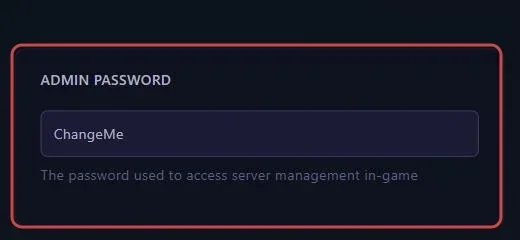 > [!WARNING]
> Choose a password without spaces, made of letters, digits and hyphens. Unlike the server name or the world password, the panel passes this value without quotes in the startup command, and a space would cut it in two.
Then click **Restart** at the top of the page. The new password only applies at launch.
 ## 2. Become an admin in game
Join the server, open the pause menu, then the **Settings** menu and its **Server Management** tab. Enter the admin password to get the rights.
Only share this password with trusted people who should help you moderate the server.
## 3. Owner and admins
Jagex separates two levels of rights. The owner is the player whose Player ID matches the server's Owner ID, admins are those who entered the password.
::MdTable{caption="Moderation rights" variant="info" striped footer="Source, the official dedicated server guide published by Jagex."}
| Action | Owner | Admin |
|---|---|---|
| Ban an online player | Yes | Yes, if it is a player without rights |
| Ban an offline player | Yes | No |
| Unban a player | Yes | No |
::
A ban issued by mistake can therefore only be lifted by the owner. One more reason to set your Owner ID before opening the server.
## 4. Remove an admin's rights
There is no admin list to edit one by one. To take the rights away from someone, change the **ADMIN PASSWORD** variable in the **Startup** tab, then restart the server. All admins then lose their rights.
Then share the new password with only the people who should get them back.
## Troubleshooting
### ❌ The admin password is refused in game
- Check that the server was restarted after the password change
- Check in the startup command, at the top of the **Startup** tab, that the value after `AdminPassword=` is complete
- If the password contains a space, replace it with one without spaces, then restart
- Check the capital letters, the password is entered exactly as written in the panel
### ❌ A banned player must be let back in
- Only the owner can unban, sign in with the account whose Player ID is set as Owner ID
- If nobody is recognised as owner, check the **OWNER ID** variable first
## Need help
If admin rights do not apply despite these checks, open a ticket with our support team from your [client area](https://billing.winheberg.com), **Technical** department, with the server in the **Related Product** field. Our team can check the server configuration with you.
You are now in control of your server. 🎮