---
title: "How to Change or Reset the World on a RuneScape: Dragonwilds Server"
description: "Switch or reset the world of your Winheberg RuneScape: Dragonwilds server, DEFAULT WORLD NAME variable, .sav files of the SaveGames folder and going back to the previous save."
category: jeux
subcategory: runescape-dragonwilds
icon: tabler:world
date: 2026-11-01
author: Winheberg
slug: "change-reset-world-runescape-dragonwilds"
order: 127
image: /statics/images/docs/en/gaming/runescape-dragonwilds/change-reset-world-runescape-dragonwilds.webp
tags: [RuneScape: Dragonwilds, World, Reset, Game panel]
keywords: [reset dragonwilds world, change dragonwilds world, dragonwilds server reset, default world name, dragonwilds savegames, runescape dragonwilds dedicated server]
link_fr: "/docs/runescape-dragonwilds/changer-reinitialiser-monde-runescape-dragonwilds"
---
## Context
On a RuneScape: Dragonwilds server hosted by Winheberg, the world loaded at startup is the one named in the **DEFAULT WORLD NAME** variable of the **Startup** tab. Each world is stored in a file of the same name, for example `MyWorld.sav`, in the `RSDragonwilds/Saved/SaveGames` folder.
This makes three operations simple, switching worlds without losing the current one, starting over on a new world and going back to the previous save. This guide covers all three, as we checked them on a Winheberg server.
## Requirements
- An active [RuneScape: Dragonwilds server](https://winheberg.com/en/gaming/runescape-dragonwilds) on the Winheberg game panel
- Access to the server's **Startup**, **Files** and **Backups** tabs on [panel.winheberg.com](https://panel.winheberg.com/)
> [!CAUTION]
> Before resetting a world, create a backup from the **Backups** tab, see our guide [How to Create and Restore a Backup of Your Gaming Server](https://winheberg.com/en/docs/panel-gaming/create-restore-backup-gaming-server). A deleted world file cannot be recovered without it.
## 1. Switch worlds without losing the current one
Open the **Startup** tab, under **CONFIGURATION** in the side menu, and replace the value of **DEFAULT WORLD NAME** with a new name. Then click **Restart** at the top of the page.
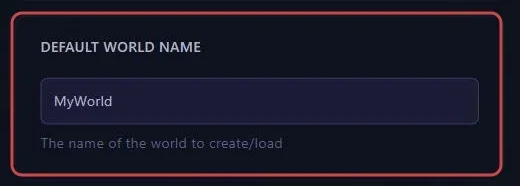 At startup, the server finds no save under that name and creates a new world. It says so in the console with a line like this one.
```text
LogDomServerGameMode: No save found for configured world [NewWorld]; creating it
```
The previous world is left untouched, its file stays in `RSDragonwilds/Saved/SaveGames`.
> [!NOTE]
> Your players find the server by typing the world name in the **Public** tab of the worlds screen. Give them the new name, the old one will no longer return anything.
## 2. Go back to a previous world
The available worlds are the `.sav` files in the `RSDragonwilds/Saved/SaveGames` folder, visible in the **Files** tab. To load one again, set its exact name in **DEFAULT WORLD NAME**, without the `.sav` extension and with the same capital letters, then restart.
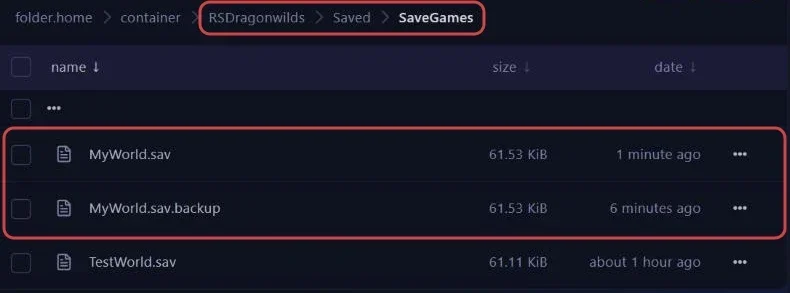 The server confirms the load with this line.
```text
LogDomServerGameMode: Loading configured world [MyWorld] from save slot [MyWorld]
```
## 3. Reset the world and keep its name
To start from scratch under the same name, the world file has to be removed before startup.
 1. In the **Console** tab, click **Stop** and wait for the **Offline** state. If the server is running, its next automatic save would write the file again.
2. In the **Files** tab, open `RSDragonwilds/Saved/SaveGames`.
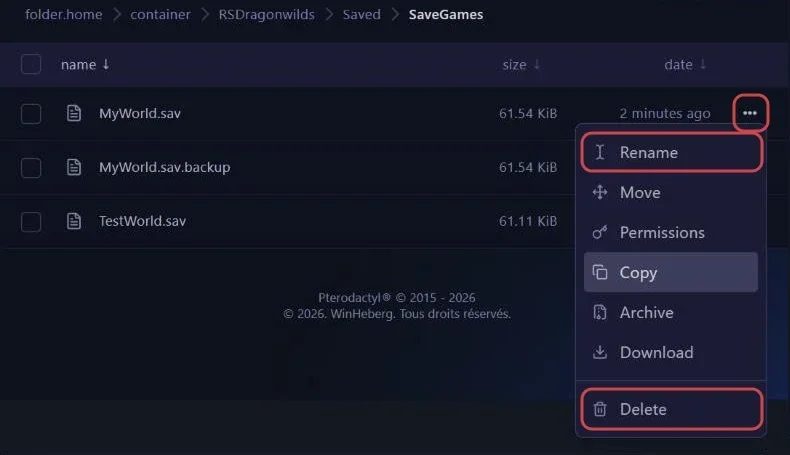
3. Rename the world file, for example `MyWorld.sav` to `MyWorld-old.sav`, or delete it if you no longer want it.
4. Click **Start**. The server no longer finds a save under that name and creates a new world.
 > [!WARNING]
> The `MyWorld.sav.backup` file does not protect the old world. We checked it, when `MyWorld.sav` is missing, the server ignores this copy and creates a new world.
## 4. Go back to the previous save
The game keeps the previous save in a `.sav.backup` file, for example `MyWorld.sav.backup`. In our tests, the server saved the world every 5 minutes, so this copy was about 5 minutes behind the main file.
It lets you undo an incident that happened just before the last save.
1. Stop the server with **Stop**.
2. Rename `MyWorld.sav` to `MyWorld-incident.sav` to keep it aside.
3. Rename `MyWorld.sav.backup` to `MyWorld.sav`.
4. Start the server with **Start**.
We checked that the server then loads the world as it was at the previous save. To go further back, you need a backup from the **Backups** tab.
## Troubleshooting
### ❌ The server starts on a blank world
- Compare **DEFAULT WORLD NAME** with the names of the `.sav` files in `RSDragonwilds/Saved/SaveGames`, a single typo creates a new world
- Check the capital letters, `MyWorld` and `myworld` do not point to the same file
- Set the exact name again, without the `.sav` extension, then restart, the old world was not erased
### ❌ The reset world came back
- The server was probably running during the change, its automatic save wrote the file again
- Start over by stopping the server first with **Stop**
### ❌ Players can no longer find the server
- After a world change, they must search for the new name in the **Public** tab
- See our guide **"Why Your RuneScape: Dragonwilds Server Does Not Show in the List"** for the other causes
## Best practices
- Create a backup from the **Backups** tab before every reset, it is the only way to go back more than 5 minutes
- Rename old worlds rather than deleting them, a file of a few dozen kilobytes weighs nothing on your disk space
- Write down the exact name of each world, it is what you will set in **DEFAULT WORLD NAME** and what your players will search for
## Need help
If a world will not load despite a correct name, open a ticket with our support team from your [client area](https://billing.winheberg.com), **Technical** department, with the server in the **Related Product** field. Our team can look at the startup logs with you.
A new world is waiting for you. 🎮