---
title: "How to Password Protect Your RuneScape: Dragonwilds Server"
description: "Password protect your Winheberg RuneScape: Dragonwilds server with the WORLD PASSWORD variable of the Startup tab, restart, removing the password and common mistakes."
category: jeux
subcategory: runescape-dragonwilds
icon: tabler:lock
date: 2026-11-01
author: Winheberg
slug: "password-protect-runescape-dragonwilds"
order: 119
image: /statics/images/docs/en/gaming/runescape-dragonwilds/password-protect-runescape-dragonwilds.webp
tags: [RuneScape: Dragonwilds, Password, Security, Game panel]
keywords: [dragonwilds server password, dragonwilds world password, private dragonwilds server, runescape dragonwilds dedicated server, runescape dragonwilds server]
link_fr: "/docs/runescape-dragonwilds/mot-de-passe-runescape-dragonwilds"
---
## Context
By default, a Winheberg RuneScape: Dragonwilds server is open. Anyone who knows the world name can find it in the **Public** tab of the worlds screen and join it. For a server among friends, a password is enough to keep control over who comes in.
The password is set in the **Startup** tab of the game panel, with the **WORLD PASSWORD** variable. It takes precedence over any password stored in the world itself, for example in a game imported from your computer.
## Requirements
- An active [RuneScape: Dragonwilds server](https://winheberg.com/en/gaming/runescape-dragonwilds) on the Winheberg game panel
- Access to the server's **Startup** tab on [panel.winheberg.com](https://panel.winheberg.com/)
## 1. Enter the password
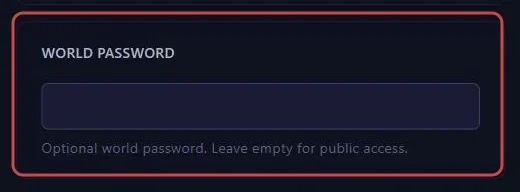
In the server's side menu, under **CONFIGURATION**, open the **Startup** tab. Type your password into the **WORLD PASSWORD** variable. The panel saves it automatically.
 > [!TIP]
> Stick to letters, digits and hyphens. Your players will type the password by hand, and a mistyped special character is the first cause of refusal.
## 2. Restart the server
The password only applies at launch. Click **Restart** at the top of the page and wait for the server to be back online.
 From now on, your players will need this password to enter the world.
## 3. Remove the password
To open the server to everyone again, clear the **WORLD PASSWORD** variable completely, then restart. An empty field means open access.
## Troubleshooting
### ❌ The password is refused
- Check that the server was restarted after saving
- Have the password typed by hand rather than pasted, an invisible character is enough to make it fail
- Check the capital letters and that no space sits at the start or end of the value
### ❌ The password was added to DedicatedServer.ini
- On a Winheberg server, this file is not used for this setting, the **Startup** tab value replaces it on every start
- Copy the password into the **WORLD PASSWORD** variable, then restart
## Best practices
- Never use your **ADMIN PASSWORD** as the world password, anyone who gets in could then grant themselves admin rights
- Change the password when a player leaves the group, it is the only protection it offers
- Set your Owner ID before locking the server, you will keep the ability to ban and unban whatever happens
## Need help
If the password is still refused after these checks, open a ticket with our support team from your [client area](https://billing.winheberg.com), **Technical** department, with the server in the **Related Product** field. Our team can check the server configuration with you.
Your world is no longer open to all comers. 🔒