---
title: "How to Update Your RuneScape: Dragonwilds Server"
description: "Update your Winheberg RuneScape: Dragonwilds server, server version in the log, AUTO UPDATE variable, restart and daily updates with Schedules."
category: jeux
subcategory: runescape-dragonwilds
icon: tabler:refresh
date: 2026-11-01
author: Winheberg
slug: "update-runescape-dragonwilds-server"
order: 128
image: /statics/images/docs/en/gaming/runescape-dragonwilds/update-runescape-dragonwilds-server.webp
tags: [RuneScape: Dragonwilds, Update, Startup, Game panel]
keywords: [update dragonwilds server, dragonwilds server version, dragonwilds auto update, steamcmd 4019830, runescape dragonwilds dedicated server]
link_fr: "/docs/runescape-dragonwilds/mise-a-jour-runescape-dragonwilds"
---
## Context
After every RuneScape: Dragonwilds update or hotfix, the server must move to the same version as your players. Jagex warns that a version mismatch shows up with every game update, and that server and players must stay on the latest version available.
On a Winheberg server, the update happens at startup, thanks to the **AUTO UPDATE** variable of the **Startup** tab. This guide shows how to check your server version and how to update it.
## Requirements
- An active [RuneScape: Dragonwilds server](https://winheberg.com/en/gaming/runescape-dragonwilds) on the Winheberg game panel
- Access to the server's **Startup**, **Console** and **Files** tabs on [panel.winheberg.com](https://panel.winheberg.com/)
## How to tell whether your server needs an update
The most common sign is a server that can no longer be found or joined right after a game update. To be sure, compare the two versions.
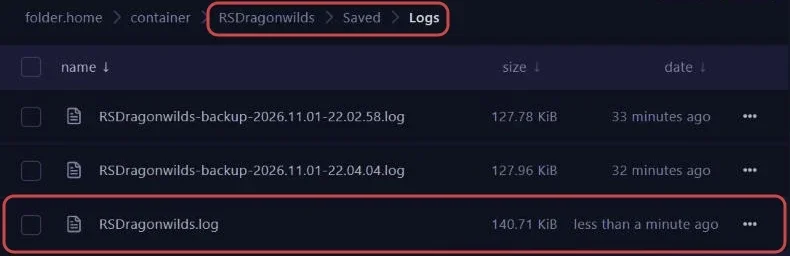
The server version is written to its log at every startup. Open the `RSDragonwilds/Saved/Logs/RSDragonwilds.log` file from the **Files** tab and find this line.
 ```text
LogNetVersion: Set ProjectVersion to 1.0.1.3. Version Checksum will be recalculated on next use.
```
According to Jagex, the game version is shown in the top left corner of your players' screen. If the two numbers differ, the server needs an update.
## 1. Check the AUTO UPDATE variable
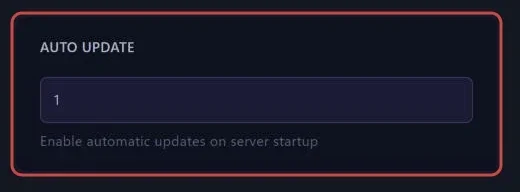
Open the **Startup** tab, under **CONFIGURATION** in the side menu, and check that the **AUTO UPDATE** variable is set to `1`. This is the default value.
 ::MdTable{caption="AUTO UPDATE values" variant="info" striped}
| Value | Effect at startup |
|---|---|
| `1` | The server checks for an update before launching, and installs it if needed |
| `0` | The server starts without checking, it stays on its current version |
::
## 2. Restart the server
Click **Restart** at the top of the page. Before launching the game, the server asks Steam, and the console shows lines like these.
 ```text
[ 0%] Checking for available updates...
Success! App '4019830' already up to date.
```
`already up to date` means the server already had the latest version. If an update exists, it is downloaded and installed at that point, before the server launches.
## 3. Check the new version
Once the server is online, open `RSDragonwilds/Saved/Logs/RSDragonwilds.log` again and check that the `Set ProjectVersion` line shows the same version as your players' game.
> [!TIP]
> Logs from previous startups are kept in the same folder, as `RSDragonwilds-backup-.log`. They let you find the version that ran before the update.
## 4. Update automatically every day
Since the update happens at startup, a scheduled restart is enough to keep the server up to date without thinking about it. Schedule one every night with our guide [How to Schedule Automatic Restarts with Schedules](https://winheberg.com/en/docs/panel-gaming/schedule-automatic-restart).
> [!WARNING]
> The server saves the world automatically at regular intervals, every 5 minutes in our tests, and no save was written when it stopped. A restart can therefore lose the last minutes of play, schedule it at a time when nobody is playing.
## Troubleshooting
### ❌ The server stays on the old version
- Check that **AUTO UPDATE** is set to `1` in the **Startup** tab
- Restart with **Restart**, the check only happens at startup
- Read the first console lines at startup, they show whether Steam found an update
### ❌ Players still cannot find the server after the update
- Check that your players have updated their game too
- See our guide **"Why Your RuneScape: Dragonwilds Server Does Not Show in the List"** for the other causes
## Best practices
- Keep **AUTO UPDATE** at `1`, your players get game updates automatically and the server has to follow
- Create a backup from the **Backups** tab before a major game update, see our guide [How to Create and Restore a Backup of Your Gaming Server](https://winheberg.com/en/docs/panel-gaming/create-restore-backup-gaming-server)
- Schedule a daily restart at night, it updates the server without cutting a game in progress
## Need help
If the server does not update or refuses to start after an update, open a ticket with our support team from your [client area](https://billing.winheberg.com), **Technical** department, with the server in the **Related Product** field. Our team can look at the startup console with you.
Your server is up to date. 🎮