---
title: "How to Install Oxide or Carbon and Plugins on a Rust Server"
description: "Enable Oxide (uMod) or Carbon on your Winheberg Rust server from the Startup tab, install a plugin from uMod with Upload from URL and manage its permissions."
category: jeux
subcategory: rust
icon: tabler:file-text
date: 2026-11-01
author: Winheberg
slug: "install-oxide-carbon-plugins-rust"
order: 114
image: /statics/images/docs/en/gaming/rust/install-oxide-carbon-plugins-rust.webp
tags: [Rust, Oxide, Carbon, Plugins, Game panel]
keywords: [rust server oxide, install rust plugin, umod rust, carbon rust, rust server plugin, rust hosting, rust modding]
link_fr: "/docs/rust/installer-oxide-carbon-plugins-rust"
---
## Context
A vanilla Rust server runs perfectly well as it is, but most communities want starter kits, teleportation, clans or a shop. All of this comes from **plugins**, and plugins need a **modding framework**, Oxide (uMod) or Carbon.
On your Winheberg Rust server, there is no need to install this framework by hand. The gaming panel downloads it for you at startup, you just have to pick it. This guide shows you how to enable Oxide or Carbon, install a plugin from uMod, then check that it is running.
## Prerequisites
- An active **Rust server** on your [Winheberg gaming panel](https://panel.winheberg.com)
- The download link of the plugin you want, for example on [umod.org](https://umod.org/plugins)
- A recent **backup** from the **Backups** tab, before any framework change
## 1. Choose the framework in Startup
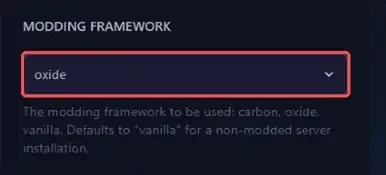
In the side menu, open **Startup** and scroll down to the **MODDING FRAMEWORK** variable. Three values are available.
| Value | Result |
|---|---|
| `vanilla` | Server without mods, default value |
| `oxide` | Installs Oxide (uMod), the original Rust framework |
| `carbon` | Installs Carbon, compatible with most Oxide plugins |
Select `oxide` or `carbon`. The choice is saved as soon as you change the value, there is no save button.
 > [!IMPORTANT]
> Oxide and Carbon **cannot run side by side**. Pick only one. Plugins are written the same way for both, but Carbon stores its files in a `carbon` folder instead of `oxide`.
## 2. Restart and check that it loads
Go back to the **Console** and click **Restart**. On every startup, the server updates Rust and then downloads the latest version of the chosen framework. So you never have to update Oxide yourself.
The first startup with a framework takes a few extra minutes. When Oxide loads, the console shows these lines.
```bash
Loading Oxide Core v2.0.4143...
Loading extensions...
Loaded extension Rust v2.0.7839 by Oxide Team and Contributors
Loading plugins...
```
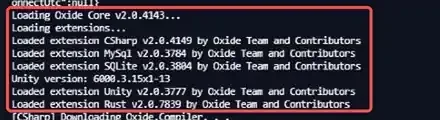 Version numbers change with every update, that is normal. Once the server has started, an `oxide` folder appears at the root of the server, with the `plugins`, `config`, `data`, `lang` and `logs` subfolders.
## 3. Install a plugin from a URL
An Oxide plugin is a simple `.cs` file. The panel file manager can download it directly, without going through your PC.
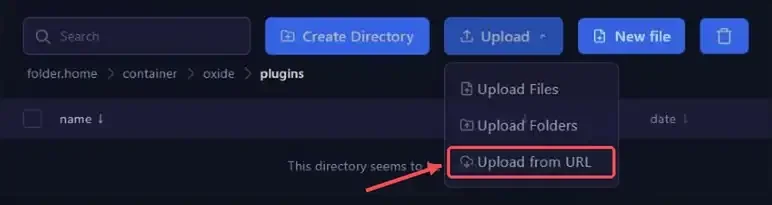
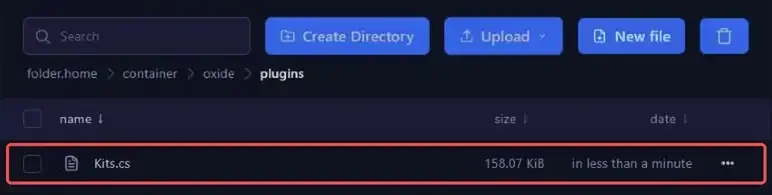
1. Open **Files**, then the `oxide` folder, then `plugins` (with Carbon, `carbon` then `plugins`)
2. Click **Upload**, then **Upload from URL**
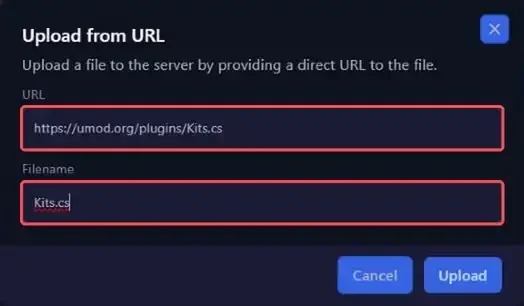
 3. Paste the direct link to the `.cs` file into the **URL** field. On uMod, it looks like `https://umod.org/plugins/PluginName.cs`
4. Check the **Filename** field. It fills itself in from the URL and must contain only the file name, here `Kits.cs`
5. Click **Upload**
 The file shows up in the folder a few seconds later.
 > [!TIP]
> Downloaded the plugin to your PC? Use **Upload Files** instead, or SFTP for large files, as explained in our guide [How to Connect to Your Gaming Server via SFTP](https://winheberg.com/en/docs/panel-gaming/sftp-gaming-server).
## 4. Check that the plugin is loaded
Oxide watches the `plugins` folder and **automatically loads** a plugin as soon as its file is added or modified, with no restart. On first load, the plugin creates its configuration file in `oxide/config` (with Carbon, `carbon/configs`).
To list the active plugins, type this command in the console, **without a `/` in front**.
```bash
o.plugins
```
Here are the handy commands for managing your plugins.
::MdTable{caption="Plugin management commands" variant="info" striped}
| Oxide | Carbon | Purpose |
|---|---|---|
| `o.plugins` | `c.plugins` | Lists loaded plugins |
| `o.reload Kits` | `c.reload Kits` | Reloads a plugin, for example after changing its configuration |
| `o.unload Kits` | `c.unload Kits` | Unloads a plugin without deleting its file |
| `o.load Kits` | `c.load Kits` | Loads an unloaded plugin |
::
> [!NOTE]
> The panel console sends commands to the server over RCON. During startup, it replies `Unable to run "o.plugins" due to RCON not being connected yet.` Wait for the server status to switch to **Online** and try again. If the message persists after startup, replace the default `CHANGEME` password in the **RCON PASSWORD** variable in **Startup**, then restart.
## 5. Grant the plugin permissions
Most plugins restrict their commands to players who have the right **permission**. The plugin page on uMod lists its permissions. Oxide creates two groups by default, `default` for all players and `admin` for administrators.
| Command | Effect |
|---|---|
| `o.grant group default ` | Grants the permission to all players |
| `o.grant user ` | Grants the permission to a single player |
| `o.revoke user ` | Removes the permission |
| `o.show user ` | Shows a player's permissions and groups |
With Carbon, replace `o.` with `c.`, for example `c.grant`. Players set as **owner** on the server are automatically added to the Oxide `admin` group. To become an owner, follow our guide **"How to Become an Admin on a Rust Server"**.
## If you run into trouble
### ❌ The plugin does not show up in o.plugins
- Check that the file is really in `oxide/plugins` (or `carbon/plugins`) and that it ends with `.cs`
- Check its name. If the console shows an error like this one, the **Filename** field contained the name twice, rename the file to `Kits.cs`
```bash
Could not load plugin 'Kits.csKits' (no plugin found with that file name)
```
- Open the latest file in `oxide/logs`, plugin compilation errors are detailed there
### ❌ A plugin stopped working after the monthly wipe
Every mandatory Rust update can break a plugin. The framework itself updates on its own at restart. Check the plugin page for a new version, download it over the old one, then read the console to confirm it loads.
### ❌ The server crashes after a framework change
Oxide modifies some game files, which stay in place if you switch back to `vanilla` or move to `carbon`. Make a backup, then run **Reinstall Server** from **Settings** so that SteamCMD restores the original Rust files.
## Best practices
- **Add your plugins one at a time** and read the console after each one, any conflict is then easy to spot
- **Edit a plugin's configuration** in `oxide/config`, then apply it with `o.reload PluginName`
- **Only download plugins from known sources** such as uMod. A `.cs` plugin runs code on your server
- **Back up the `oxide` folder** before a wipe or a major update, it holds your configurations and your players' data
## Need help?
If a plugin still refuses to load after these checks, our team is here to help. Open a ticket in the **Technical** department from your [client area](https://billing.winheberg.com), fill in the **Related Product** field with your Rust server and attach the error message from the console.
Check out our plans on the [Rust Hosting](https://winheberg.com/en/gaming/rust) page. Your server is ready for its first plugins 📦