---
title: "How to reset your Satisfactory world"
description: "Learn how to reset your Satisfactory world from in-game or via the server panel to start fresh or fix corrupted saves."
category: jeux
subcategory: satisfactory
icon: tabler:file-text
date: 2026-08-11
author: Winheberg
slug: "reset-satisfactory-world"
order: 41
image: /statics/images/docs/en/gaming/satisfactory/reset-satisfactory-world.webp
tags: [satisfactory, game-server, guide, reset]
keywords: [satisfactory, server, reset, world, save, gaming, hosting, pterodactyl]
link_fr: "/docs/satisfactory/reinitialiser-monde-satisfactory"
---
## Context
Resetting your Satisfactory world allows you to start fresh on your server. This operation is useful if you want to begin a clean playthrough or fix an issue caused by a corrupted save file.
You can perform this reset in two ways: **from the game** (recommended method) or via the **Winheberg panel** files.
## 1. Resetting from the game
> [!TIP]
> This is the easiest method and allows you to reset the world directly without needing to touch your server files.
### 1.1 Access your server in-game
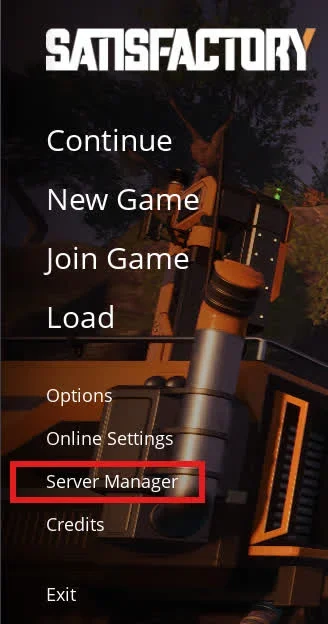
1. Launch your **Satisfactory** game.
2. From the main menu, click on **Server Manager**.
3. Select your dedicated server from the list.
 ### 1.2 Create a new game
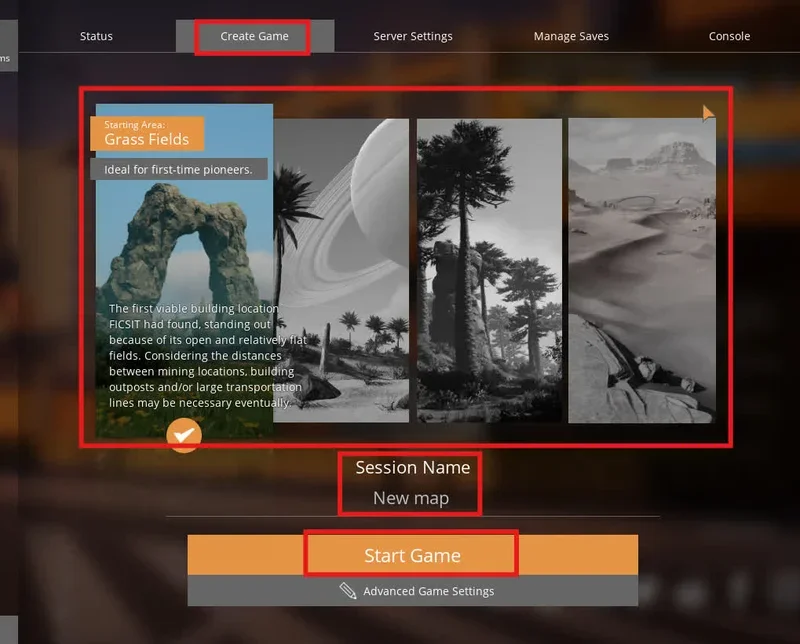
1. Click on **Create Game**.
2. Choose your starting area.
3. Enter a new session name.
4. Click on **Start Game**.
### 1.2 Create a new game
1. Click on **Create Game**.
2. Choose your starting area.
3. Enter a new session name.
4. Click on **Start Game**.
 ## 2. Resetting via the panel (Files)
### 2.1 Access the server files
1. Log in to your [Winheberg panel](https://panel.winheberg.com) and select your Satisfactory server.
2. **Stop the server** (Stop button) before proceeding.
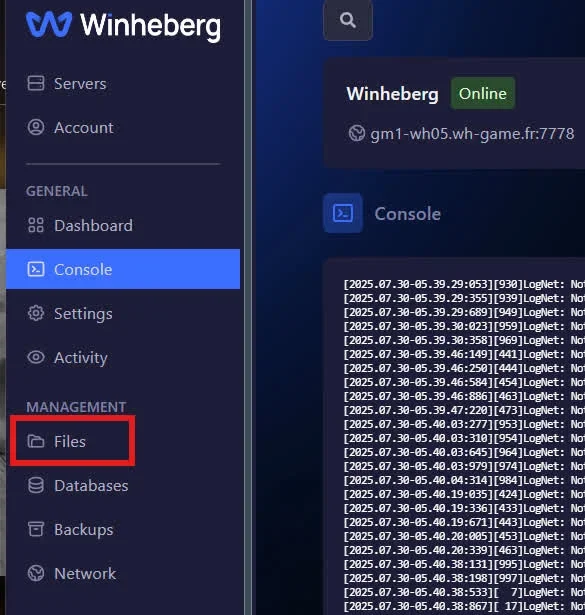
3. Go to the **Files** tab in the left sidebar menu.
## 2. Resetting via the panel (Files)
### 2.1 Access the server files
1. Log in to your [Winheberg panel](https://panel.winheberg.com) and select your Satisfactory server.
2. **Stop the server** (Stop button) before proceeding.
3. Go to the **Files** tab in the left sidebar menu.
 ### 2.2 Delete existing save
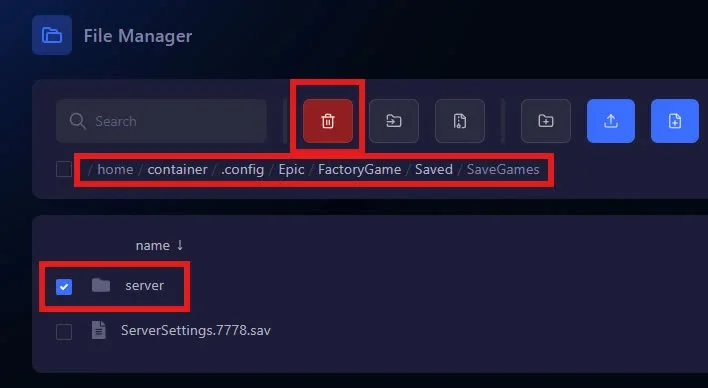
Navigate to the following path by clicking on the folders:
```bash
/.config/Epic/FactoryGame/Saved/SaveGames/
```
1. Delete the save file named `Server`.
2. Restart the server. A fresh new world will automatically generate.
### 2.2 Delete existing save
Navigate to the following path by clicking on the folders:
```bash
/.config/Epic/FactoryGame/Saved/SaveGames/
```
1. Delete the save file named `Server`.
2. Restart the server. A fresh new world will automatically generate.
 > [!WARNING]
> Make sure the server is completely stopped before deleting any files. If the server is running during the deletion process, the save may recreate itself or become corrupted.
## Troubleshooting
### ❌ Cannot delete the save file
- **Server is still running**: The panel often prevents the deletion of files currently in use by the server. Ensure the server status shows as *Offline* in the console before attempting to delete the `Server` file.
### ❌ The old world still loads
- **Wrong file**: Double-check that you deleted the `Server` file located inside `.config/Epic/FactoryGame/Saved/SaveGames/` on your panel. Restart the server once confirmed.
## Best Practices
> [!NOTE]
> Before permanently deleting your save file, remember to create a full server backup from the **Backups** tab on the panel. This will allow you to recover your old factory if you change your mind.
## Need help?
If your world does not reset properly or if you encounter an error during the process, feel free to contact the [Winheberg support team](https://winheberg.com/support).
Our staff can help you restore a backup or check your server configuration.
Your new Satisfactory world is now ready 🚀
> [!WARNING]
> Make sure the server is completely stopped before deleting any files. If the server is running during the deletion process, the save may recreate itself or become corrupted.
## Troubleshooting
### ❌ Cannot delete the save file
- **Server is still running**: The panel often prevents the deletion of files currently in use by the server. Ensure the server status shows as *Offline* in the console before attempting to delete the `Server` file.
### ❌ The old world still loads
- **Wrong file**: Double-check that you deleted the `Server` file located inside `.config/Epic/FactoryGame/Saved/SaveGames/` on your panel. Restart the server once confirmed.
## Best Practices
> [!NOTE]
> Before permanently deleting your save file, remember to create a full server backup from the **Backups** tab on the panel. This will allow you to recover your old factory if you change your mind.
## Need help?
If your world does not reset properly or if you encounter an error during the process, feel free to contact the [Winheberg support team](https://winheberg.com/support).
Our staff can help you restore a backup or check your server configuration.
Your new Satisfactory world is now ready 🚀