---
title: "How to Become an Admin on an Unturned Server"
description: "Become owner of your Winheberg Unturned server with Owner and the SteamID64, appoint admins from the console, ban players and enable a whitelist."
category: jeux
subcategory: unturned
icon: tabler:file-text
date: 2026-11-02
author: Winheberg
slug: "become-admin-unturned-server"
order: 161
image: /statics/images/docs/en/gaming/unturned/become-admin-unturned-server.webp
tags: [Unturned, Administration, Permissions, Game panel]
keywords: [Unturned admin, Unturned server, Unturned owner, Unturned admin commands, SteamID64, Unturned ban, Unturned whitelist]
link_fr: "/docs/unturned/devenir-admin-serveur-unturned"
---
## Context
To kick a cheater, ban a player or teleport on your Unturned server, you need admin rights. Unturned distinguishes the server **owner**, declared in the `Commands.dat` file, from **admins**, added from the console. In both cases, the player is identified by their **SteamID64**.
This guide shows you how to declare yourself owner of your Winheberg Unturned server, how to appoint admins, which commands to use next and how to restrict the server to a list of allowed players.
## Prerequisites
- An active **Unturned server** on your [Winheberg gaming panel](https://panel.winheberg.com), with the **Online** status to type commands in the console
- The **SteamID64** of the player to promote, a 17 digit identifier starting with `7656119`
- A server started at least once, so that the `Servers/PterodactylUnturned/Server` folder is created
## 1. Find the player's SteamID64
The SteamID64 never changes, unlike the nickname. Here are two simple ways to find it.
- In Steam, open the player's profile, right-click on the page and choose **Copy Page URL**. If the URL ends with a string of 17 digits, that is the SteamID64
- If the profile uses a custom URL, paste it into a converter such as [steamid.io](https://steamid.io/), which shows the **steamID64** line
## 2. Declare yourself owner with Owner
Open **Files**, then the `Servers`, `PterodactylUnturned` and `Server` folders, and click `Commands.dat`. Add an `Owner` line followed by your SteamID64, then click **Save Content**.
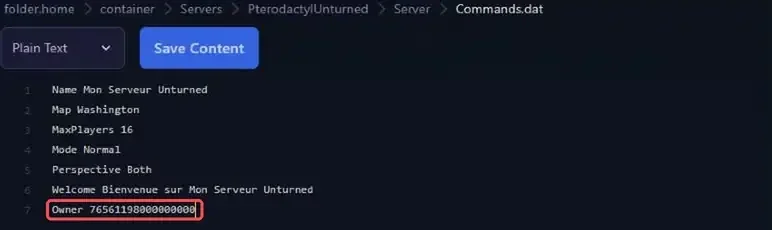 ```bash
Owner 76561198000000000
```
Restart the server. The console confirms it on startup.
```bash
Successfully set owner to 76561198000000000!
```
The `Owner` command accepts a single SteamID64. Add the other members of your team as admins, with the next step.
> [!NOTE]
> The owner does not appear in the list returned by the `admins` command. If it replies `Failed to find any admins.` while the `Owner` line is in place, this is expected.
## 3. Appoint admins from the console
Open your server's **Console** in the panel. Type the command in the **Type a command...** field, **without a `/` in front**, replacing the SteamID64.
```bash
admin 76561198000000001
```
The player does not need to be connected. The `admins` command then shows the list of admins.
 | Command | Effect |
|---|---|
| `admin ` | Gives admin rights to the player |
| `unadmin ` | Removes admin rights |
| `admins` | Shows the list of admins |
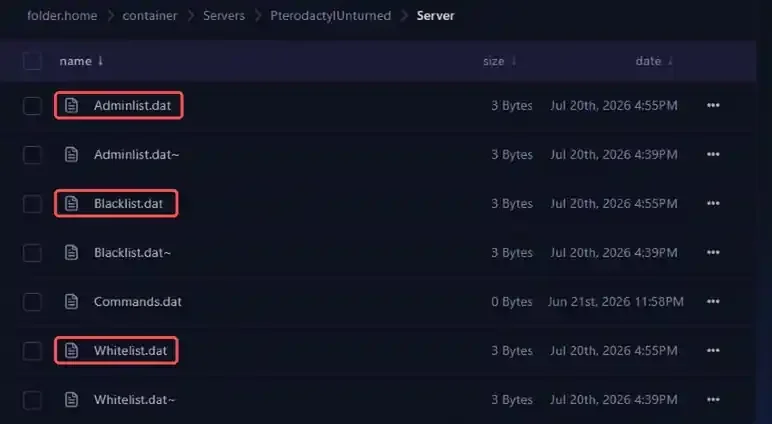
The list is stored in the `Adminlist.dat` file of the `Server` folder. Type `save` to write it right away, the console replies `Successfully saved the game.`. Bans and the whitelist are stored the same way in `Blacklist.dat` and `Whitelist.dat`.
 > [!CAUTION]
> These three files are written by the game in a binary format. Do not edit them in the panel editor, always use the console commands.
## 4. Use the admin commands
In the panel console, commands are typed without `/`. In game, an admin types them in the chat with a leading `/`. Arguments are separated by `/`, and a connected player can be targeted by nickname or by SteamID64.
::MdTable{caption="Common admin commands" variant="info" striped}
| Command | Effect |
|---|---|
| `kick /` | Disconnects the player from the server |
| `ban //` | Bans the player, duration in seconds |
| `unban ` | Lifts the ban |
| `bans` | Shows the list of bans |
| `teleport /` | Teleports a player to another player or to a location |
| `give /
- /` | Gives an item, requires `Cheats` |
| `vehicle /` | Spawns a vehicle, requires `Cheats` |
| `experience /` | Gives experience, requires `Cheats` |
| `day` and `night` | Switches to day or night |
| `say ` | Sends a message to all players |
| `save` | Saves the game immediately |
::
For example, to ban a player for 24 hours, that is 86400 seconds, type the following command. The console replies `Successfully banned 76561198000000002 for 86400 seconds!`.
```bash
ban 76561198000000002/Cheating/86400
```
Type `help` to show every available command, or `help` followed by a command name, for example `help ban`, to get its syntax and description.
> [!IMPORTANT]
> The `give`, `vehicle` and `experience` commands only work if the `Cheats` line is present in `Commands.dat`. This setting applies to the whole server, so add it only if your team needs it.
## 5. Restrict the server to a whitelist
For a private server among friends, Unturned can accept allowed players only. Add each player from the console with the `permit` command, followed by their SteamID64 and a label.
```bash
permit 76561198000000003/Friend
```
The console replies `Successfully permitted 76561198000000003 Friend!`. The `permits` command shows the list and `unpermit ` removes a player. Then add the `Whitelisted` line to `Commands.dat` and restart the server. Only allowed players will then be able to join it.
> [!TIP]
> A password, set in the **SERVER PASSWORD** variable of the **Startup** tab, is a simpler alternative for a small group. It is covered in our guide **"How to Configure Your Unturned Server and Add a GSLT"**.
## If you run into trouble
### ❌ The Owner line is not applied
- Check the console on startup for `Successfully set owner to` followed by your SteamID64
- Check the SteamID64, 17 digits, no spaces, and not the short `STEAM_0:...` form
- Make sure you edited the `Commands.dat` of the `Servers/PterodactylUnturned/Server` folder, then restart the server
### ❌ The console does not recognise the command
An unknown or misspelled command is rejected with this message.
```bash
Unable to match "bann 76561198000000002" with any built-in commands
```
- Fix the spelling, `help` shows the exact list of commands
- In the panel console, do not put a `/` in front of the command
- Separate arguments with `/`, for example `kick MyNickname/Spam`
## Best practices
- **Grant rights sparingly**, an admin can ban any player
- **Prefer the SteamID64 to the nickname** to ban or allow a player, it never changes
- **Type `save`** after a series of changes, to store the admin and ban lists right away
- **To delegate server management**, prefer a sub-user with limited permissions, as explained in our guide [How to Add a Sub-User to Your Gaming Panel](https://winheberg.com/en/docs/panel-gaming/add-sub-user-gaming-panel)
- **Remove the rights** of a member who leaves your team, with `unadmin`
## Need help?
If rights do not apply despite these checks, our team is here to help. Open a ticket in the **Technique** department from your [client area](https://billing.winheberg.com), fill in the **Related Product** field with your Unturned server and attach a screenshot of the console.
Check out our offers on the [Unturned hosting](https://winheberg.com/en/gaming/unturned) page. Your Unturned server is now in good hands 🔒