---
title: "How to Find Your VPS's IPv4 Address"
description: "Find your Winheberg VPS's IPv4 address from your client area or the delivery email received at order time."
category: vps
subcategory: vps-linux
icon: tabler:file-text
date: 2026-07-24
author: Winheberg
slug: "find-vps-ipv4-address"
order: 12
image: /statics/images/docs/en/vps-linux/find-vps-ipv4-address.webp
tags: [vps, ipv4, client area, getting started]
keywords: [vps ipv4 address, find vps ip, winheberg client area, vps delivery email, ip addresses panel]
link_fr: "/docs/vps-linux/retrouver-adresse-ipv4-vps"
---
## Context
You just ordered a **VPS at Winheberg** and need to find its **IPv4 address**? Whether it's to configure a domain name, connect via SSH, or authorize a remote connection, two simple methods let you retrieve this information.
## What is an IPv4 address?
An **IPv4 address** is your VPS's unique identifier on the Internet. It looks like `82.153.202.X` (four numbers separated by dots). It's what lets other machines (computers, browsers, DNS servers) reach your server.
Your Winheberg VPS comes with **one dedicated public IPv4 address**, assigned as soon as you order and **fixed** for the entire duration of your subscription.
## Prerequisites
- An active **Winheberg VPS**
- Access to your client area, or failing that, the delivery email received when you ordered
## Method 1. From your Winheberg client area
This is the **simplest** method, accessible at any time without needing to connect to your server.
1. Log in to your **Winheberg client area** at [https://billing.winheberg.com](https://billing.winheberg.com)
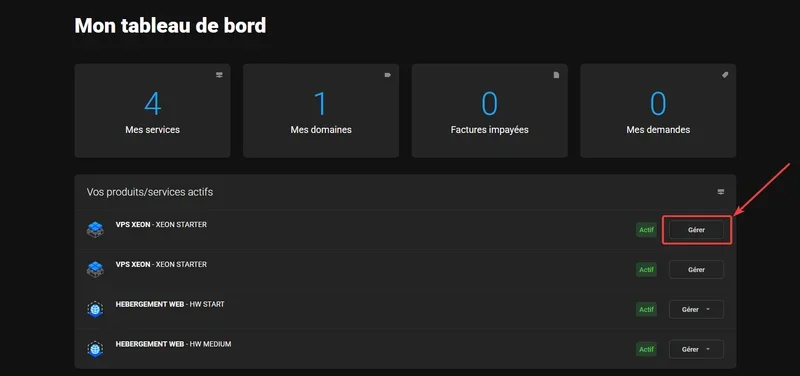
2. On your **dashboard**, find the **Your active products/services** section
3. Click the **Manage** button next to the VPS you want the IP for
 4. On the VPS management page, **scroll all the way down** to the **IP Addresses** section
5. Your VPS's **IPv4 address** is shown in the **IP Address** column (for example `82.153.202.X`)
4. On the VPS management page, **scroll all the way down** to the **IP Addresses** section
5. Your VPS's **IPv4 address** is shown in the **IP Address** column (for example `82.153.202.X`)
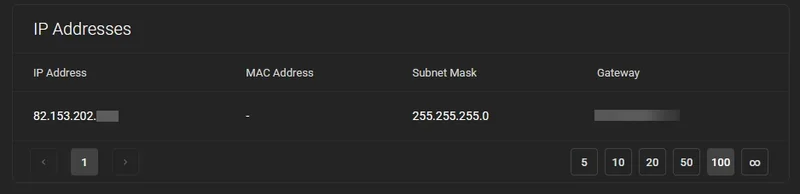 You'll also find additional information there like the **Subnet Mask** (`255.255.255.0` for a typical /24) and the **Gateway**, useful if you're configuring your network interface manually.
> [!TIP]
> Bookmark this page, it's the fastest place to find your servers' IP at any time.
## Method 2. In your VPS delivery email
When your VPS was delivered, Winheberg sent you a **summary email** with all the connection details.
- Your server's **IPv4 address**
- The initial **username** (usually `root`)
- The generated temporary **password**
- The default **SSH port** (`22`)
Look in your inbox for a message sent by **Winheberg** at the time of your order. If you can't find it, check your **spam** folder or trash.
> [!NOTE]
> If you've lost this email, your client area (Method 1) is always accessible with all your information.
## Need help?
If you've lost your credentials or can't find your VPS's IP address, our team is here. Open a ticket in the **Technical** department from your client area and fill in the **Related Product** field with the VPS in question.
You now know everything you need to find your Winheberg VPS's IPv4 address at any time 🌐
You'll also find additional information there like the **Subnet Mask** (`255.255.255.0` for a typical /24) and the **Gateway**, useful if you're configuring your network interface manually.
> [!TIP]
> Bookmark this page, it's the fastest place to find your servers' IP at any time.
## Method 2. In your VPS delivery email
When your VPS was delivered, Winheberg sent you a **summary email** with all the connection details.
- Your server's **IPv4 address**
- The initial **username** (usually `root`)
- The generated temporary **password**
- The default **SSH port** (`22`)
Look in your inbox for a message sent by **Winheberg** at the time of your order. If you can't find it, check your **spam** folder or trash.
> [!NOTE]
> If you've lost this email, your client area (Method 1) is always accessible with all your information.
## Need help?
If you've lost your credentials or can't find your VPS's IP address, our team is here. Open a ticket in the **Technical** department from your client area and fill in the **Related Product** field with the VPS in question.
You now know everything you need to find your Winheberg VPS's IPv4 address at any time 🌐