Context
Running a FiveM server at Winheberg and looking to manage it through a modern web interface instead of the console and manual commands? txAdmin is the go-to tool in the FiveM community, it lets you manage your server, players, resources and backups from a browser, without having to touch server.cfg for every change.
Good news, at Winheberg, txAdmin can be enabled with a single click from your gaming panel. Nothing to download or install, the tool is already there waiting to be launched.
What is txAdmin and what is it for?
txAdmin is an open-source web interface developed by the FiveM community. It adds a complete management layer on top of your server, accessible from any browser. Here is what it lets you do.
- Start, stop and restart your server without going through the panel
- Manage your players (kick, ban, warn, whitelist) directly from a UI
- Monitor server performance in real time (CPU, RAM, connected players)
- Schedule automatic restarts at specific times
- Manage the resources enabled on your server without editing
server.cfg - Back up your server and restore a previous version
- Connect a Discord bot for notifications and remote commands
- Grant admin access to your team with different permission levels
It has become the standard tool for managing a modern FiveM server, and most frameworks (ESX, QBCore, vRP) are designed to work well with it.
Requirements
Before you start, make sure you have the following.
- An active FiveM server on your Winheberg gaming panel
- A few minutes ahead of you to enable the option and complete the initial setup
No need to download or install txAdmin manually. At Winheberg, it is already available in your FiveM server, you just have to enable it.
1. Open the Startup section
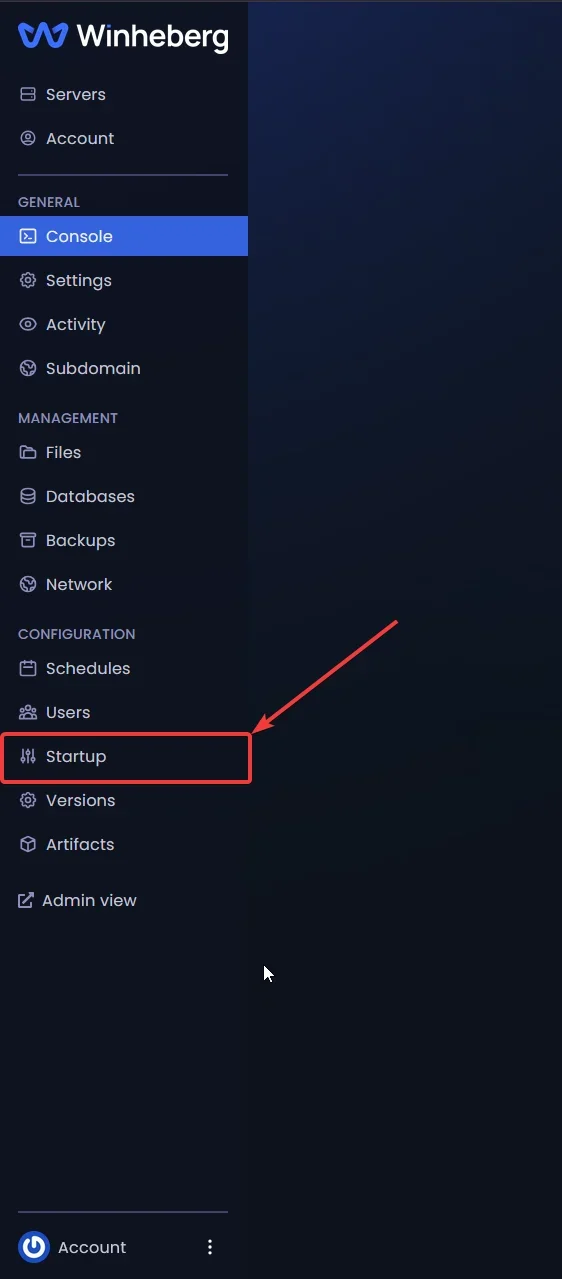
Log in to your Winheberg gaming panel and select your FiveM server. In the left sidebar, locate the CONFIGURATION section and click Startup.
2. Enable the Enable txAdmin toggle
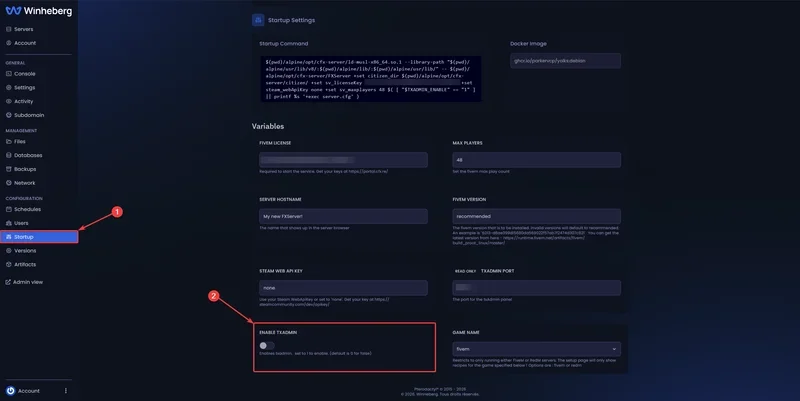
On the Startup Settings page, scroll down to the Variables section. Locate the ENABLE TXADMIN field and switch the toggle to set the value to 1 (enabled).
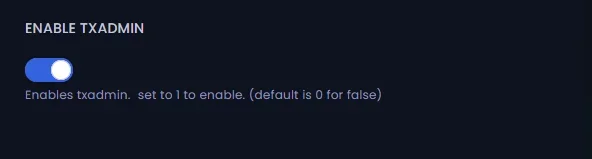
Once enabled, the toggle turns blue to confirm its state.
A dedicated port is already assigned to your server for txAdmin, visible in the TXADMIN PORT field right next to it. There is nothing to configure manually, as soon as you enable the toggle, the interface becomes reachable on that port after a restart.
3. Restart your server
For txAdmin to launch, you must fully restart your server. Simply changing a setting in Startup is not enough, the toggle is only read when the process starts.
- Go back to your server's main page in the panel
- Click Restart (or Stop then Start if your server is stopped)
- Watch the console closely during startup
4. Grab the access URL and PIN from the console
This is the key step. On the first startup with txAdmin enabled, the interface automatically generates an access URL and a one-time PIN code, displayed in the FiveM console inside a neat box.
You will see something like this.
[13:27:47][tx] Starting txAdmin v8.0.1/b25770/Ptero...
[13:27:47][tx] Server data will be saved in  /home/container/txData/default
[13:27:48][tx]
[13:27:48][tx]    ┏━━━━━━━━━━━━━━━━━━━━━━━━━━━━━━━━━━━━┓
[13:27:48][tx]    ┃                                    ┃
[13:27:48][tx]    ┃     All ready! Please access:      ┃
[13:27:48][tx]    ┃    http://your-public-ip:401XX/    ┃
[13:27:48][tx]    ┃    http://82.153.202.XX:401XX/     ┃
[13:27:48][tx]    ┃                                    ┃
[13:27:48][tx]    ┃   Use the PIN below to register:   ┃
[13:27:48][tx]    ┃                6880                ┃
[13:27:48][tx]    ┃                                    ┃
[13:27:48][tx]    ┗━━━━━━━━━━━━━━━━━━━━━━━━━━━━━━━━━━━━┛
[13:27:48][tx]
[13:27:48][tx] To be able to access txAdmin from the internet open port 401XX
[13:27:48][tx] on your OS Firewall as well as in the hosting company.
[13:27:48][tx:FxRunner] Please open txAdmin on the browser to configure your server.
Take note of the information shown in the box.
- The access URL (the second line, the one with your server's real public IP)
- The PIN (the 4 bold digits in the middle, for example
6880)
The message "To be able to access txAdmin from the internet open port 401XX on your OS Firewall as well as in the hosting company" is aimed at self-hosting users. At Winheberg, the port is already open at the infrastructure level, there is nothing to configure on the firewall side.
The PIN is single-use and only valid for a few minutes. If you wait too long, you will have to restart the server to get a new one. Be ready to move straight on to the next step.
5. Set up your administrator account
- Open the txAdmin URL in your browser (the one with your server's public IP)
- Enter the PIN in the requested field
- Follow the setup wizard to create your main administrator account
- Choose a username
- Set a strong password
- Link your account to a Cfx.re identity
- Confirm the setup
After this initial setup, you will still need to configure your FiveM server from txAdmin (choosing a blank deployment, a framework such as ESX or QBCore, or importing an existing server). That step will be covered in a dedicated guide on our documentation.
The main account created during this first step is the master administrator. It has full rights over the server. You will then be able to create additional accounts for your team with more limited permissions (moderators, resource managers, etc.) from the interface.
6. Bookmark txAdmin
The txAdmin URL stays the same across restarts as long as you do not change the allocated port. Add it to your bookmarks so you can reach it quickly.
From this first setup onwards, you will be able to log in directly with your username and password, no PIN required each time.
Troubleshooting
Here are the most common issues when using txAdmin for the first time.
❌ I cannot see the URL or the PIN in the console
If nothing shows up at startup.
- Make sure you enabled the ENABLE TXADMIN toggle in Startup and saved the changes
- Make sure you fully restarted the server (restarting a single resource does not launch txAdmin)
- Wait a few seconds after startup, the message can take a moment to appear
- Scroll up through the logs, the box may have been buried under other lines
❌ The PIN does not work / has expired
txAdmin PINs are only valid for a few minutes.
- Restart your server to generate a new PIN
- Be ready to enter it immediately after the restart
- If the error persists, double-check you are typing the correct PIN with no leading or trailing spaces
❌ The txAdmin URL does not open in my browser
If the page stays blank or shows a connection error.
- Make sure the server is actually running in the panel
- Make sure you copied the URL in full, port included (the second line with the real IP, not the one with
your-public-ip) - Try another browser (Firefox, Chrome) in case an extension is blocking the connection
- If the issue persists, contact our support
❌ I lost my txAdmin administrator password
No panic, you can start over on your own.
- txAdmin credentials are stored in the
txDatafolder at the root of your server (shown in the console at startup,Server data will be saved in /home/container/txData/default) - Delete this folder through the panel's file manager or over SFTP
- Restart your server, a new PIN will appear in the console and you will be able to recreate your administrator account
- Keep in mind you will then have to reconfigure everything (master account, txAdmin settings, and the server deployment if it was done through txAdmin)
The txData folder may contain your server data if you deployed it through txAdmin. Before deleting it, download a copy of its contents over SFTP if you want to keep your resources and configuration.
Best practices
A few recommendations to make the most of txAdmin on your FiveM server.
- Use a strong password for your master account (12+ characters, mixing uppercase letters, digits and symbols)
- Link your account to Cfx.re during the initial setup to add an extra layer of security
- Create separate accounts for each member of your admin team instead of sharing the master account
- Set up the Discord bot to receive important notifications (crashes, joins/quits, bans) in your admin channel
- Schedule daily automatic restarts to avoid long-term memory leaks
- Back up your server regularly through the txAdmin interface so you can restore it if anything goes wrong
Need help?
If you cannot enable txAdmin, if the URL never shows up in the console, or if you lost your admin access, open a ticket with our support from your client area, department Technique, selecting your FiveM server in the Related Product field. Our team will get back to you quickly.
Your FiveM server now has a modern, full-featured administration interface, enjoy 🎮.