Context
By default, during its initial startup, a PocketMine-MP server automatically generates a standard world named world. If you wish to import a custom adventure map, a mini-games arena, or simply switch from one environment to another, you must modify the server's root configuration.
This change is performed via a specific directive within the main configuration file, allowing the core engine to target the correct storage directory.
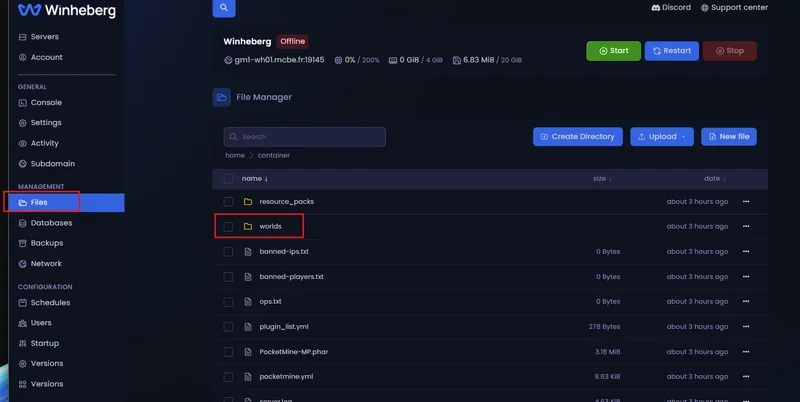
Accessing Server Files
All folder and text file manipulations take place directly from your hosting management interface.
- Log in to the panel.winheberg.com.
- Select your PocketMine-MP server instance.
- In the left sidebar menu, click on the
File managertab.
Changing the Default World: Step-by-Step Guide
To ensure the server correctly loads your new map during the process initialization, carefully follow these steps.
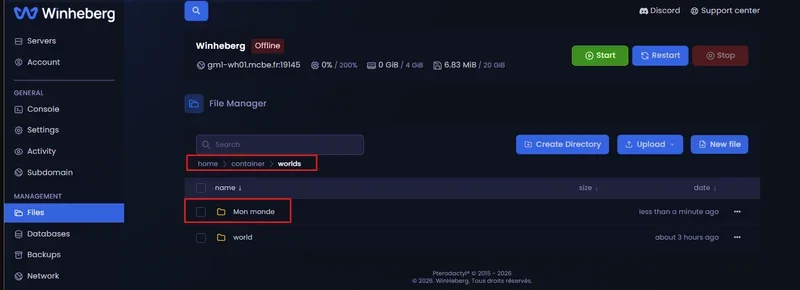
1. Identify the Exact Map Name
Before modifying the configuration, navigate to the folder named /worlds via your file manager. Note down the exact name of the directory containing your target world.
The PocketMine-MP file system is strictly case-sensitive. If your folder is named Adventure_Map, typing adventure_map will cause an indexing error or trigger the automatic generation of a new blank map.
2. Open the server.properties File
Return to the root of your server (/) and locate the primary configuration document:
server.properties
Click on it to open it within the text editor integrated into the Winheberg panel.
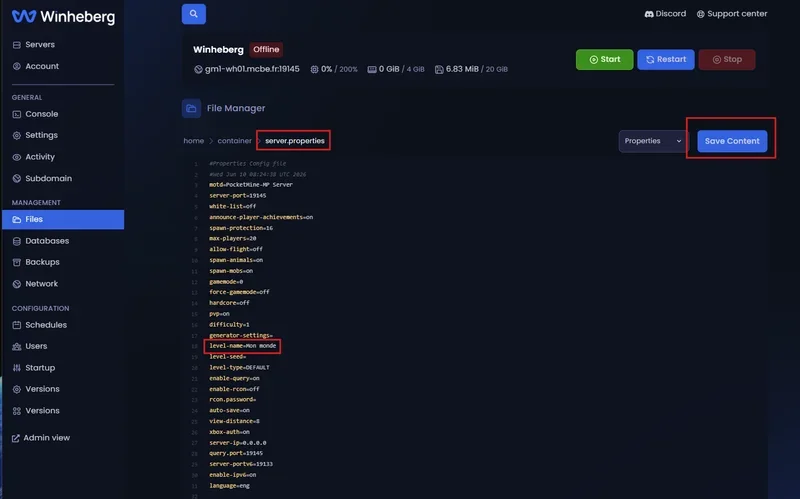
3. Modify the level-name Directive
Scroll through the file until you locate the line containing the level-name key. By default, it is generally found around line 18 and looks like this:
level-name=world
Replace the default value with the exact name of your previously identified world folder:
level-name=Adventure_Map
4. Save and Restart
- At the top or bottom right of the web editor, click the
Save Contentbutton (or use the standard shortcut Ctrl + S). - Next, head over to the
Consoletab in the sidebar menu. - Click the
Restartbutton to permanently apply the changes.
World Management Variables Summary Table
| Parameter | Source File | Description | Application Role |
|---|---|---|---|
level-name |
server.properties |
Defines the subfolder of the /worlds directory loaded at startup. |
Default spawn point for newly connecting users. |
level-type |
server.properties |
Algorithmic generation type of the world (DEFAULT, FLAT). | Active only if the folder defined in level-name does not exist yet. |
Troubleshooting
❌ The Server Generates a New Empty Map or Reverts to the Old World
- Root Directory Error: Ensure your custom map folder is located inside the
/worldsdirectory and not at the root of your FTP server. - Case Sensitivity Mismatch: The PocketMine-MP engine will fail to recognize the folder if spelling is imperfect. Double-check uppercase, lowercase, and symbols between the folder name and the
level-namevariable.
❌ Missing Map Chunks or Crash Upon Server Startup
- Active Process During Transfer: Uploading or renaming files while the instance is online causes synchronous writing conflicts that will corrupt the world. Fully turn off the server before altering configuration directives.
Administrative Best Practices
- Standardized Nomenclature: Although PocketMine-MP tolerates spaces, opt for a space-free nomenclature using underscores or hyphens (e.g.,
Adventure_Mapinstead ofAdventure Map) to avoid conflicts with future add-ons and plugins. - System Restore Points: Systematically generate a manual backup via the panel's Backups tab before modifying environment variables to secure your existing world data.
- Level Type Verification: If generating a flat world using the
level-type=FLATkey, make sure to delete any existing folder with that name so the engine can properly apply the new generation algorithm.
Need Help?
Managing and indexing your virtual worlds requires structural discipline to preserve the data integrity of your players.
If your modifications are not being registered or if you encounter import issues, our teams remain at your disposal. You can submit a support ticket to our Technical department from your client area at billing.winheberg.com by attaching your PocketMine-MP subscription for personalized expert assistance.
Happy administration and have a great game on your Winheberg infrastructure! 🎮