Context
To manage your server directly in-game (changing game modes, kicking players, using command blocks or specific plugins), you or your moderators need operator rights (being "OP").
This is done directly from your Winheberg panel console, with no need to connect to the game beforehand.
Prerequisites
- An active PowerNukkitX server at Winheberg (Online status)
- The player's exact Xbox Live username
Steps to become OP
1. Access the console
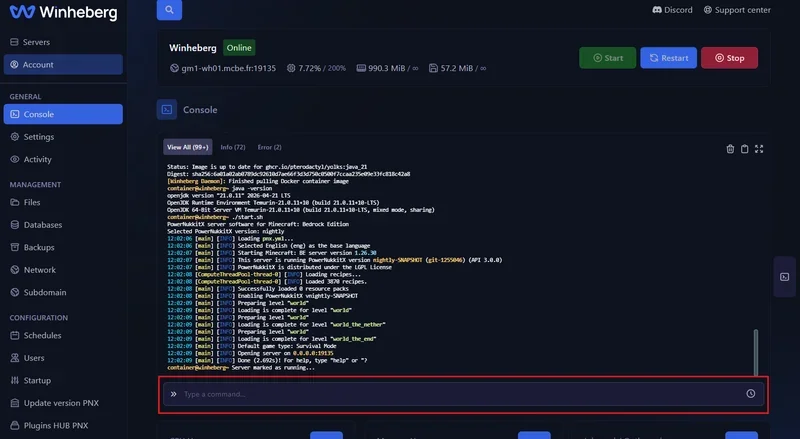
- Log in to your Winheberg panel and select your PowerNukkitX server.
- Go to the Console tab in the left-hand side menu.
- At the very bottom of the console window, you'll see an input bar showing
Type a command.... This is where you'll type your commands.
2. Grant rights (simple username)
If the player's Xbox Live username doesn't contain a space (for example, the player demo):
- In the command bar, simply type
opfollowed by the player's username. - Press Enter on your keyboard.
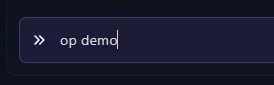
If the command worked, the console will show a confirmation message reading Opped: [username]. The player can now use admin commands in-game.

3. Usernames with spaces (Very important)
On the Bedrock edition (Xbox Live), it's very common to have usernames with spaces (e.g. demo hard).
If you simply type op demo hard, the console will think you're trying to op a player named "demo" and a command named "hard", which won't work.
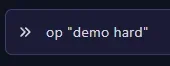
To op a player with a space in their name, you must put their username in quotes:
- Type
op "player username". - Press Enter.
Removing admin rights (Deop)
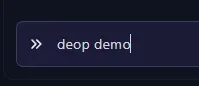
If you want to remove a player's permissions, the logic is exactly the same, but using the deop command instead.
- In the console, type
deopfollowed by the username (don't forget the quotes if there's a space). - Press Enter. The player will immediately go back to having regular player rights.
If you run into trouble
❌ Player not found
- Typo: Check the exact spelling of the Xbox Live gamertag, including uppercase and lowercase letters.
- The player has never connected: Sometimes the server needs the player to have connected at least once for their username to be registered. Ask the player to join the server, then try again.
❌ The command does nothing in the console
- Don't add a slash (/): In the web panel's console, unlike in-game, there's no need to put a slash before the command. Type
op usernamedirectly, not/op username.
Best practices
- Absolute security: Never give OP rights to a player you don't know in real life or don't fully trust. An OP can destroy your server or permanently ban other players.
- Use a permissions system (Ranks): If you have a large server and want to appoint moderators (who can ban but not break everything), avoid giving them OP. Instead, use the PNX Plugins Hub tab to install a permissions plugin like LuckPerms, which lets you create specific ranks with limited rights.
Need help?
If you run into ongoing trouble granting rights, our team is here. Open a ticket in the Technical department from your client area and fill in the Related Product field with the server in question.
Your server is now in good hands, yours and your trusted moderators' 🛡️