Context
Want to add new features to your Minecraft Bedrock server running PowerNukkitX (PNX) (like economy systems, mini-games, or admin tools)?
The Winheberg panel includes a PNX Plugins Hub, a simplified library that lets you search for and install plugins in just a few clicks, with no need to manually download files or transfer them via FTP.
Prerequisites
- A PowerNukkitX server at Winheberg
- A few minutes to stop and then restart the server
Installation steps
Here's how to use the built-in catalog to add a plugin to your server.
1. Stop the server and access the Hub
To avoid any data corruption or loading error, you need to shut down your server before installing a new plugin.
- Log in to your Winheberg panel and go to your server.
- From the Console tab, click the red Stop button to stop the server.
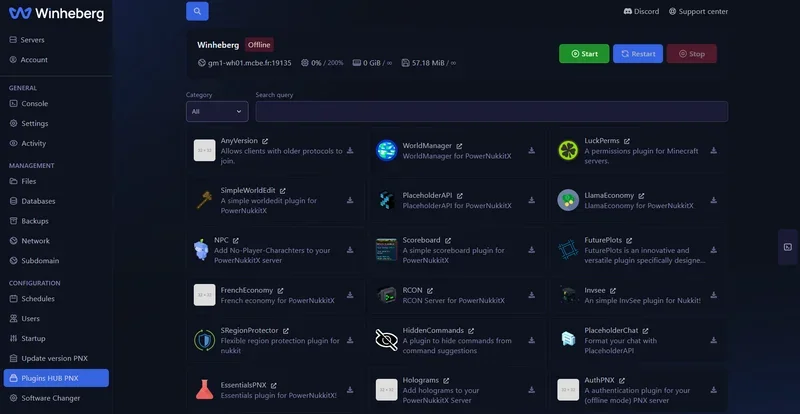
- Once the server is offline, look at the left-hand menu. Under the CONFIGURATION section, click PNX Plugins Hub.
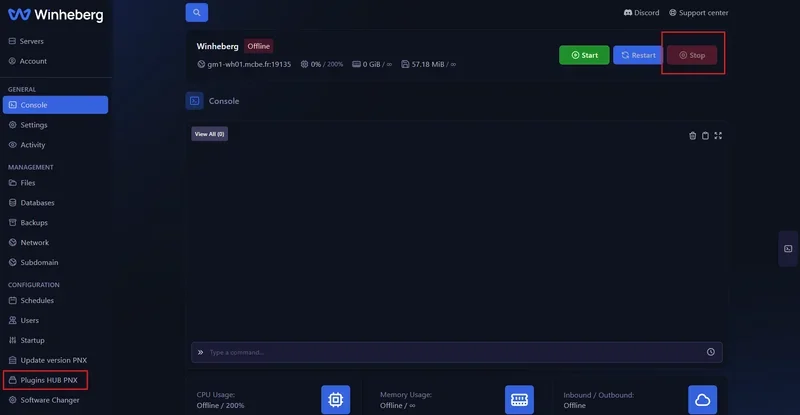
2. Search for and select a plugin
You're now in the catalog of plugins available for PowerNukkitX.
- Browse the list or use the search bar (Search query) and the category filter (Category) to find the plugin you need (e.g. AnyVersion, LuckPerms, WorldManager...).
- Click the download icon (the arrow pointing down) on the right side of the plugin's card that you want to install.
3. Install the version you want
A popup window opens with the plugin's detailed description. Read this information carefully, as it often contains important instructions or requirements.
- In the Plugin version dropdown, pick the version you want to install (it's generally recommended to leave the most recent version selected by default).
- Click the red Install plugin button at the bottom of the window.
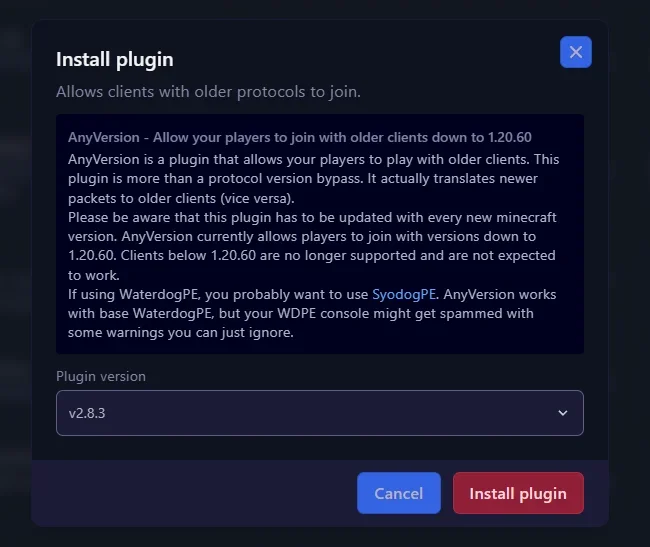
The panel automatically downloads the plugin and places it in the right folder on your server.
4. Restart the server
- Go back to the Console tab.
- Click Start to start the server.
- Watch the console logs, you should see a message showing that your new plugin loaded and activated correctly.
If you run into trouble
❌ The plugin doesn't show up or doesn't work in-game
- Version mismatch: Check the console for a red error message on startup. The installed plugin might not be compatible with your current PowerNukkitX version.
- Missing dependency: Some plugins need another plugin to work (for example, a chat plugin might need PlaceholderAPI). Read the description in the Hub carefully.
❌ The server crashes after installation
If the server refuses to start after adding a plugin, that plugin is causing a fatal error.
- Go to the panel's Files tab.
- Open the
pluginsfolder. - Check the box next to the problem plugin's
.jarfile and delete it (Delete button). - Restart the server.
Best practices
- Read the descriptions: Always take the time to read the explanatory text before clicking "Install plugin".
- Install one at a time: If you're installing several plugins, do it one at a time, restarting the server between each install. This makes it easy to immediately identify which plugin is causing a problem if the server crashes.
Need help?
If you can't get a plugin working or you're running into errors in your console, our team is here. Open a ticket in the Technical department from your client area and fill in the Related Product field with the server in question, or go straight through Winheberg support.
Your PowerNukkitX server is now ready to welcome all the plugins you need 🔌