Context
Many game servers need a database to keep their data over time. On Minecraft, a plugin such as LuckPerms can store ranks and permissions in one. On FiveM, the ESX and QBCore frameworks keep players, inventories or vehicles there. A Discord bot or a custom script can rely on a MySQL database too.
The Winheberg gaming panel lets you create these databases straight from your server's Databases tab, without installing a MySQL server yourself. This guide shows you how to create a database, find its credentials, open it in phpMyAdmin, change its password and delete it if needed.
Prerequisites
- An active Winheberg game server, reachable from the gaming panel
- An account with access to the server's database management
- A game, plugin or script able to connect to a MySQL database
If your account is a sub-user, the server owner must have granted it the database permissions. Our guide How to Add a Sub-User to Your Gaming Panel explains how to manage them.
1. Open the Databases tab
Log in to the Winheberg panel, then select the relevant server.
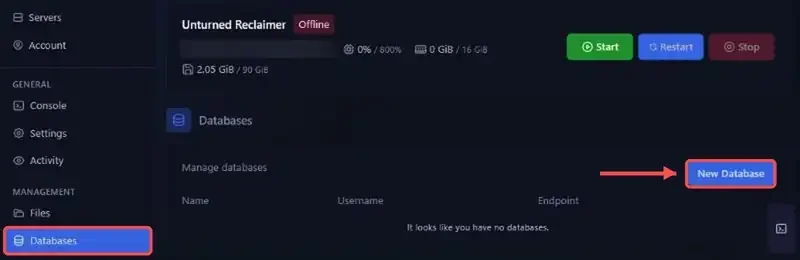
In the side menu, under MANAGEMENT, click Databases. The Manage databases page lists the databases already created for this server. A counter shows how many databases are allocated out of the number your plan allows, in the form "X of Y databases have been allocated to this server".
2. Create the database
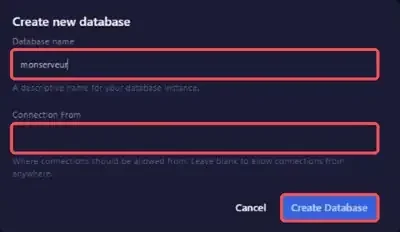
Click New Database. The Create new database window opens with two fields.
| Field | Purpose |
|---|---|
| Database name | A descriptive name for the database, for example luckperms or esx |
| Connection From | Where connections are allowed from, left blank it accepts connections from anywhere |
Leave Connection From blank unless you know exactly which address connections should come from. A wrong value stops your own game server, or your external tools, from connecting to the database.
Click Create Database to confirm.
A clear name helps you find the right database if you create several, for example one for your Minecraft plugins and one for a bot.
3. Find the connection credentials
The database now shows up in the list. The panel has added a prefix to its name (format sxx_Exemple) and generated a dedicated user (format uxxx_Exemple). The Endpoint gives the host and port to use, in the form dbXX.wh-nodes.net:3306.
Three buttons are available on the database row.
| Button | Action |
|---|---|
| External link icon | Opens phpMyAdmin |
| Database Details | Shows the full credentials |
| Red trash can | Deletes the database |
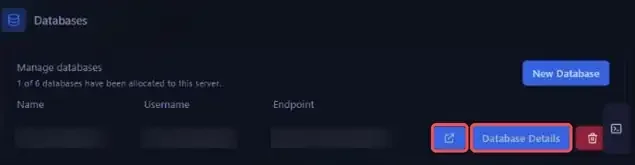
Click Database Details to open the Database connection details window.
| Information | Content |
|---|---|
| Endpoint | Host and port of the MySQL server, dbXX.wh-nodes.net:3306 |
| Connections from | Allowed origin, % means from anywhere |
| Username | MySQL user generated by the panel |
| Password | Password generated by the panel |
| JDBC Connection String | Full connection string, for Java applications that accept a JDBC URL |
| Fxserver Database | Ready-to-use line for a FiveM server |
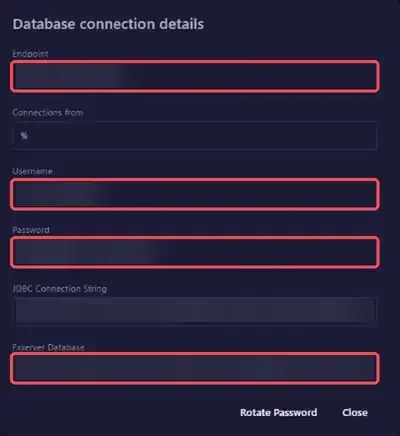
The database name to enter in your configuration is the full name shown by the panel, prefix included (sxx_Exemple), not the name you typed when creating it.
These credentials give access to all the data in the database. Never publish them, whether in a screenshot, a shared file or a Discord message.
4. Enter the credentials in your game
Each game or plugin has its own configuration file, but the information it asks for is almost always the same (host, port, database name, user and password). Copy each value from the Database connection details window, then restart the server so the game or plugin connects to the database.
The generated password can contain special characters such as @, ^ or !. Copy it from the panel rather than typing it by hand, a single wrong character is enough to block the connection.
For a FiveM server
For FiveM, the Fxserver Database line directly holds the command to put in your server.cfg, in this form.
set mysql_connection_string "server=...;database=...;..."
Copy the full line from the panel and paste it into server.cfg, replacing any existing mysql_connection_string line. Our guide Connect Your FiveM Server to MySQL (oxmysql) covers the full setup with oxmysql.
With oxmysql, the =, ;, " and ' characters in the password can disrupt how the connection string is read. If yours contains any of them, the Rotate Password button lets you get a new one.
5. Open the database in phpMyAdmin
Click the external link icon on the database row to open phpMyAdmin. From there you can browse the tables, import a .sql file shipped with a resource or plugin, or export a copy of the database. If phpMyAdmin asks you to sign in, use the user and password shown in Database Details.
For a FiveM server, our guide How to access phpMyAdmin for your FiveM server walks through the access step by step.
6. Change the password with Rotate Password
In the Database connection details window, the Rotate Password button replaces the current password with a new one generated by the panel. Use it if the password may have leaked, for example after a screenshot shared by mistake or when a team member leaves.
After a Rotate Password, copy the new password into your game or plugin configuration (the mysql_connection_string line for FiveM, for example), then restart the server so it reconnects with it.
7. Delete a database
Click the red trash can on the database row. The Confirm database deletion window opens and reminds you that the action is permanent. Type the full database name, prefix included, in the Confirm Database Name field, then click Delete Database.
Deletion cannot be undone, every table and all the data in the database are erased. Export the database from phpMyAdmin before deleting it if you might need it later.
If you run into trouble
❌ Unable to create a new database
- Check the counter on the Manage databases page, if it shows that every database your plan allows is allocated, no new database can be created
- Delete a database you no longer use, after exporting it from phpMyAdmin, to free up a slot
❌ Access denied error after a Rotate Password
- Your game or plugin is most likely still using the old password
- Open Database Details and copy the new password
- Replace the old password in your configuration, for example
server.cfgfor FiveM or the plugin's configuration file - Restart the server
❌ Connection refused even though the credentials are correct
- Open Database Details and check the Connections from value
- If it isn't
%, only connections coming from the address shown are accepted, and your game server or external tool must connect from that address - If this restriction isn't intended, export the data from phpMyAdmin, delete the database, create it again with Connection From left blank, then import your data back
Best practices
- One database per use, if your plan allows it, for example one for LuckPerms and one for a bot, so that a problem on one doesn't affect the other
- Export your databases regularly from phpMyAdmin, especially before updating a framework or plugin that changes the tables
- Keep your credentials private and use Rotate Password as soon as someone who had access is no longer part of your team
- Note what each database is for, especially if you have several, so you never delete the wrong one
Need help?
If creation fails, if your game can't connect to the database, or if you're unsure what to enter in your configuration, our team is here. Open a ticket in the Technical department from your client area, fill in the Related Product field with the server in question, and include the database name along with the error message shown by your game or plugin, without ever adding the password.
Your MySQL database is ready to hold your server's data 🎮