Context
An update that breaks a plugin, a badly installed mod, an overwritten configuration file or a corrupted world, one wrong move is enough to lose hours of work. The Winheberg gaming panel includes a backup system that copies all of your server files in a few clicks, then lets you return to that state at any time.
This guide shows you how to create a backup, protect it from deletion, download it to your computer and restore it from the Backups tab of the panel.
Prerequisites
You need an active server on the Winheberg panel and to be logged in with an account that has access to backups.
If your account is a sub-user, check that the server owner has granted you the Backups permissions.
1. Open the Backups tab
Log in to the Winheberg panel and select your server. In the side menu, MANAGEMENT section, click Backups, then the Create backup button.
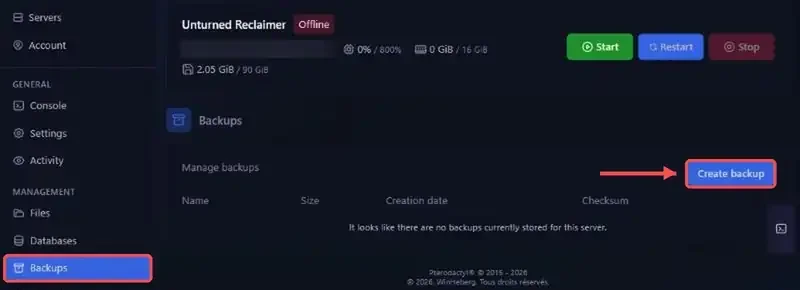
For a fully consistent backup, stop your server with Stop before starting it. The game then no longer writes to the world files during the copy.
2. Create the backup
A Create Backup window opens with three settings.
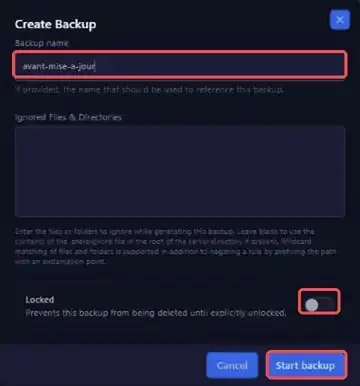
| Field | Purpose |
|---|---|
| Backup name | Optional name for the backup. Pick a meaningful one, for example before-update |
| Ignored Files & Directories | Files or folders to leave out of the backup, one per line |
| Locked | Locks the backup, which can no longer be deleted until it is unlocked |
Click Start backup. The backup appears in the list with a loading icon, then its size, creation date and Checksum show up once the copy is complete.
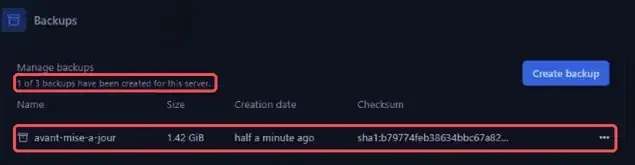
The counter under Manage backups shows how many backups you have created and how many your plan allows. Once the limit is reached, delete an old backup to create a new one.
Exclude files
When left empty, the Ignored Files & Directories field uses the contents of the .pteroignore file if one exists at the root of your server. Wildcards are supported, and a ! in front of a path cancels an exclusion. Excluding logs, for example, reduces the size of the backup.
logs/
*.log
A backup contains your server files, not the MySQL databases created in the Databases tab. Export them separately from phpMyAdmin, as explained in our guide How to access phpMyAdmin for your FiveM server?, which applies to every database in the panel.
3. Manage a backup
Click the three dots on the right of a backup to open its menu.
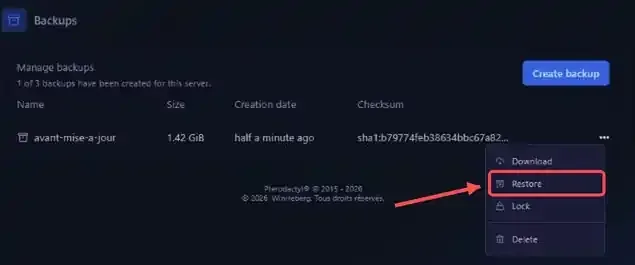
| Action | Effect |
|---|---|
| Download | Downloads the backup archive to your computer |
| Restore | Puts the server back in the state of the backup |
| Lock / Unlock | Protects the backup from deletion, or removes that protection |
| Delete | Permanently deletes the backup |
Download a backup with Download from time to time and keep it on your side. You then have a copy that does not depend on the panel.
4. Restore a backup
In the backup menu, click Restore. A confirmation window reminds you that the server will be stopped and that you will not be able to start it, open the file manager or create another backup until the operation is complete.
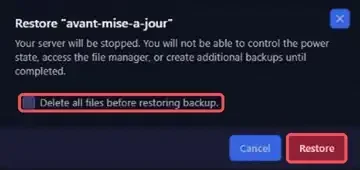
Tick Delete all files before restoring backup to empty the server before the restore. You then get exactly the contents of the backup, with no file added since. Without this option, the backup files replace those on the server, but files created after the backup stay in place.
Click Restore, wait for the operation to finish, then start your server.
Restoring overwrites the current server files. If the current state is still worth keeping, create a new backup first before restoring the old one.
5. Automate backups
The panel Schedules can start a backup at regular intervals with a Create backup task, for example every night before the automatic restart. Creating a Schedule is covered in our guide How to Schedule Automatic Restarts with Schedules.
If you run into trouble
❌ The Create backup button no longer creates anything
- Check the counter under Manage backups, your plan's limit has probably been reached
- Delete an old unlocked backup, then start the backup again
❌ A backup cannot be deleted
- The backup is locked, choose Unlock in its menu before deleting it
❌ The backup is very large or very slow
- Exclude unnecessary folders (logs, caches, temporary files) with Ignored Files & Directories or a
.pteroignorefile - To get large files onto your computer, an SFTP connection is a good alternative, see How to Connect to Your Gaming Server via SFTP
Best practices
- Create a backup before every significant change, game update, new mods or plugins, configuration file edits
- Lock a reference backup with Lock to keep it safe from accidental deletion
- Give your backups clear names, the date alone does not tell you what they contain
- Remember the databases, they are exported separately from phpMyAdmin
- Keep a copy outside the panel by regularly downloading a backup with Download
A backup is essential before a full reinstall. Our guide How to Fully Reset Your Gaming Server covers that operation.
Need help?
If a backup stays stuck while being created, if a restore fails or if you have doubts before restoring, our team is here. Open a ticket in the Technical department from your client area, fill in the Related Product field with the server in question, and specify the backup name along with the action you performed.
Your data is now safe, ready to be restored in a few clicks 🎮