Context
You just ordered a BeamMP server from Winheberg, it starts, yet nobody can find it in the BeamMP launcher's server list? It is most likely missing its AuthKey, the authentication key that links your server to your BeamMP account. Without a valid key, your server console shows messages like these.
[WARN] AuthKey specified is the wrong length and likely isn't valid.
[ERROR] Backend REFUSED the auth key. Reason: Your key is invalid. You can generate a key at https://keymaster.beammp.com/
The key is created for free on the Keymaster, the key management area of your BeamMP account, and takes a few seconds to set up from your gaming panel.
This guide shows you how to create your AuthKey and set it up on your BeamMP server.
Prerequisites
Before you start, make sure you have the following.
- An active BeamMP server on your Winheberg gaming panel
- A BeamMP account, the one you play with
Treat your AuthKey like a password. Never share it, never show it on stream or in a screenshot. Anyone who gets hold of it can use it on their own server and prevent yours from starting.
1. Create your key on the Keymaster
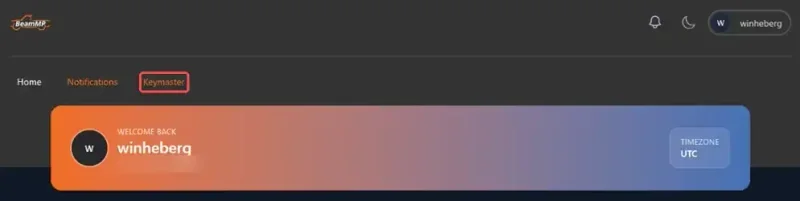
Go to keymaster.beammp.com and log in with your BeamMP account. Once in your account area, click the Keymaster tab at the top of the page.
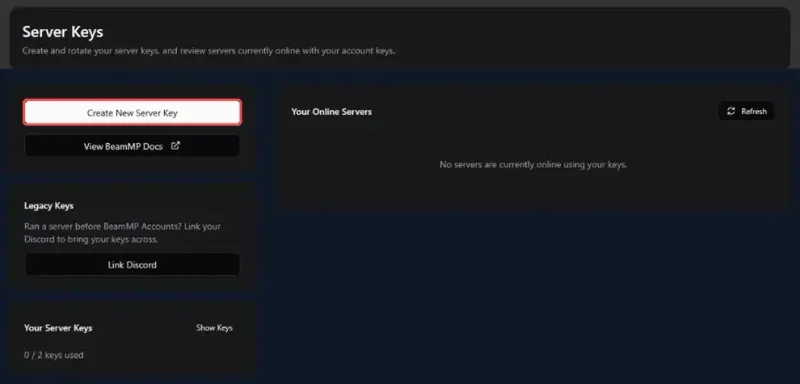
The Server Keys page opens. Click Create New Server Key. The Your Server Keys block at the bottom left shows how many keys of your quota are in use.
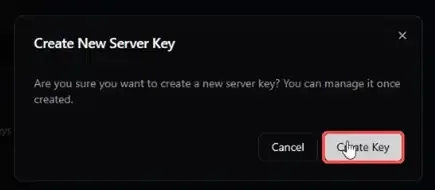
Confirm by clicking Create Key.
Your new key shows up under Your Server Keys. Click Show Keys if it is hidden, then click the copy icon to put it in your clipboard. The button right next to it regenerates the key.
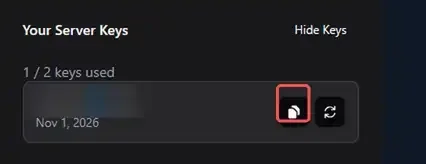
Already had keys on the old Discord-based Keymaster? The Legacy Keys block on the same page lets you bring them across with the Link Discord button.
2. Enter the key in the panel
On the Winheberg gaming panel, BeamMP's main settings live on the Startup page, just like the map.
- Log in to your Winheberg gaming panel
- Select your BeamMP server
- In the side menu, click Startup
- Paste your key into the Authentication Key field
- Leave the Private switch on False if you want your server to appear on the public list
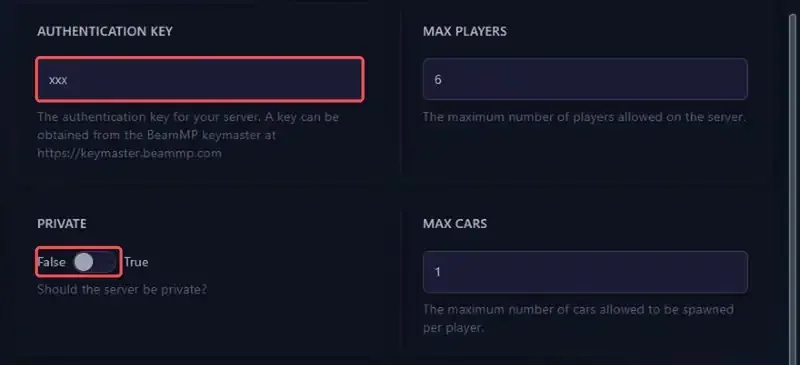
While you are there, set the name and description shown on the list with the Server Name and Server Description fields on the same page.
Enter the key on the Startup page, not directly in ServerConfig.toml. On every start, the panel rewrites the AuthKey, Private, Name, Description and Map lines of that file with the values from the Startup page. A key pasted only into the file would be wiped on the next start.
3. Restart and check
- Go back to your server's main page
- Click Restart
- Watch the console during startup and make sure the
Backend REFUSED the auth keyline no longer shows up
Once the server is running, it appears in the Your Online Servers block of the Server Keys page, which confirms the key is accepted. It can then take a few minutes to show up on the BeamMP launcher's list.
If you run into trouble
Here are the most common situations after setting up the AuthKey.
❌ The console shows Backend REFUSED the auth key
BeamMP does not recognise the key you entered.
- Make sure you copied the full key with the Keymaster's copy icon, not the shortened version shown on screen
- Check that the key has no spaces before or after it, copy and paste can add some
- If you regenerated the key on the Keymaster, the old one no longer works, paste the new one on the Startup page
❌ The server still does not appear on the list
- Check that the Private switch on the Startup page is set to False
- Wait a few minutes after the restart, the public list is not instant
- Reload the Startup page to confirm the key was saved
❌ The same key is used somewhere else
An AuthKey can only be used on one server at a time. If the same key is already running on another server (an old server, a test server on your PC, etc.), stop it or create a new dedicated key on the Keymaster. The Your Online Servers block shows where your keys are in use.
❌ My change to ServerConfig.toml disappears on restart
This is expected, the panel rewrites that file on every start with the values from the Startup page. Go back to step 2 of this guide.
❌ I cannot create a new key
The Keymaster grants a limited number of keys per account, shown under Your Server Keys. Reuse a key you no longer need, or check BeamMP's official FAQ, which explains how to get more by supporting the project.
Best practices
- One key per server, even for a test server, so they never block each other
- Regenerate your key with the Keymaster's dedicated button if you think it has leaked, then replace it on the Startup page
- Limit your sub-users' permissions on the panel, the Startup page shows the key in plain text
- Keep an AuthKey even on a private server, as BeamMP officially recommends
Need help?
If your server stays invisible despite a valid key, our team is here to help. Open a ticket with the Technical department from your client area, fill in the Related Product field with the server concerned and attach the startup logs. Never paste your AuthKey into the ticket, we do not need it.
Your BeamMP server is now visible to everyone, enjoy the ride 🛣️