Context
A player is disrupting games on your BeamMP server at Winheberg, or you want to keep the server for your community only? BeamMP provides a few moderation commands in the console, such as kicking a player, but no ban or whitelist command. For that, you need a server-side Lua plugin.
This guide shows you the useful console commands, then how to set up a ban list and a whitelist with a small ready-to-use plugin.
Prerequisites
Before you start, make sure you have the following.
- An active BeamMP server on your Winheberg gaming panel
- The server running, so you can use the console
1. Console moderation commands
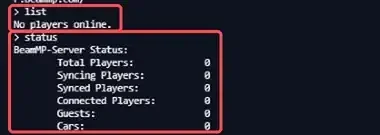
Open your server's main page in the panel. Commands are typed in the Type a command... field under the console, without a / in front, then sent with the Enter key. The help command shows the full list.
| Command | Purpose |
|---|---|
list |
Shows the connected players and their information |
status |
Shows the number of players, guests and cars on the server |
kick <name> [reason] |
Kicks the given player, with an optional reason |
say <message> |
Sends a message to all players in the chat |
help |
Shows every available command |
For example, to kick a player and tell them why.
kick Troublemaker Please respect the other players
A player kicked with kick can reconnect right away. To keep them out, ban them with the plugin from the next step.
The exit command shuts the server down. To restart or stop your server, use the panel's Restart and Stop buttons instead.
2. Install the ban and whitelist plugin
The plugin below checks every player when they connect. If they are banned, or if the whitelist is on and they are not on it, their connection is refused with a message.
- In the side menu, click Files and open the
Resourcesfolder, thenServer - Click Create Directory and name the folder
AccessControl - Open that folder, click New file, paste the following code and save it as
main.lua
-- AccessControl: ban list and whitelist checked when a player connects

-- Set to true to only let whitelisted players in
local whitelist_enabled = false

local whitelist = {
    ["PlayerOne"] = true,
    ["PlayerTwo"] = true,
}

local banned = {
    ["Troublemaker"] = "You are banned from this server",
}

function onPlayerAuth(player_name, player_role, is_guest, identifiers)
    if banned[player_name] then
        return banned[player_name]
    end
    if whitelist_enabled and not whitelist[player_name] then
        return "This server is whitelisted"
    end
end

function onInit()
    print("AccessControl plugin loaded")
end

MP.RegisterEvent("onPlayerAuth", "onPlayerAuth")
MP.RegisterEvent("onInit", "onInit")
- Restart the server with Restart and check that the console shows
[LUA] AccessControl plugin loaded
For details on how plugins work, see our guide "How to Install a Lua Plugin on Your BeamMP Server".
3. Ban a player
Open the Resources/Server/AccessControl/main.lua file and add a line to the banned block, with the exact player name and the message they will see when trying to connect.
local banned = {
    ["Troublemaker"] = "You are banned from this server",
    ["Griefer42"] = "Banned for griefing",
}
Save the file. You do not need to restart the server, BeamMP detects the change and reloads the plugin automatically.

To lift a ban, simply delete the player's line and save.
To get a player's exact name before banning them, type list in the console while they are connected. The name is case sensitive, Griefer42 and griefer42 are two different players for the plugin.
4. Turn on the whitelist
To keep your server for a list of players, edit the top of the file.
- Set
whitelist_enabledtotrue - Add one line per allowed player in the
whitelistblock - Save the file
local whitelist_enabled = true

local whitelist = {
    ["PlayerOne"] = true,
    ["PlayerTwo"] = true,
    ["PlayerThree"] = true,
}
Players who are not on the list see the This server is whitelisted message and cannot connect.
The plugin identifies players by their name. To stop a player joining as a guest, without a BeamMP account, from posing as someone else, set the AllowGuests line to false in ServerConfig.toml. This setting is explained in our guide "How to Configure Your BeamMP Server (Name, Players, Tags)".
If you run into trouble
Here are the most common situations with moderation.
❌ The banned player can still connect
- Check that their name is written exactly as in the
listcommand, capital letters included - Check that the console showed
changed, reloadingthenAccessControl plugin loadedafter your edit - Check that every line in the
bannedblock ends with a comma
❌ The console shows LUA ERROR after my edit
A syntax error slipped into the file, most often a missing comma, quote or brace. The message gives the line number to fix. As long as the error is there, the plugin no longer protects the server, so fix it quickly.
❌ The kick command cannot find the player
Type list to show the connected players and copy their exact name. If the name contains spaces, the command may not read it correctly, in that case use the plugin ban instead.
Best practices
- Keep a copy of the plugin's
main.luafile, it holds your ban list and whitelist - Write the reason for each ban in the message, you will remember it later and the player will know why
- Read the console after every plugin edit to confirm it reloaded properly
- Combine the whitelist with private mode if you do not want to appear on the public list, see our guide "How to Make Your BeamMP Server Private"
More complete plugins also exist in the BeamMP community, with permissions and temporary bans. Check that they work with your server version before installing them, and only use one ban system at a time.
Need help?
If the plugin does not load or does not block a player despite these checks, our team is here to help. Open a ticket with the Technical department from your client area, fill in the Related Product field with the server concerned and attach the console logs.
Your BeamMP server is now in good hands, enjoy the ride 🛣️