Context
On a RuneScape: Dragonwilds server hosted by Winheberg, configuration does not go through a file you edit. The owner, the passwords, the server name, the world that loads and the player count are all variables in the Startup tab of the game panel, which the panel passes to the server every time it starts.
This guide goes through each variable, what it changes in game and the limits worth knowing. Two of them often catch people out, the server name cut to 16 characters and the world name, which decides which save is loaded.
Requirements
- An active RuneScape: Dragonwilds server on the Winheberg game panel
- Access to the server's Startup tab on panel.winheberg.com
- Your Player ID, if the Owner ID is not set yet (see our guide "How to Set the Owner ID on a RuneScape: Dragonwilds Server")
1. Open the Startup tab
In the server's side menu, under CONFIGURATION, click Startup. The settings sit in the Variables section, below the startup command.
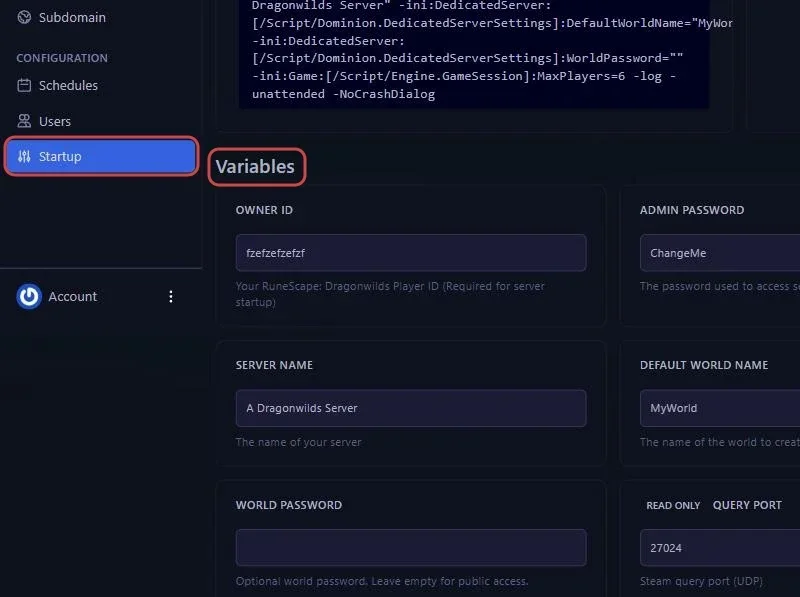
2. Understand the variables
| Variable | Purpose |
|---|---|
| OWNER ID | The Player ID of the server owner, the only account able to unban a player |
| ADMIN PASSWORD | The password that opens the in game Server Management screen |
| SERVER NAME | The server name, whatever world is loaded |
| DEFAULT WORLD NAME | The name of the world the server loads, or creates if it does not exist yet |
| WORLD PASSWORD | The password to enter the world, empty for a server open to everyone |
| MAX PLAYERS | The number of players at the same time, 6 at most |
| AUTO UPDATE | 1 to update the server on every start, 0 to skip it |
| EXTRA ARGUMENTS | Extra launch arguments, leave them as they are |
3. Change a variable
Click the variable's field and type the new value. The panel saves it automatically, there is no button to confirm.
The value only applies at the next start. Once your changes are done, click Restart at the top of the page.

The startup command shown above the variables includes your values. It is the easiest way to check what the server will receive at the next launch.
4. The server name
SERVER NAME is your server's name, whatever world it runs. The game only keeps the first 16 characters. In our tests, the default value A Dragonwilds Server became A Dragonwilds Se.
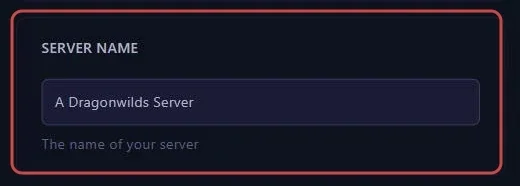
Pick a short name, or put what matters in the first 16 characters.
5. The world name
This is the most important variable after the Owner ID. When it starts, the server looks in the RSDragonwilds/Saved/SaveGames folder for the save named after DEFAULT WORLD NAME, for example MyWorld.sav.
| Situation | Result |
|---|---|
| A save has this name | The server loads it |
| No save has this name | The server creates a new world under this name |
Changing DEFAULT WORLD NAME therefore deletes nothing. The previous world stays in the folder and comes back as soon as you set its name again.
This name, not the server name, is also what your players type in the Public tab of the worlds screen to find you. The search is case sensitive.
A typo in DEFAULT WORLD NAME destroys no game, but the server then starts on a blank world. If your progress seems gone, check this name first, the previous save is still in RSDragonwilds/Saved/SaveGames.
6. The player count
MAX PLAYERS caps how many players can be connected at the same time. The server accepts 6 players at most, a limit set by the game itself, so there is no point setting more.
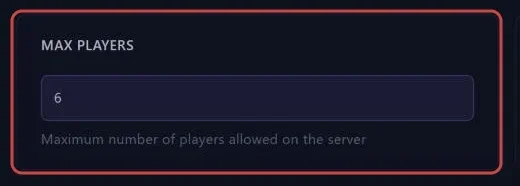
Jagex recommends 2 GB of memory, plus 1 GB per player.
7. What about DedicatedServer.ini?
The server does create a DedicatedServer.ini file in RSDragonwilds/Saved/Config/LinuxServer, and many guides online ask you to edit it. On a Winheberg server, there is no need. The values from the Startup tab are passed straight to the launch and override the file.

We checked it, an OwnerId or a ServerName added by hand to this file is ignored, then erased by the server when it starts.
The file also holds ServerGuid, the identifier the server generates on its first launch. Leave it as it is.
Troubleshooting
❌ A change does not apply
- Check that the server was restarted after the change, variables are only read at launch
- Check the new value in the startup command shown at the top of the Startup tab
- If you edited
DedicatedServer.ini, make the change again in the Startup tab, the file is not used for these settings
❌ Players cannot find the server
- They must search for the world name, the value of DEFAULT WORLD NAME, not the server name
- The search is case sensitive,
MyWorldandmyworlddo not give the same result - After a game update, restart the server with AUTO UPDATE set to
1, players and server must run the same version
❌ The game has disappeared
- Compare DEFAULT WORLD NAME with the names of the
.savfiles inRSDragonwilds/Saved/SaveGames - Set the exact name of your previous save again, without the
.savextension, then restart
Need help
If your server does not start or does not load the right world despite these checks, open a ticket with our support team from your client area, Technical department, with the server in the Related Product field. Our team can look at the startup logs with you.
Your world is ready for your adventurers. 🎮