Context
In RuneScape: Dragonwilds, the owner of a dedicated server is the player whose Player ID matches the Owner ID set in the configuration. This account has rights no admin has, it can ban and unban any player, online or offline.
The catch is that a mistake does not show. The panel accepts any value and the server starts even with a wrong identifier. In our tests, a made up Owner ID caused no error at launch, simply nobody is recognised as the owner in game.
This guide shows where to find your Player ID in the game and how to set it on your Winheberg server.
Requirements
- An active RuneScape: Dragonwilds server on the Winheberg game panel
- The game installed on your computer, with the account that should become owner
- Access to the server's Startup and Files tabs on panel.winheberg.com
1. Copy your Player ID in the game
Launch the game and open the Settings menu. Your Player ID is shown at the bottom of this menu, next to a button to copy it.
Use this button rather than typing the identifier by hand. It is a long string of letters and digits, and a single wrong character makes it useless.
Copy the Player ID of the account that should become owner, not the one of a friend playing on the same computer. A server has a single Owner ID.
2. Enter it in the Startup tab
On the panel, open the server's Startup tab, under CONFIGURATION in the side menu. Paste your Player ID into the OWNER ID variable, replacing the current value. The panel saves it automatically.
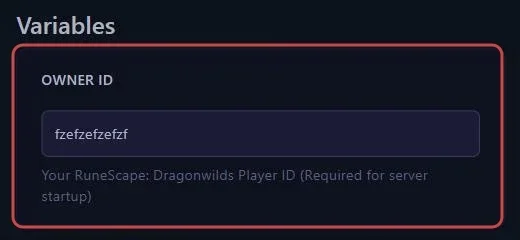
No need to look for the DedicatedServer.ini file. On a Winheberg server, the Owner ID is passed at launch from the Startup tab, and a value written in the file is ignored.
3. Restart the server
The Owner ID is only read at launch. Click Restart at the top of the page and wait for the server to be back online.

4. Check the value the server received
At startup, the server writes the Owner ID it received to its log. The panel console scrolls fast, so the easiest way is to open the RSDragonwilds/Saved/Logs/RSDragonwilds.log file from the Files tab and find the line containing OwnerId.
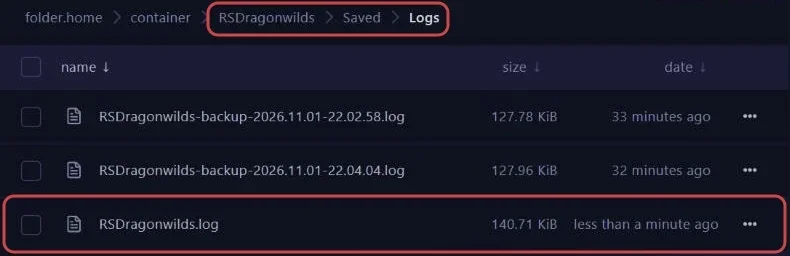
LogNetSessionSettings: Setting ["OwnerId"] written with key[oi] value[YOUR_PLAYER_ID]
Compare the value in brackets with the Player ID shown in the game. If they match, you are the server owner.
Troubleshooting
❌ Nobody has owner rights
- Compare the OWNER ID value and the Player ID shown in the game character by character
- Remove any space before or after the pasted identifier
- Check that the server was restarted after the change
- Make sure you are signed in to the game with the account whose Player ID you copied
❌ The Owner ID goes back to an old value
- You probably edited
DedicatedServer.iniinstead of the Startup tab, the server replaces the file's values on every start - Make the change in the OWNER ID variable, then restart
Need help
If your owner rights still do not apply, open a ticket with our support team from your client area, Technical department, with the server in the Related Product field. Our team can check with you the value passed to the server.
The server is officially yours. 🎮