Context
To kick a cheater, ban a player or teleport on your Unturned server, you need admin rights. Unturned distinguishes the server owner, declared in the Commands.dat file, from admins, added from the console. In both cases, the player is identified by their SteamID64.
This guide shows you how to declare yourself owner of your Winheberg Unturned server, how to appoint admins, which commands to use next and how to restrict the server to a list of allowed players.
Prerequisites
- An active Unturned server on your Winheberg gaming panel, with the Online status to type commands in the console
- The SteamID64 of the player to promote, a 17 digit identifier starting with
7656119 - A server started at least once, so that the
Servers/PterodactylUnturned/Serverfolder is created
1. Find the player's SteamID64
The SteamID64 never changes, unlike the nickname. Here are two simple ways to find it.
- In Steam, open the player's profile, right-click on the page and choose Copy Page URL. If the URL ends with a string of 17 digits, that is the SteamID64
- If the profile uses a custom URL, paste it into a converter such as steamid.io, which shows the steamID64 line
2. Declare yourself owner with Owner
Open Files, then the Servers, PterodactylUnturned and Server folders, and click Commands.dat. Add an Owner line followed by your SteamID64, then click Save Content.
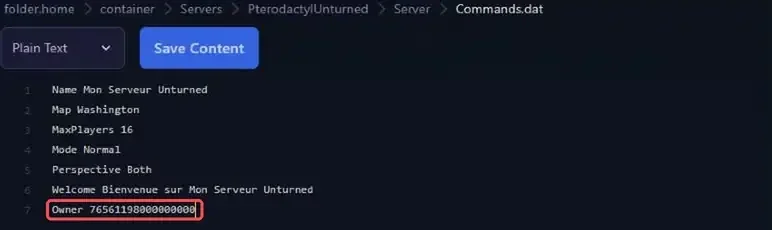
Owner 76561198000000000
Restart the server. The console confirms it on startup.
Successfully set owner to 76561198000000000!
The Owner command accepts a single SteamID64. Add the other members of your team as admins, with the next step.
The owner does not appear in the list returned by the admins command. If it replies Failed to find any admins. while the Owner line is in place, this is expected.
3. Appoint admins from the console
Open your server's Console in the panel. Type the command in the Type a command... field, without a / in front, replacing the SteamID64.
admin 76561198000000001
The player does not need to be connected. The admins command then shows the list of admins.

| Command | Effect |
|---|---|
admin <SteamID64> |
Gives admin rights to the player |
unadmin <SteamID64> |
Removes admin rights |
admins |
Shows the list of admins |
The list is stored in the Adminlist.dat file of the Server folder. Type save to write it right away, the console replies Successfully saved the game.. Bans and the whitelist are stored the same way in Blacklist.dat and Whitelist.dat.
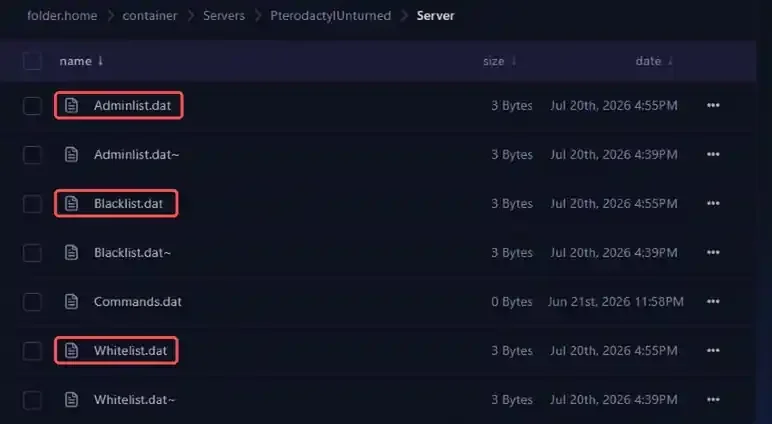
These three files are written by the game in a binary format. Do not edit them in the panel editor, always use the console commands.
4. Use the admin commands
In the panel console, commands are typed without /. In game, an admin types them in the chat with a leading /. Arguments are separated by /, and a connected player can be targeted by nickname or by SteamID64.
| Command | Effect |
|---|---|
kick <player>/<reason> |
Disconnects the player from the server |
ban <player>/<reason>/<duration> |
Bans the player, duration in seconds |
unban <SteamID64> |
Lifts the ban |
bans |
Shows the list of bans |
teleport <player>/<target> |
Teleports a player to another player or to a location |
give <player>/<item>/<amount> |
Gives an item, requires Cheats |
vehicle <player>/<vehicle> |
Spawns a vehicle, requires Cheats |
experience <player>/<amount> |
Gives experience, requires Cheats |
day and night |
Switches to day or night |
say <text> |
Sends a message to all players |
save |
Saves the game immediately |
For example, to ban a player for 24 hours, that is 86400 seconds, type the following command. The console replies Successfully banned 76561198000000002 for 86400 seconds!.
ban 76561198000000002/Cheating/86400
Type help to show every available command, or help followed by a command name, for example help ban, to get its syntax and description.
The give, vehicle and experience commands only work if the Cheats line is present in Commands.dat. This setting applies to the whole server, so add it only if your team needs it.
5. Restrict the server to a whitelist
For a private server among friends, Unturned can accept allowed players only. Add each player from the console with the permit command, followed by their SteamID64 and a label.
permit 76561198000000003/Friend
The console replies Successfully permitted 76561198000000003 Friend!. The permits command shows the list and unpermit <SteamID64> removes a player. Then add the Whitelisted line to Commands.dat and restart the server. Only allowed players will then be able to join it.
A password, set in the SERVER PASSWORD variable of the Startup tab, is a simpler alternative for a small group. It is covered in our guide "How to Configure Your Unturned Server and Add a GSLT".
If you run into trouble
❌ The Owner line is not applied
- Check the console on startup for
Successfully set owner tofollowed by your SteamID64 - Check the SteamID64, 17 digits, no spaces, and not the short
STEAM_0:...form - Make sure you edited the
Commands.datof theServers/PterodactylUnturned/Serverfolder, then restart the server
❌ The console does not recognise the command
An unknown or misspelled command is rejected with this message.
Unable to match "bann 76561198000000002" with any built-in commands
- Fix the spelling,
helpshows the exact list of commands - In the panel console, do not put a
/in front of the command - Separate arguments with
/, for examplekick MyNickname/Spam
Best practices
- Grant rights sparingly, an admin can ban any player
- Prefer the SteamID64 to the nickname to ban or allow a player, it never changes
- Type
saveafter a series of changes, to store the admin and ban lists right away - To delegate server management, prefer a sub-user with limited permissions, as explained in our guide How to Add a Sub-User to Your Gaming Panel
- Remove the rights of a member who leaves your team, with
unadmin
Need help?
If rights do not apply despite these checks, our team is here to help. Open a ticket in the Technique department from your client area, fill in the Related Product field with your Unturned server and attach a screenshot of the console.
Check out our offers on the Unturned hosting page. Your Unturned server is now in good hands 🔒