Context
An Unturned server is configured in three places. The variables of the panel's Startup tab handle the name, the password and the GSLT token. The Commands.dat file sets the map, the player count, the difficulty and the camera view. The Config.txt file fine-tunes everything else, from the description shown in the server list to the item spawn rate.
Without a GSLT token, your server stays out of the game's Internet server list. The console reports it on every startup with this message.
Steam Game Server Login Token (GSLT) not set
Without a login token the server:
- Is not visible in Internet server list
- Cannot be joined over the Internet
This guide shows you how to set these three levels on your Winheberg Unturned server and how to add a GSLT to make it visible.
Prerequisites
- An active Unturned server on your Winheberg gaming panel
- A server started at least once, so that the
Commands.datandConfig.txtfiles are created - A Steam account that is not limited and has a phone number attached, to create the GSLT token
1. Set the name and password in Startup
Open the Startup tab of the CONFIGURATION section. Three variables matter here.
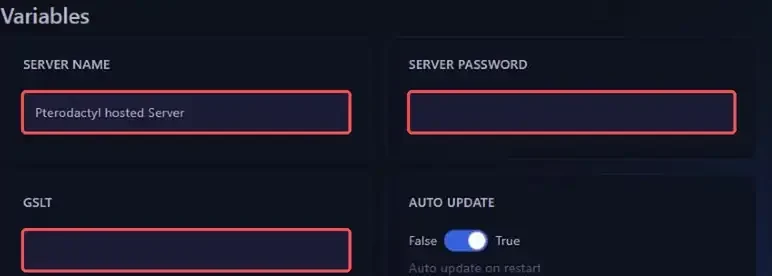
| Variable | Role |
|---|---|
| SERVER NAME | Name shown in the server list, Pterodactyl hosted Server by default |
| SERVER PASSWORD | Password players must enter to join, leave it empty for an open server |
| GSLT | Steam token that makes the server visible on the Internet, covered in step 2 |
The AUTO UPDATE variable, enabled by default, updates the game on every restart. Keep it on so your server stays on the same version as your players.
Click outside a field to save its value, then click Restart to apply it.
2. Create and add a GSLT token
The GSLT (Game Server Login Token) is a free token that Steam ties to your account. Without it, the server runs but does not appear in the Internet list and cannot be joined over the Internet. The console then shows this warning at the end of loading.

- Go to the Steam game server management page, steamcommunity.com/dev/managegameservers, and sign in with your Steam account
- In the creation form, enter App ID
304930, the Unturned App ID given by the game's official documentation - Add a memo that helps you recognise the token, for example
Winheberg Unturned server, then create the token - Copy the token that appears in the list of your servers
- Paste it into the GSLT variable of the Startup tab, then restart the server
On the next startup, the Steam Game Server Login Token (GSLT) not set warning should no longer appear in the console.
This token is tied to your Steam account. Never share it, and create a separate token for each server, the memo helps you tell them apart.
3. Choose the map, players and difficulty in Commands.dat
Open Files, then the Servers, PterodactylUnturned and Server folders. Click Commands.dat, empty by default, to open it in the panel editor.
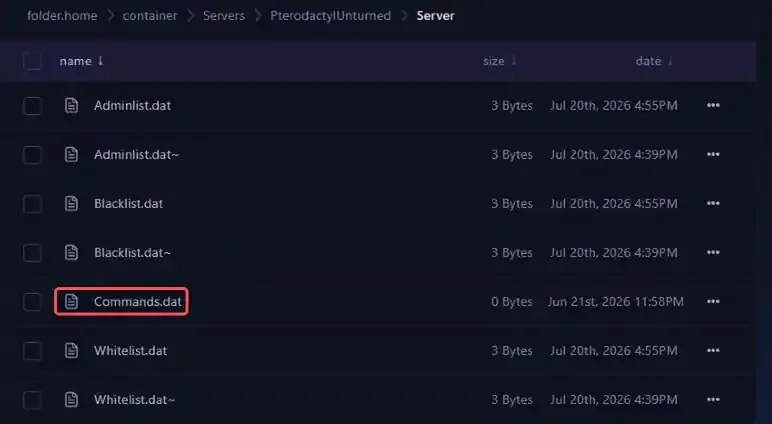
Write one command per line, in the form Command value, then click Save Content.
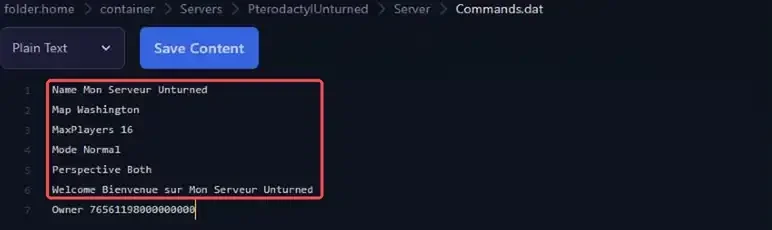
Map Washington
MaxPlayers 16
Mode Normal
Perspective Both
Welcome Welcome to My Unturned Server
| Command | Values | Effect |
|---|---|---|
Map |
PEI, Washington, Russia, Yukon, Germany |
Map loaded by the server |
MaxPlayers |
A number | Maximum number of players connected at the same time |
Mode |
Easy, Normal, Hard |
Difficulty, which also sets the default values of Config.txt |
Perspective |
First, Third, Both, Vehicle |
Camera view allowed for players |
PvE |
None, the command alone | Disables player versus player combat |
Cheats |
None, the command alone | Allows cheat commands, such as spawning items, vehicles or experience |
Welcome |
A text | Welcome message sent to players |
Restart the server. The console confirms each line it applied.
Successfully set map to Washington!
Successfully set max players to 16!
Successfully set gamemode to normal!
Successfully set perspective to both!
The lines of Commands.dat are read after the variables of the Startup tab and override them. A Name line in this file takes precedence over SERVER NAME, and a Password line over SERVER PASSWORD. Set the name and password in Startup only, and never add a Port or Bind line, your server port is assigned by the panel.
Workshop maps such as Hawaii, Elver or Kuwait do not ship with the server. First add their Workshop ID as explained in our guide How to install mods (Workshop) on your Unturned server, then write the map name in the Map line.
4. Customise the server with Config.txt
Go back to the Servers/PterodactylUnturned folder and open Config.txt. Each setting is preceded by a comment that explains what it does. A setting without a value uses the default of the difficulty chosen with Mode. To change it, write the value after its name, on the same line.
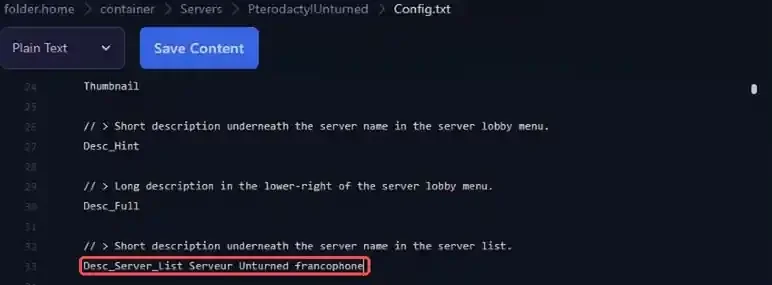
The Browser section, at the top of the file, handles how your server is presented.
| Setting | Role |
|---|---|
Desc_Server_List |
Short description under the server name, in the server list |
Desc_Hint |
Short description under the server name, in its lobby menu |
Desc_Full |
Long description, in the lower right of the lobby menu |
Icon |
URL of a 64x64 pixel image shown in the lobby menu |
Thumbnail |
URL of a 32x32 pixel image shown in the server list |
The following sections tune the gameplay. Here are a few settings that are often changed, with their default value.
| Section | Setting | Default | Effect |
|---|---|---|---|
Items |
Spawn_Chance |
0.35 in Normal |
Share of item spawn points used, from 0 to 1 |
Zombies |
Spawn_Chance |
0.25 in Normal |
Share of zombie spawn points used, from 0 to 1 |
Players |
Experience_Multiplier |
1 in Normal |
Multiplier of the experience gained |
Players |
Spawn_With_Max_Skills |
False |
All skills at maximum level from the first spawn |
Events |
Use_Airdrops |
True |
Care packages dropped by airplanes |
Gameplay |
Friendly_Fire |
False |
Damage between members of the same group |
Gameplay |
Crosshair |
True in Normal |
Crosshair visible while holding a gun |
For example, to allow friendly fire within groups, the Friendly_Fire line of the Gameplay section becomes Friendly_Fire True. Save with Save Content and restart the server. On startup, Unturned rewrites the file to refresh its comments, but keeps your values.
Older guides mention a Config.json file. Recent versions of Unturned replaced it with Config.txt, located in the same folder.
If you run into trouble
❌ The server does not appear in the Internet list
- Check that the GSLT variable contains the token, with no space before or after it
- Look for the
Steam Game Server Login Token (GSLT) not setmessage in the console. If it still shows, the token is not being used - Check on the Steam token management page that the token still exists and was created with App ID
304930 - Restart the server after every change
❌ A Commands.dat line is not applied
A misspelled command is ignored without any error message. The only clue is the missing Successfully set line for it in the console on startup.
- Fix the spelling of the command and keep a single command per line
- Check that you edited the file in the right folder,
Servers/PterodactylUnturned/Server - Make sure a variable of the Startup tab does not duplicate the line in question
❌ The requested map does not load
- Write the map name exactly as it appears in the console on startup, on the
Discovered levellines, capital letters included - For a Workshop map, check in the console that its download finished before the map started loading
Best practices
- Create a backup before editing
Config.txt, as explained in our guide How to Create and Restore a Backup of Your Gaming Server - Write down your changes in
Config.txtwith a comment starting with//. Unturned keeps the comments you write yourself - Keep AUTO UPDATE on, so that up to date players can always join your server
- Manage admin rights with the
Ownerline ofCommands.dat, covered in our guide "How to Become an Admin on an Unturned Server"
Need help?
If your server stays hidden or a setting does not apply despite these checks, our team is here to help. Open a ticket in the Technique department from your client area, fill in the Related Product field with your Unturned server and attach a screenshot of the console.
Check out our offers on the Unturned hosting page. Your Unturned server is ready to welcome its survivors 🎮