Context
7 Days to Die offers three ways to play the map on your server. Navezgane, the map hand-crafted by the developers. The Pregen maps, random worlds already generated and shipped with the game. And RWG, a random world generated by the server itself from a seed and a size.
Everything is set in serverconfig.xml, with four properties. This guide shows you how to change the map from the Winheberg game panel without losing the current game.
Requirements
- An active 7 Days to Die server on the Winheberg game panel
- Access to the Console, Files and Backups tabs of the server on panel.winheberg.com
- A few minutes ahead of you, an RWG world is generated on first start
1. Back up the current game
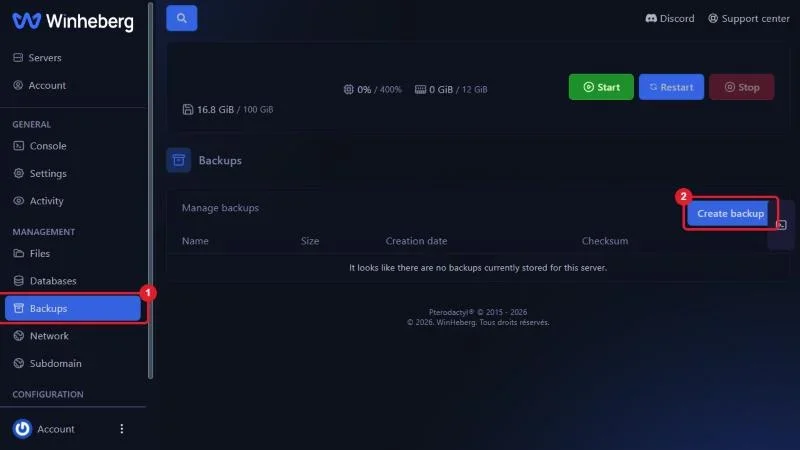
Changing the map starts the server on a new save. The old one stays on disk, but a full backup keeps you safe from any bad surprise.
Open the Backups tab and click Create backup.
2. Stop the server
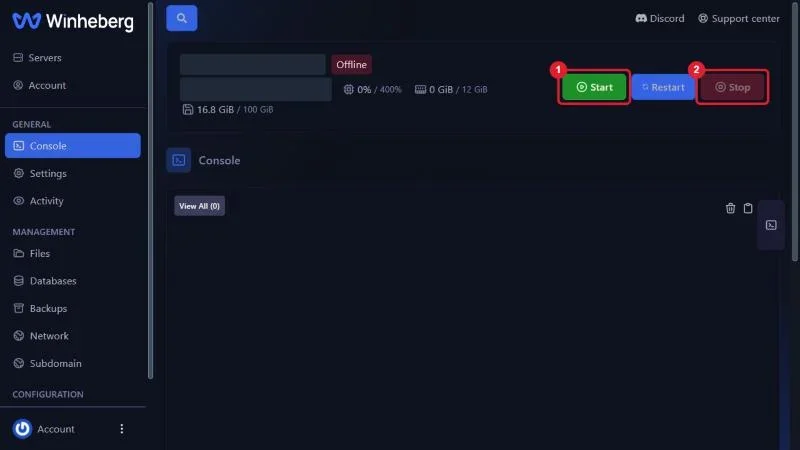
The configuration file is read at startup. Always edit it with the server stopped, otherwise your changes will be overwritten or ignored. In the Console tab, click Stop and wait for the Offline state.
3. Open serverconfig.xml
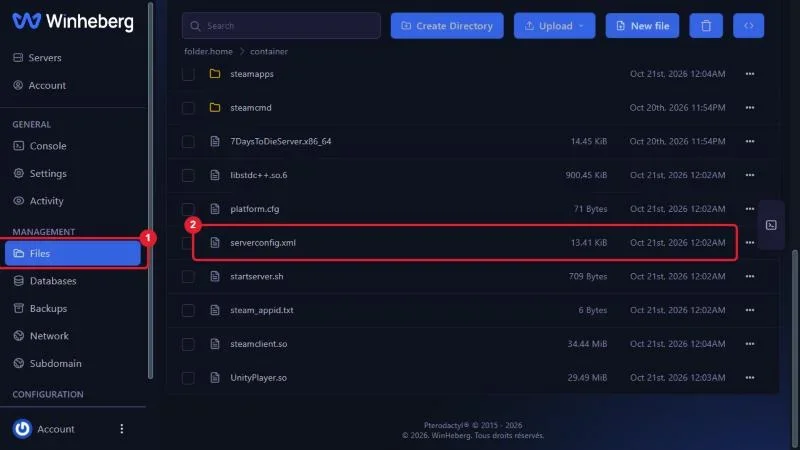
In the Files tab, click serverconfig.xml at the server root to open it in the editor.
4. Choose the map
Scroll down to the World section, around line 58. The GameWorld, WorldGenSeed, WorldGenSize and GameName properties follow each other on four lines.
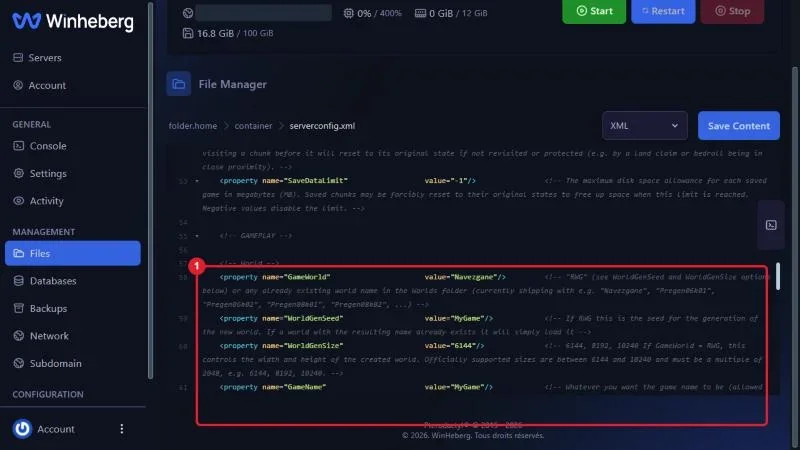
Change the value of GameWorld to the map you want.
| Value | Resulting map | Generated at startup |
|---|---|---|
Navezgane |
Official hand-crafted map | No |
Pregen06k01 or Pregen06k02 |
Pre-generated random world, 6 km | No |
Pregen08k01 or Pregen08k02 |
Pre-generated random world, 8 km | No |
RWG |
Random world generated by your server | Yes |
<property name="GameWorld" value="Pregen08k01"/>
Also change GameName. It is the name of the save folder, a different name guarantees a fresh game and leaves the old one untouched. Only letters, digits, spaces, dashes, dots and underscores are accepted.
<property name="GameName" value="Season2"/>
5. Set up a random world
This step only applies to the RWG value. For Navezgane and the Pregen maps, skip to step 6, the two properties below are ignored.
WorldGenSeedis the seed. The same text with the same size always produces the same world, handy to share a map between servers or to find it again laterWorldGenSizeis the width of the world in metres. The officially supported sizes are6144,8192and10240
<property name="GameWorld"    value="RWG"/>
<property name="WorldGenSeed" value="Winheberg2026"/>
<property name="WorldGenSize" value="6144"/>
The bigger the world, the longer the generation and the more memory the server uses at startup. Start with 6144 or 8192, 10240 needs a comfortable plan.
6. Save and restart
Click Save Content at the top of the editor, go back to the Console tab and click Start.
With Navezgane or a Pregen map, the server is ready within one to two minutes. With RWG, the server first generates the world, then names it from the seed. The console then shows createWorld and World.Load with that name, followed by your GameName.
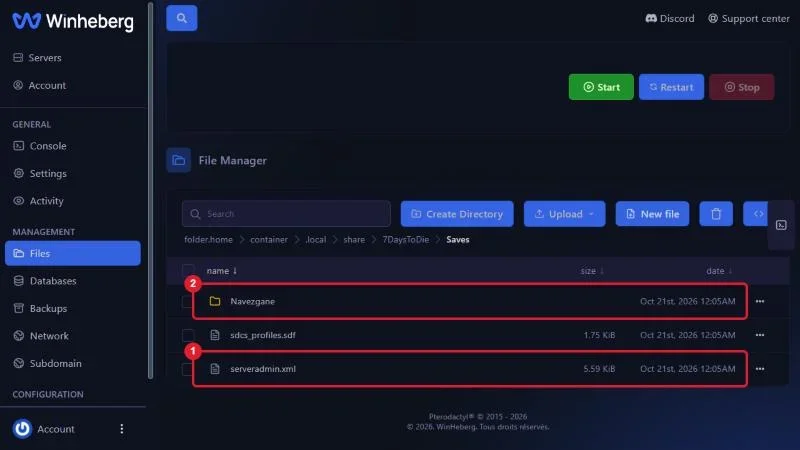
An RWG world is generated only once. It is stored in .local/share/7DaysToDie/GeneratedWorlds, and the saves of each map in .local/share/7DaysToDie/Saves, one folder per world then one per GameName. Later restarts load the existing world straight away.
Troubleshooting
❌ The server still loads the old game
- Check that
GameWorldwas really changed and that the file was saved with the server stopped - If you went back to a map already played with the same
GameName, the server logically resumes the old save, changeGameName
❌ The server stops by itself after the change
- A misspelled map name blocks startup, values are case sensitive,
Pregen08k01and notpregen08k01 - With
RWG, a size that is not a multiple of 2048 is rejected - Check that the XML file is still valid, one missing quote is enough to break everything
❌ RWG generation never ends
- Allow noticeably more time for
10240than for6144, the console must keep printing lines - If the console is frozen and memory is maxed out, reduce
WorldGenSizeor move to a bigger plan
Best practices
- Write down the seed and size you used, that is all you need to regenerate exactly the same world
- Give each new game a meaningful
GameName, for exampleSeason2-Pregen08k, you will find the saves more easily - Warn your players, a map change resets everyone, inventory and base included
- To roll back, restore the previous
GameWorldandGameNamevalues, the old save is still there - To permanently delete an old game or regenerate a map, follow How to Reset the World on a 7 Days to Die Server
Need help
If the server refuses to start after the map change, open a ticket with our support from your client area, Technical department, with the server involved in the Related Product field. Our team can review your serverconfig.xml and the startup logs with you. Every property of the file is detailed in How to Configure Your 7 Days to Die Server
Your new map is in place, good luck out there 🧟