Context
With a DayZ server at Winheberg, most of the configuration is done from the gaming panel, with no command line. The name shown in the server list, the password, the player count, third-person view, the speed of days and nights, the description and the whitelist all have their place.
These settings live in two places. The ones shown in the Startup tab are written back into the serverDZ.cfg file by the panel every time the server starts, so they must be changed in Startup and nowhere else. The others, such as the description, the whitelist or third-person view limited to vehicles, are edited directly in serverDZ.cfg from the Files tab.
This guide shows you where to find each setting and how to apply it.
Prerequisites
- An active DayZ server at Winheberg, available with our DayZ server offer
- Access to the Winheberg gaming panel (
https://panel.winheberg.com/) - The initial installation completed, the first game download takes several minutes (Running Installer screen)
Before editing serverDZ.cfg, create a backup from the Backups tab. Our guide "How to Create and Restore a Backup of Your Gaming Server" walks you through it.
Where each setting is changed
| Setting | Location | Field or line |
|---|---|---|
| Server name | Startup | Server Name |
| Password to join | Startup | Server Password |
| Admin password | Startup | Admin Password |
| Maximum number of players | Startup | Max Players |
| Third-person view and crosshair | Startup | Disable Third Person, Disable Crosshair |
| Day and night speed | Startup | Time Multiplier, Night Multiplier |
| Time kept between restarts | Startup | Persistent Time |
| Description in the server list | serverDZ.cfg | description |
| Whitelist | serverDZ.cfg and whitelist.txt | enableWhitelist |
| Third-person view in vehicles only | serverDZ.cfg | thirdPersonView |
| Starting time | serverDZ.cfg | serverTime |
Do not change hostname, password, passwordAdmin or maxPlayers in serverDZ.cfg. The panel rewrites these lines at every start with the values from the Startup tab, so your change would be lost.
1. Change the name, passwords and player count
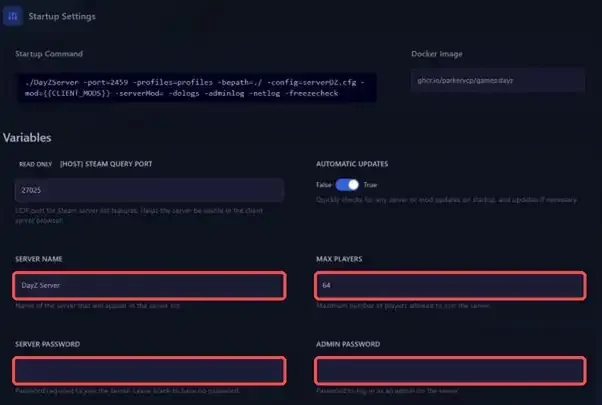
Log in to the Winheberg panel, select your DayZ server, then click Startup in the CONFIGURATION section of the side menu. The relevant fields are in the Variables block.
| Field | Default value | Purpose |
|---|---|---|
| Server Name | DayZ Server |
Name shown in the server list |
| Max Players | 64 |
Maximum number of players allowed on the server |
| Server Password | empty | Password required to join, leave it empty for a server with no password |
| Admin Password | empty | Password used to log in as an admin on the server |
The new values take effect the next time the server starts (see step 5).
2. Set third-person view and the crosshair
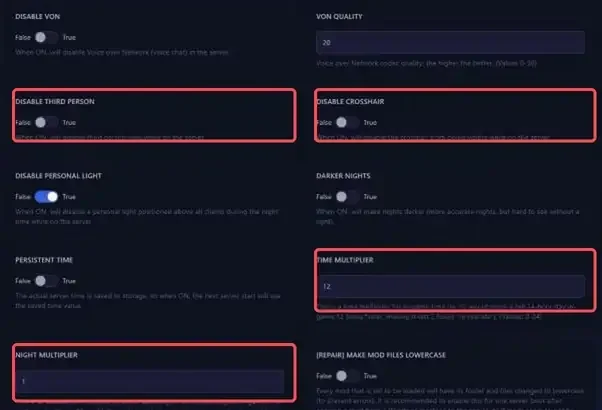
Still in Startup, scroll down to the Disable Third Person and Disable Crosshair toggles. Both are set to False by default.
| Field | Default value | Effect when True |
|---|---|---|
| Disable Third Person | False |
Disables third-person view, players stay in first-person view |
| Disable Crosshair | False |
Hides the crosshair on screen |
To allow third-person view only inside vehicles, leave Disable Third Person on False and follow step 4.3.
3. Set the time and the day/night cycle
The speed of in-game time is also set in Startup, with the Time Multiplier and Night Multiplier fields shown in the previous screenshot.
| Field | Default value | Purpose |
|---|---|---|
| Time Multiplier | 12 |
Speeds up in-game time, from 0 to 24. At 12, a 24-hour day lasts 2 real hours |
| Night Multiplier | 1 |
Speeds up the night on top of that, from 0.1 to 64. This value is multiplied by Time Multiplier |
| Persistent Time | False |
When True, the server time is saved and reused at the next start |
| Darker Nights | False |
When True, nights are darker and hard to get through without a light |
| Disable Personal Light | True |
Disables the personal light placed above players at night |
A few examples to picture how the two multipliers work.
| Time Multiplier | Night Multiplier | Days pass | Nights pass |
|---|---|---|---|
1 |
1 |
At real-time speed | At real-time speed |
12 |
1 |
12 times faster than real time | 12 times faster |
12 |
2 |
12 times faster | 24 times faster |
2 |
4 |
2 times faster | 8 times faster |
To choose the time at which the server starts, go to step 4.4.
4. Edit the serverDZ.cfg file
Settings that are not in Startup are changed in serverDZ.cfg, at the root of the server. In the side menu, click Files (MANAGEMENT section), then open serverDZ.cfg.
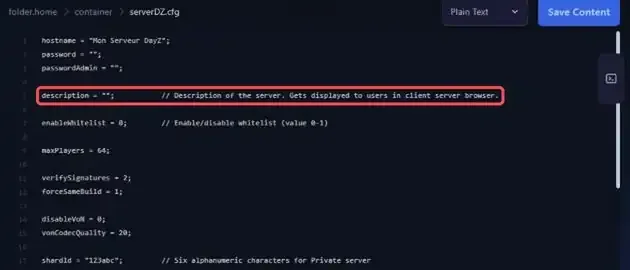
Each line follows the parameter = value; syntax. The trailing semicolon is required, text values go between double quotes, and anything after // is a comment. Once your change is made, click Save Content.
Prefer working in your own editor? Our guide "How to Connect to Your Gaming Server via SFTP" explains how to access your files over SFTP.
4.1 Add a description
The description line holds the text shown to players in the in-game server browser, up to 255 characters. Write your text between the quotes.
description = "English-speaking PvE server, friendly community";
4.2 Enable the whitelist
The whitelist restricts access to the players you have listed. First, set the enableWhitelist line to 1.
enableWhitelist = 1;
Then open the whitelist.txt file, also located at the root of the server, and add the SteamID64 (17-digit Steam identifier) of each allowed player, one per line. Click Save Content.
76561198000000001
76561198000000002
Add your own SteamID64 too, otherwise the whitelist will keep you out of your own server.
To turn the whitelist off, set the line back to enableWhitelist = 0;.
4.3 Allow third-person view in vehicles only
The thirdPersonView line accepts three values.
| Value | Effect |
|---|---|
0 |
Third-person view disabled |
1 |
Third-person view enabled (value present by default) |
2 |
Third-person view in vehicles only |
To limit third-person view to vehicles, replace the value with 2.
thirdPersonView=2;
4.4 Choose the starting time
The serverTime line sets the server time. With the default "SystemTime" value, the server uses the local time of the machine. You can also enter a date and time in the YYYY/MM/DD/HH/MM format (year, month, day, hour, minute), for example to start on June 21 at 8am.
serverTime="2026/06/21/08/00";
If Persistent Time is set to True in Startup, the server reuses the saved time at the next start. Leave it on False if you want to start again from the serverTime value at every start.
5. Apply the changes
All these changes, in Startup as well as in serverDZ.cfg, take effect at the next start. Restart the server from the Console. A DayZ server takes a few minutes to start, its status goes from Starting to Online once it is ready.
To have the server restart on its own at a set time, see our guide "How to Schedule Automatic Restarts with Schedules".
If you run into trouble
❌ A name or password changed in serverDZ.cfg goes back to the old value
- This is expected, the panel rewrites the values it manages in Startup at every start
- Make the change in Startup, then restart the server
❌ Changes don't show up in game
- Check that the server was actually restarted after the change
- Wait for the status to switch to Online, startup takes a few minutes
- For
serverDZ.cfg, check that you clicked Save Content before restarting
❌ A serverDZ.cfg line seems to be ignored
- Check that the line ends with a semicolon
- Check that text values are between double quotes
- Look at the Console and at the
.RPTlogs in theprofilesfolder to spot an error at startup
❌ A player can no longer join after the whitelist was enabled
- Check that their SteamID64 is in
whitelist.txt, on its own line - Check that the file was saved and that the server has restarted since
Best practices
- Change the RCON Password in Startup, it holds the placeholder value
remplacemeby default (20 characters maximum) - Use two different passwords for Server Password and Admin Password, so a player who knows the join password does not get admin rights
- Back up before editing
serverDZ.cfgorwhitelist.txt, restoring is faster than hunting for an error
Need help?
If a setting doesn't apply, if your server no longer starts after editing serverDZ.cfg, or if you're unsure about a value, our team is here to help. Open a ticket in the Technical department from your client area, fill in the Related Product field with your DayZ server, and specify the setting you changed along with the behavior you observed.
Your DayZ server is now set up the way you want it, good luck surviving 🎮