Context
The world of your Enshrouded server, with the terrain, the bases and the chests, fits in a single file. Knowing where it is lets you back it up before an update, start over on a fresh world, or go back to the old one if the new one does not suit you.
This matters even more with version 1.0, released on October 15, 2026. Old saves are migrated automatically, but Keen Games recommends starting a fresh world, since the world and the first hours of play have been heavily reworked. This guide shows you how to start a fresh world on your Winheberg Enshrouded server while keeping the old one.
Prerequisites
- An active Enshrouded server on your Winheberg gaming panel
- Access to the Files tab of your server
Character progression (level, skills and inventory) is stored on each player's side, not on the server. Resetting the world therefore does not affect characters. However, survivors have to be rescued again in the new world, and with them most crafting recipes.
1. Find the world in the files
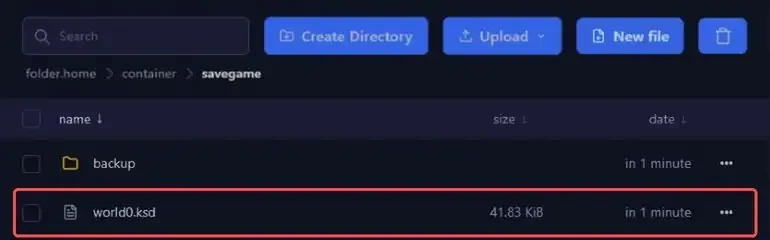
Open the Files tab, then the savegame folder. The world is saved in the world0.ksd file.
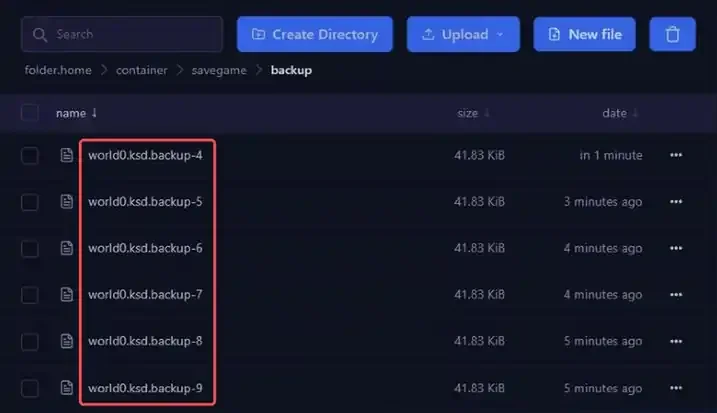
The backup subfolder holds automatic copies of the world, created regularly by the game. They are named world0.ksd.backup- followed by a number.
| Location | Content |
|---|---|
savegame/world0.ksd |
The world loaded by the server |
savegame/backup/ |
Automatic copies of the world, managed by the game |
2. Back up the world
Before any change, make a full backup from the Backups tab of the panel. It is the safest way to roll back. Everything is explained in our guide How to Create and Restore a Backup of Your Gaming Server.
To also keep a copy of the world on your computer, download the savegame folder over SFTP, as explained in our guide How to Connect to Your Gaming Server via SFTP.
3. Reset the world
To start a fresh world without deleting anything, rename the savegame folder. On the next start, the server no longer finds a world and generates a new one.
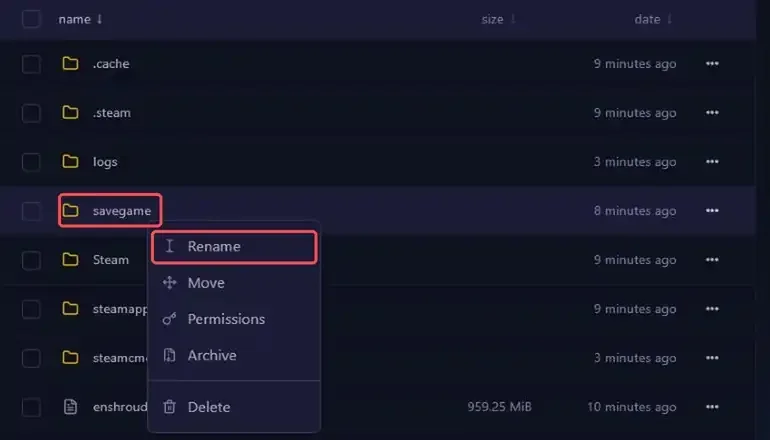
First stop the server with Stop and wait for the Offline status. In the Files tab, click the three dots to the right of the savegame folder, then Rename.
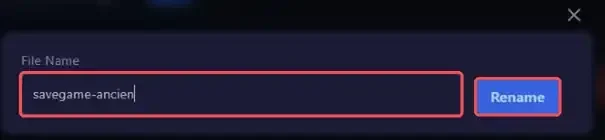
Give it a new name, for example savegame-old, then confirm with Rename.
Go back to the Console and click Start. The server creates a new savegame folder with a fresh world in world0.ksd. Your old world stays untouched in savegame-old.
Do not delete the old folder until you are sure you no longer need it. Without it and without a backup, the old world is lost for good.
4. Go back to the old world
If the new world does not suit you, you can put the old one back at any time.
- Stop the server with Stop and wait for the Offline status
- Rename the current savegame folder, for example to
savegame-new, to keep this world too - Rename savegame-old to
savegame - Go back to the Console and click Start
The server loads the old world again.
If you run into trouble
❌ The server starts a fresh world instead of the old one
- Check that the folder is named exactly
savegame, in lowercase and without spaces - Check that the world0.ksd file sits directly in this folder, and not in a subfolder
- Check that the
saveDirectorykey of the enshrouded_server.json file has not been changed, it tells the server where to look for the world
❌ Players lost their items or levels
Characters are stored on the players' side, not on the server, and resetting the world does not change them. A player who cannot find their character should check both the local and Steam Cloud tabs of the character menu. Since version 1.0, the skill tree of an existing character is reset once, the points are refunded and must be spent again.
Best practices
- Always stop the server before renaming or moving the savegame folder
- Make a backup from the Backups tab before every reset
- Tell your players before starting a fresh world, their bases will stay in the old world
- Schedule regular backups with the Schedules tab of the panel, which works as explained in our guide How to Schedule Automatic Restarts with Schedules
Need help?
If your world still does not load after these checks, our team is here to help. Open a ticket in the Technical department from your client area and fill in the Related Product field with your Enshrouded server.
To set the difficulty of your new world, follow our guide "How to Configure Your Enshrouded Server", and check out our plans on the Enshrouded Hosting page. Enjoy your new adventure in Embervale 🎮