Context
The name shown in the server list, the number of slots, the difficulty, the length of days or the number of enemies, everything can be set on your Winheberg Enshrouded server. Some settings live in the Startup tab of the panel, the rest in the enshrouded_server.json file, at the root of the server.
This guide shows you where to change each setting, how to pick a difficulty preset or build your own, and how to check in the console that the server applied your changes. It covers Enshrouded version 1.0, released on October 15, 2026.
Prerequisites
- An active Enshrouded server on your Winheberg gaming panel
- A recent backup of the server, as explained in our guide How to Create and Restore a Backup of Your Gaming Server
1. Set the name and player count in Startup
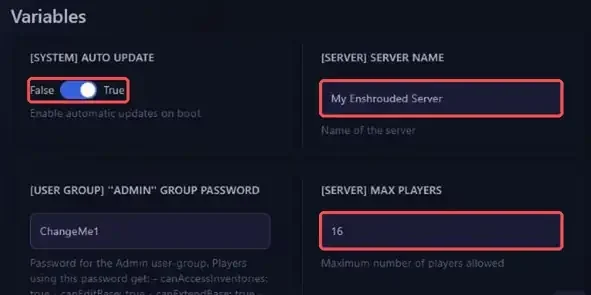
Open the Startup tab of your server. Fields in the Variables section are saved automatically as soon as you change them.
| Variable | Purpose |
|---|---|
| [SERVER] SERVER NAME | Name shown in the in-game server list, My Enshrouded Server by default |
| [SERVER] MAX PLAYERS | Maximum number of connected players, from 1 to 16 |
| [SYSTEM] AUTO UPDATE | Updates the server on every start. Leave it on True so the server stays on the same version as the players' game |
| [SYSTEM] VALIDATE | Checks the server files with Steam on start. Turn it on occasionally if some files seem damaged |
The four [USER GROUP] variables hold the passwords of the Admin, Friend, Guest and Visitor roles. They are covered in our guide "How to Manage Passwords and Roles on Your Enshrouded Server".
Go back to the Console and click Restart to apply your changes. If you also plan to edit the configuration file, go straight to step 2, your variables will be applied when the server starts in step 6.
2. Open the enshrouded_server.json file
The other settings are in the enshrouded_server.json file. First stop the server with Stop, then, in the Files tab, click the file to open it in the panel editor.
On every start, the panel writes the server name, the number of slots and the passwords of the four roles into this file, from the variables of the Startup tab. Any change made to these values directly in the file is therefore overwritten on the next start. Always change them in Startup.
Do not change the ip, queryPort, saveDirectory and logDirectory keys either. The queryPort is the port assigned to your server by the panel.
The enshrouded_server_readme.txt file, at the root of the server, describes every option of the installed version.
3. Adjust the general settings
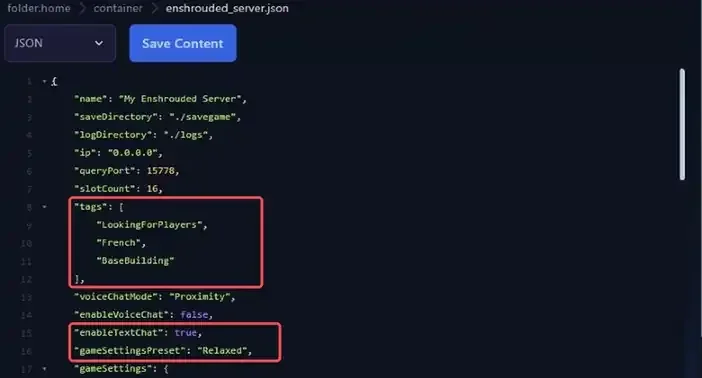
The first keys of the file set the server's visibility in the list, the chat and the difficulty.
| Key | Purpose | Values |
|---|---|---|
tags |
Labels that help players find your server with the list filters | See below |
voiceChatMode |
Proximity or server-wide voice chat | Proximity (default) or Global |
enableVoiceChat |
Turns voice chat on | true or false (default) |
enableTextChat |
Turns text chat on | true or false (default) |
gameSettingsPreset |
Difficulty preset, covered in step 4 | Default (default), Relaxed, Hard, Survival or Custom |
The available tags are LookingForPlayers, BaseBuilding, Exploration, Roleplay and one tag per language, including English, French, German, Spanish, Italian, Portuguese and Polish. Write them in quotes, separated by commas.
"tags": [
    "LookingForPlayers",
    "English",
    "BaseBuilding"
],
4. Pick a difficulty with gameSettingsPreset
To change the difficulty without going into detail, replace the value of gameSettingsPreset with one of the presets below, in quotes, for example "gameSettingsPreset": "Relaxed",.
| Preset | Effect |
|---|---|
Default |
Standard settings, recommended for a first playthrough |
Relaxed |
Fewer enemies, more resources and loot, to focus on building |
Hard |
More enemies, and more aggressive ones |
Survival |
More aggressive enemies and extra survival mechanics |
Custom |
Uses your own values from the gameSettings block, see step 5 |
The gameSettings block is only read when gameSettingsPreset is set to Custom. With any other preset, your custom values are ignored.
5. Fine-tune every setting with Custom
Set gameSettingsPreset to Custom, then change the values you want in the gameSettings block. Keep the commas and braces, and use a dot for decimals.
"gameSettingsPreset": "Custom",
"gameSettings": {
    "playerHealthFactor": 1.5,
    "enableStarvingDebuff": true,
    "dayTimeDuration": 2700000000000,
Most keys ending in Factor default to 1, which is 100% in game, and 1.5 means 150%. Durations are in nanoseconds. One minute is 60000000000, so the 2700000000000 value in the example is 45 minutes. A numeric value outside the allowed range is brought back to the minimum or maximum.
| Key | Effect | Values | Default |
|---|---|---|---|
playerHealthFactor |
Players' max health | 0.25 to 4 | 1 |
playerManaFactor |
Players' max mana | 0.25 to 4 | 1 |
playerStaminaFactor |
Players' max stamina | 0.25 to 4 | 1 |
playerBodyHeatFactor |
Resistance to cold | 0.5 to 2 | 1 |
playerDivingTimeFactor |
Time available underwater | 0.5 to 2 | 1 |
enableDurability |
Weapon wear and breaking | true or false |
true |
enableStarvingDebuff |
Hunger and starvation | true or false |
false |
foodBuffDurationFactor |
Food buff duration | 0.5 to 2 | 1 |
fromHungerToStarving |
Time spent hungry before starving | 5 to 20 minutes | 10 minutes |
shroudTimeFactor |
Survival time in the Shroud | 0.5 to 2 | 1 |
tombstoneMode |
Items lost on death | AddBackpackMaterials, Everything or NoTombstone |
AddBackpackMaterials |
enableGliderTurbulences |
Glider turbulence | true or false |
true |
weatherFrequency |
Weather event frequency | Disabled, Rare, Normal or Often |
Normal |
fishingDifficulty |
Fishing difficulty | VeryEasy, Easy, Normal, Hard or VeryHard |
Normal |
miningDamageFactor |
Mining effectiveness | 0.5 to 2 | 1 |
plantGrowthSpeedFactor |
Plant growth speed | 0.25 to 2 | 1 |
resourceDropStackAmountFactor |
Amount of resources gained | 0.25 to 2 | 1 |
factoryProductionSpeedFactor |
Workshop production time | 0.25 to 2 | 1 |
perkUpgradeRecyclingFactor |
Runes returned when salvaging an upgraded weapon | 0 to 1 | 0.5 |
perkCostFactor |
Rune cost of weapon upgrades | 0.25 to 2 | 1 |
experienceCombatFactor |
Experience from combat | 0.25 to 2 | 1 |
experienceMiningFactor |
Experience from mining | 0 to 2 | 1 |
experienceExplorationQuestsFactor |
Experience from exploration and quests | 0.25 to 2 | 1 |
randomSpawnerAmount |
Number of enemies in the world | Few, Normal, Automatic, Many or Extreme |
Normal |
aggroPoolAmount |
Number of enemies attacking at the same time | Few, Normal, Many or Extreme |
Normal |
enemyDamageFactor |
Enemy damage, bosses excluded | 0.25 to 5 | 1 |
enemyHealthFactor |
Enemy health, bosses excluded | 0.25 to 4 | 1 |
enemyStaminaFactor |
Enemy stamina, the higher it is, the longer they take to stun | 0.5 to 2 | 1 |
enemyPerceptionRangeFactor |
How far enemies can see and hear you | 0.5 to 2 | 1 |
bossDamageFactor |
Boss damage | 0.2 to 5 | 1 |
bossHealthFactor |
Boss health | 0.2 to 5 | 1 |
threatBonus |
Frequency of enemy attacks | 0.25 to 4 | 1 |
pacifyAllEnemies |
Enemies only attack when attacked, bosses excluded | true or false |
false |
tamingStartleRepercussion |
Outcome of a failed taming attempt | KeepProgress, LoseSomeProgress or LoseAllProgress |
LoseSomeProgress |
dayTimeDuration |
Length of the day | 2 to 60 minutes | 30 minutes |
nightTimeDuration |
Length of the night | 2 to 60 minutes | 12 minutes |
curseModifier |
Shroud curse, Easy turns it off, Hard doubles the chance of getting it |
Easy, Normal or Hard |
Normal |
flameLevelFogRemoval |
Flame level required to place Flame Altars in the Shroud | 0 to 20 | 11 |
The Automatic option of randomSpawnerAmount, added in version 1.0, scales the number of enemies to the number of players nearby. Players elsewhere in Embervale are not counted. It is also the value applied by the Default preset, as the console shows on start.
6. Start the server and check the console
Save the file with Save Content, then go back to the Console and click Start. In the Console, a line shows the loaded preset, followed by the list of applied values.
[server] Game Settings 'Custom'
The server is ready for players once these lines appear.
[Session] 'HostOnline' (up)!
[game_server] Switching state from LoadEcsScene to Run after 552.35 ms
If you run into trouble
❌ The server stops right after starting
A syntax error in enshrouded_server.json, such as a missing or extra comma, a missing quote or an unclosed brace, prevents the server from starting. The console then shows these lines.
[Winheberg Daemon]: ---------- Detected server process in a crashed state! ----------
[Winheberg Daemon]: Exit code: 1
[Winheberg Daemon]: Aborting automatic restart, last crash occurred less than 60 seconds ago.
- Open the file again and check the lines you changed
- Check that every line of a block ends with a comma, except the last one before
}or] - Check the spelling of text values, including capitals, such as
ExtremeorAddBackpackMaterials. An unknown text value also prevents the server from starting - Copy the content of the file into a code editor such as Visual Studio Code, which underlines JSON syntax errors
- As a last resort, restore the backup made before your changes
❌ The server name or slot count goes back to the old value
The panel writes these values on every start. Change them in the Startup tab, with the SERVER NAME and MAX PLAYERS variables, then restart.
❌ Custom settings have no effect
Check that gameSettingsPreset is set to Custom. If the console shows [server] Game Settings 'Default' or another preset, the gameSettings block is ignored.
Best practices
- Stop the server before editing the file, then start it again once the file is saved
- Make a backup before each round of changes, from the Backups tab of the panel
- Change only a few settings at a time, so you can easily find the one causing trouble
- Tell your players about difficulty changes, especially when you turn on hunger or shorten the day
Need help?
If your server still refuses to start after these checks, our team is here to help. Open a ticket in the Technical department from your client area, fill in the Related Product field with your Enshrouded server and attach a screenshot of the console.
To learn everything about version 1.0, read our article Enshrouded 1.0 Is Here, Everything That Changes for Players and for Your Server, and check out our plans on the Enshrouded Hosting page. Your Enshrouded server is now set up just the way you like it 🎮