Context
Changing the version of a Minecraft Java server is a common task, whether to enjoy the latest game update, to switch from one server software to another (Vanilla, Paper, Fabric...) or to stay on a version your plugins support. On the Winheberg gaming panel, everything happens in the Versions tool in a few clicks, but the operation directly affects your world and your extensions.
Upgrading converts your world to the new format, with no way back. Downgrading is strongly discouraged. This guide walks you through each step, from the backup to your players connecting, including plugin and mod compatibility and the required Java version.
This guide covers Minecraft Java Edition. For a Bedrock server, see our guide "How to Update Your Minecraft Bedrock Server".
Prerequisites
- An active Minecraft Java server on the Winheberg gaming panel (
https://panel.winheberg.com/) - A recent backup of your server (see step 1)
- The list of your plugins or mods, with their current version
- A quiet time slot, as the server will be stopped during the operation
Never change versions without a backup. Once the world has been opened in a newer version, it is converted and can no longer be read properly by the old version.
Upgrading or downgrading, what you need to know
Upgrading (for example from 1.21.11 to 26.3) is the normal case. On the first start, the server updates the world data to the new format. This conversion is one way only, which is why the backup from step 1 is your only way out if something goes wrong.
Downgrading (going back to an older version with the same world) is discouraged, even though the Versions tool technically lets you pick an older version. The Minecraft wiki states that a downgraded world is exposed to corruption, data loss or crashes, that blocks and items missing from the older version are removed from the world, and that upgrading again afterwards does not repair the damage. If you need to go back, restore the backup taken before the upgrade instead.
Mojang has changed the Java version numbering. After 1.21.11, the next version is called 26.1. Moving from 1.21.x to 26.x is still an upgrade, with the same precautions.
1. Take a full backup
First stop the server from the Console with the Stop button, then wait until it is fully offline. A backup taken while the server is stopped avoids saving a world that is still being written.
Then create a backup by following our guide "How to Create and Restore a Backup of Your Gaming Server". Give it a name that states the current version (for example before-26.3), so you can find it easily.
To keep a copy outside the panel, also download your world folder (world by default) over SFTP. Your SFTP credentials are in the server's Settings tab.
2. Check plugin and mod compatibility
Plugins and mods are built for specific game versions. Before changing versions, check that each of them has a release compatible with the target version.
| Server type | What to check |
|---|---|
| Paper, Spigot, Purpur | Each plugin in the plugins folder must exist for the target version |
| Fabric | Each mod must exist for the target version, along with Fabric API |
| Forge, NeoForge | Each mod must exist for the target version and for that loader |
| Modpack | The whole modpack must be released for the target version, mods are not updated one by one |
For plugins, the panel's Plugins tool saves you time. Its Minecraft version and Plugin loader filters only show plugins available for the target version and software, and the install window lets you pick the exact plugin release under Plugin version. For a concrete example, see our guide "How to install and configure EssentialsX on a Minecraft server".
An incompatible plugin or mod can stop the server from starting, or worse, alter your world incorrectly on the first launch. When in doubt, remove it until a compatible version is released.
On a modpack server, the game version follows the modpack and is managed from the Modpacks tool, not from the Versions tool. The panel itself warns there that modpack updates can cause world corruption, and strongly advises making a backup before updating a modpack.
3. Check the required Java version
Each Minecraft version requires a minimum Java version. If the server starts with a Java version that is too old, it stops immediately with an error.
| Minecraft version | Minimum Java |
|---|---|
| 1.12 to 1.16.5 | Java 8 |
| 1.17 to 1.17.1 | Java 16 |
| 1.18 to 1.20.4 | Java 17 |
| 1.20.5 to 1.21.11 | Java 21 |
| 26.1 and later | Java 25 |
On the panel, the Java version is chosen in the Startup tab, with the Docker Image dropdown. It offers Java 25, Java 24, Java 23, Java 22, Java 21, Java 17, Java 16, Java 11 and Java 8. Select an image at least equal to the minimum shown in the table, for example Java 25 for Paper 26.3.
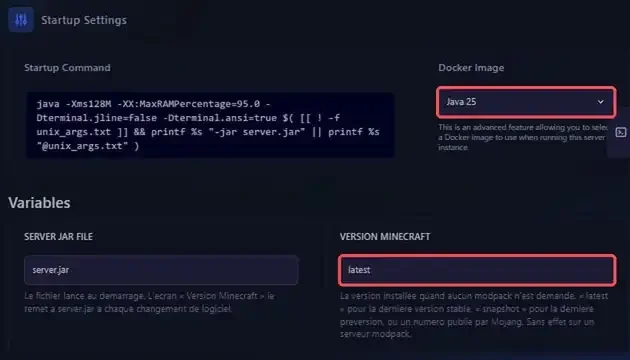
In the same tab, the panel describes the VERSION MINECRAFT variable as the version installed when no modpack is requested, with latest for the latest stable version, snapshot for the latest pre-release, or a version number published by Mojang. It has no effect on a modpack server. To change versions, the Versions tool in the next step remains the simplest method.
4. Pick the software and version in Versions
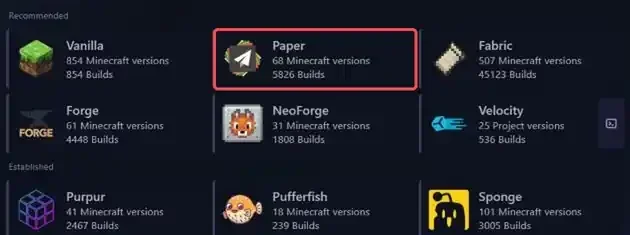
In the side menu, under CONFIGURATION, click Versions. The catalogue groups server software by category.
| Category | Software offered |
|---|---|
| Recommended | Vanilla, Paper, Fabric, Forge, NeoForge, Velocity |
| Established | Purpur, Pufferfish, Sponge, Spigot, BungeeCord, Waterfall |
| Experimental | Folia, Quilt, Canvas, DivineMC |
| Miscellaneous | Arclight, Mohist, Magma, Leaf, Leaves, ASPaper |
| Limbos | NanoLimbo |
Click the software you want, for example Paper.
The list of available versions appears, from newest to oldest. The Show Snapshot Versions button also shows pre-releases, and Go Back returns to the catalogue. Click the version you want, for example 26.3.
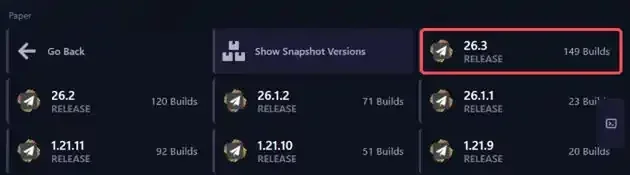
Snapshots are test versions released before the official release. Avoid them on a server your players use, and do not go back to an older stable version with the same world afterwards.
5. Install the version
The install window (for example Install Paper 26.3) opens.
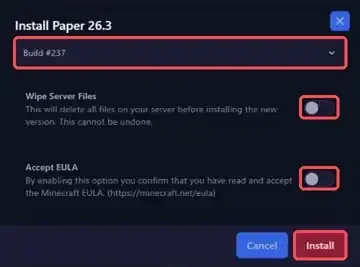
| Element | Purpose |
|---|---|
| Build | Picks the exact build of the version (for example Build #237) |
| Wipe Server Files | Deletes all files on the server before installing the new version |
| Accept EULA | Confirms that you have read and accept the Minecraft EULA |
| Install | Starts the installation |
The Wipe Server Files option deletes all your server files, including your world, plugins and configurations, and the panel states that this cannot be undone. Leave it off for a simple version change. In our tests, an install without this option replaced the server.jar file and left the other files in place.
The Accept EULA option means that you accept the Minecraft End User License Agreement published by Mojang (available at https://minecraft.net/eula). You accept it yourself, as the server operator. Without this acceptance, the Minecraft server refuses to start.
Click Install, then wait for the installation to finish before moving on.
6. Start the server and check the console
If needed, replace your plugins or mods with the compatible versions prepared in step 2, through the Files tab, the Plugins tool or over SFTP. Then start the server with Start and watch the Console.
On the first start, the server converts the world to the new format, which can take longer than a usual start. Let it finish without interrupting it. Keep an eye out for errors related to Java, plugins or mods. On Paper, the plugins command, typed in the console without /, lists the loaded plugins.
7. Connect players with the right version
On Minecraft Java, the client must run the same version as the server, otherwise the connection is refused. Each player picks their version in the Minecraft launcher, by creating a configuration (installation) set to the server's version.
On a Paper server, the ViaVersion plugin lets players on a newer version than the server connect anyway. It only works in that direction. To accept clients older than the server, add ViaBackwards, and ViaRewind for very old versions.
ViaVersion translates the network protocol, it does not add newer blocks or items to the server. Players play with the content of the server's version.
If you run into trouble
❌ The server stops with an UnsupportedClassVersionError
This message means the Java version is too old for the installed Minecraft version.
java.lang.UnsupportedClassVersionError: ... has been compiled by a more recent version of the Java Runtime (class file version 65.0), this version of the Java Runtime only recognizes class file versions up to 61.0
- Compare the installed Minecraft version with the table in step 3
- In Startup, pick the right image in Docker Image
- Restart the server and check the console
❌ The server stops and asks you to accept the EULA
You need to agree to the EULA in order to run the server. Go to eula.txt for more info.
- Run the install again from Versions with Accept EULA enabled, or open the
eula.txtfile in Files and change theeula=falseline toeula=true - Both actions mean that you accept the Minecraft EULA
- Restart the server
❌ Players are rejected when connecting
- Check that the client version in the launcher is exactly the server's version, including the minor version
- On Paper, install ViaVersion to accept newer clients, and ViaBackwards for older clients
- If you use a proxy (Velocity, BungeeCord), check that it is up to date as well
❌ A plugin or mod prevents startup
- Find the name of the plugin or mod mentioned in the error in the Console
- Replace it with a version compatible with the target version, or remove it temporarily
- On a modded server, check that the loader version (Fabric, Forge, NeoForge) matches the mods
❌ The world is damaged or items have disappeared
- Stop the server right away so the situation does not get worse
- Reinstall from Versions the version you were using before the change
- Then restore the backup from step 1, and restart
Best practices
- Wait a few days after a major release before upgrading, so your main plugins and mods have time to be released for the new version
- Keep several backups taken at different times, not just the latest one
- Let your players know the date of the change and the version to install in their launcher
- Target a specific version rather than the very latest if an essential plugin is not compatible yet
- Never go back to an older version on the same world, restore the matching backup instead
Need help?
If the server will not start after the version change, or if you are unsure which version to pick for your plugins, our team is here. Open a ticket in the Technical department from your client area, fill in the Related Product field with the server in question, and include the starting version, the target version and the error shown in the console.
Your Minecraft server now runs on the version of your choice 🎮