Context
In RuneScape: Dragonwilds, a dedicated server is found from the game's worlds screen, in the Public tab. According to Jagex, you type the exact world name in the search bar, confirm with Enter, and the server shows up after a few seconds.
When it does not show up, the cause is almost always one of the following. This guide goes through them in the order we recommend checking them.
Requirements
- An active RuneScape: Dragonwilds server on the Winheberg game panel
- Access to the server's Console, Startup and Files tabs on panel.winheberg.com
1. Check that the server has finished starting
The server only becomes visible once its session is created. In the Console tab, the state must be Online, and the log must contain this line.

LogOnlineSession: CREATE SESSION - Success
In our tests, it appeared about twenty seconds after startup. If the server has just been launched, wait a moment before searching.
2. Search for the world name, not the server name
This is the most common cause. The search in the Public tab looks for the world name, that is the value of DEFAULT WORLD NAME in the Startup tab, not SERVER NAME.
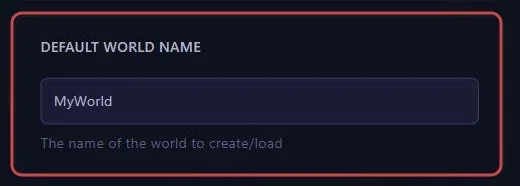
If you imported a world or switched worlds, it is that world's name you need to search for.
3. Match the capital letters
According to Jagex, the search is case sensitive. MyWorld, myworld and Myworld do not give the same result. Copy the name exactly as it appears in DEFAULT WORLD NAME.
4. Check that the game and the server run the same version
Jagex lists a version mismatch among the first causes of a server that cannot be found, and it shows up with every game update. Compare the server version, written to RSDragonwilds/Saved/Logs/RSDragonwilds.log at every startup, with the game's.
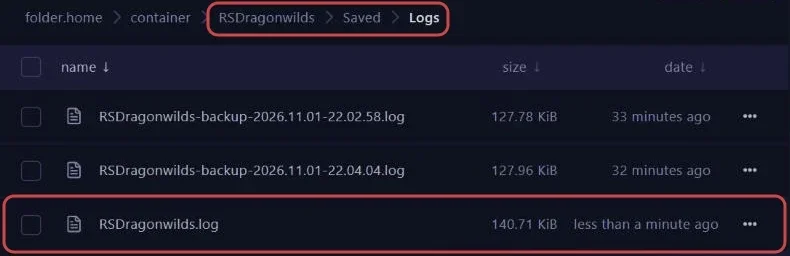
LogNetVersion: Set ProjectVersion to 1.0.1.3. Version Checksum will be recalculated on next use.
If they differ, restart the server with AUTO UPDATE set to 1, as explained in our guide "How to Update Your RuneScape: Dragonwilds Server".
5. Check the world name after a change
A typo in DEFAULT WORLD NAME does not stop the server, it simply starts on a new world under that wrong name. Your players then search for the old name and find nothing.
In the log, this case shows up as this line, with the name you typed in brackets.
LogDomServerGameMode: No save found for configured world [MyWrold]; creating it
Fix the name in the Startup tab then restart, your original world was not erased.
Jagex's official guide reports that Steam invites do not yet join a dedicated server correctly. Use the search in the Public tab.
Troubleshooting
❌ The server shows up but refuses your players
- If a password is set in WORLD PASSWORD, your players must enter it, see our guide "How to Password Protect Your RuneScape: Dragonwilds Server"
- Check that their game runs the same version as the server
- Make sure no player was banned by mistake, only the server owner can lift a ban
❌ The server stops on its own
- Open
RSDragonwilds/Saved/Logs/RSDragonwilds.logand read the last lines before the stop - Logs from previous startups are kept in the same folder as
RSDragonwilds-backup-<date>.log
Need help
If your server still cannot be found after all these checks, open a ticket with our support team from your client area, Technical department, with the server in the Related Product field. Include the exact name of your world, our team can check the server session with you.
Your players will be able to find you. 🎮