Context
You are renting a Satisfactory server at Winheberg and you want to join it for the first time? Whether it's to explore the map, automate your production lines, or optimize your output with friends, using a dedicated server is the ideal solution to keep your factory running continuously. Connecting is very easy directly from the in-game server manager.
This guide explains step by step how to add your Satisfactory server to your game, and what to do in case of a certificate or connection issue.
1. Find your server IP address
To join your server, you must first retrieve its connection details.
- Log in to your control panel
- Select your Satisfactory server
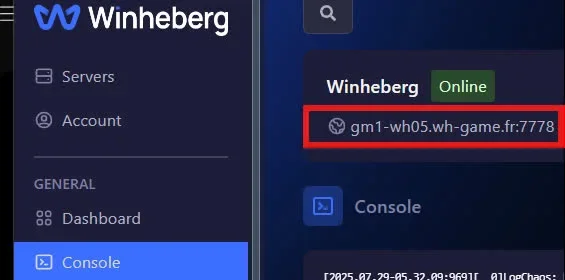
- Locate the server IP address on the main page
- Note the associated connection port as well
On your panel, the connection address is formatted as IP:PORT (for example 192.168.1.1:7777). Make sure to identify both elements so you can insert them separately into the game's fields.
2. Launch Satisfactory and access the manager
Open your Satisfactory game on your computer, then follow these steps.
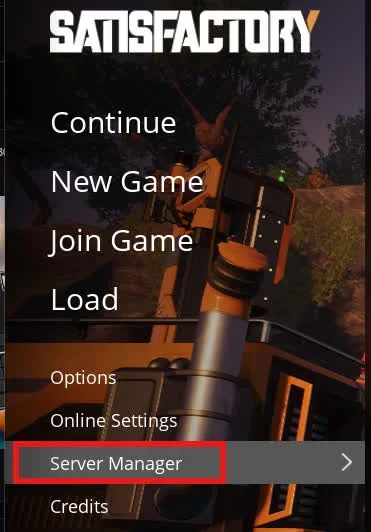
- From the game's main menu, click on the Server Manager button
3. Add the server
You must now declare your dedicated server in the game client.
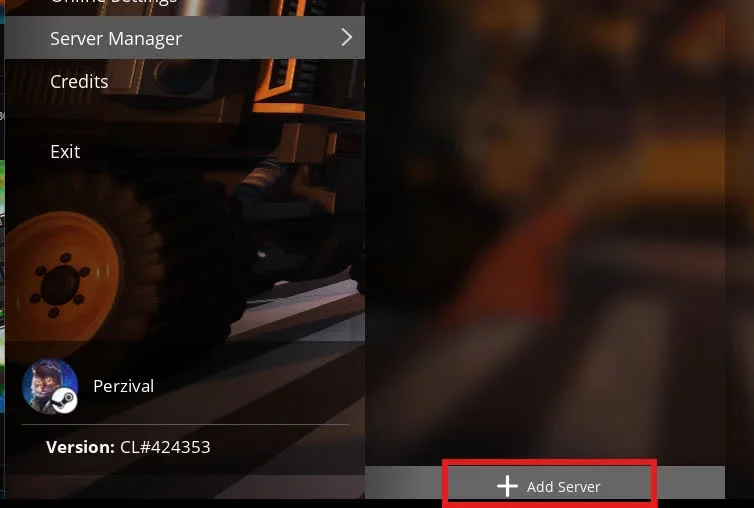
- Click on the Add Server button at the bottom of the screen
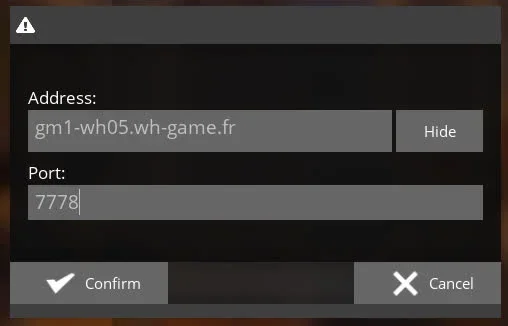
- Enter your server's IP address and port (retrieved in step 1) into the provided fields
- Click on Confirm
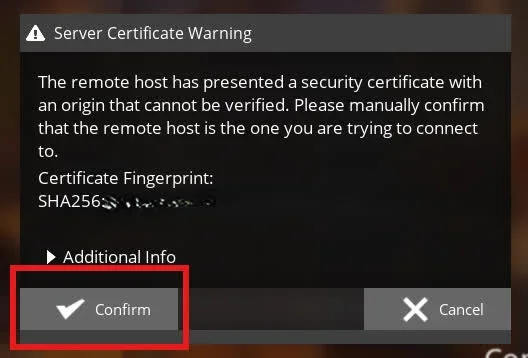
- A security prompt will appear, validate the connection certificate by clicking on Confirm
4. Join the server
Once the server is added and authenticated, it appears in your server list.
- Select your server from the left-side list
- Click on Join Game at the bottom right
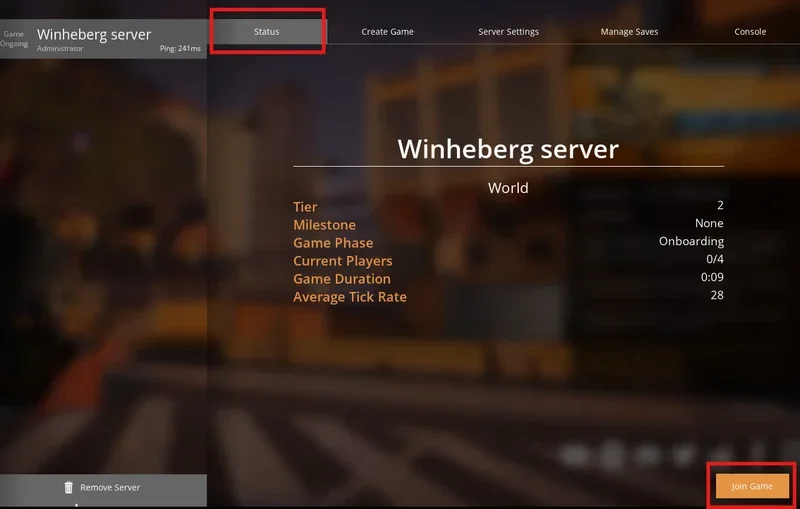
If no game exists on the server yet, create one from the manager by choosing a starting area, see How to Change the Starting Area of Your Satisfactory Server
Troubleshooting
Here are the most common errors when connecting to a Satisfactory server.
❌ "Encryption Token Invalid" or certificate rejection error
If the game refuses to connect for security reasons or an invalid token.
- This is due to a local certificate desynchronization in the game
- Remove the server from your in-game manager
- Completely restart Satisfactory
- Re-add the server with the IP and port to force the validation of a new certificate
❌ Server shows offline or connection crashes (Timeout)
If your server remains grayed out or the connection spins endlessly.
- Check that no spaces were accidentally pasted at the beginning or end of the IP address
- Make sure your server is in the Running state on your control panel
- Verify there is no version mismatch between your game and the server (if an update was just released, restart your server from the panel to apply it)
- If the Connection Timed Out message persists, follow our guide How to Fix the "Connection Timed Out" Error on Satisfactory
Best practices
A few recommendations for smoothly managing your Satisfactory server.
- Set an Administrator password upon your first connection to prevent unknown players from joining your session
- Regularly back up your worlds from the integrated manager or via your panel's file manager before making major changes to your factories
- Wait a few minutes during the very first server startup, as the initial world generation can take some time
- To start over from scratch, follow How to reset your Satisfactory world
Need help?
If you can't add your server to the manager, if the certificate refuses to validate, or if you experience a persistent Timeout error, don't hesitate to contact our support by attaching a screenshot of the error and your server's IP address.
You are now connected to your Satisfactory server, ready to build your giant factory with your friends 🎮.